
Scenario Task Configuration: Channels, Regions, Parameters, and Alarms
| Item | Details |
|---|---|
| Who this is for | Deployment engineers, integrators, and advanced users configuring built-in algorithms for a real task |
| What you will accomplish | Select an algorithm for a channel, set its area, parameters, and schedule, inspect visual output, and query or export events |
| Prerequisites | Complete the first detection and prepare a channel that plays correctly |
| Estimated time | 35–50 minutes |
| Device required | A running CosmoEdge instance is required; an offline video is sufficient and no camera is required |
| Final acceptance result | Live Display analyzes the intended area, settings persist, positive and negative results are explainable, and Event Center can query or export records |
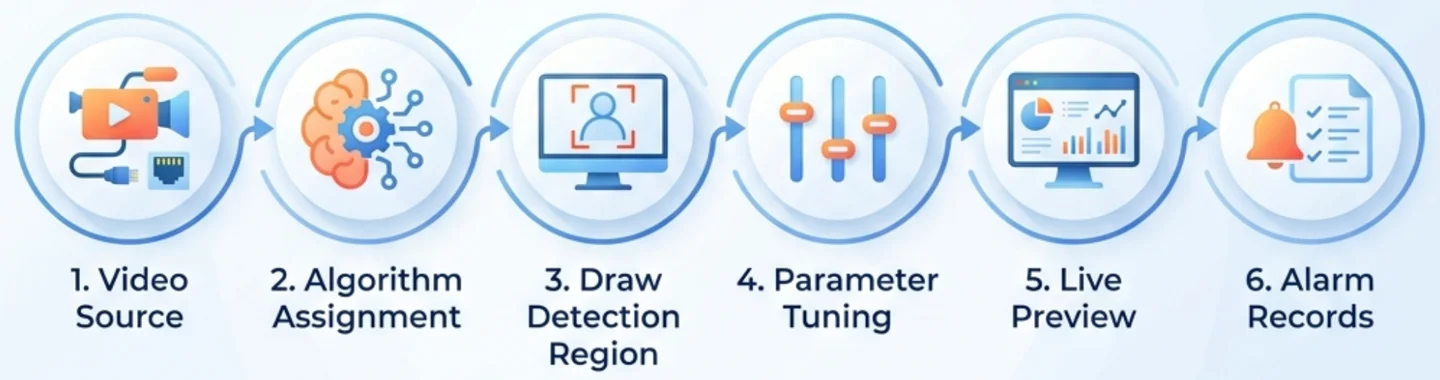
This guide first walks through No Safety Helmet, then uses Post Absence Detection to exercise target-count and duration rules. The reusable sequence is:
- Select a channel.
- Select an algorithm.
- Draw the detection area.
- Set detection and alarm parameters.
- Set the running strategy.
- Verify live output, events, and exported data.
The current page labels are Detection Area, Parameter Settings, and Running Strategy. There is no separate “Alarm Configuration” page. Alarm interval, count, duration, and deduplication come from Pipeline-node parameters and the running strategy.
1. Understand Areas, Parameters, and Running Strategy
| Setting | What it controls | Typical effect | What it does not control |
|---|---|---|---|
| Detection Area | The spatial part of the image | Which targets proceed into analysis and rule evaluation | It does not change model confidence |
| Parameter Settings | Model thresholds, target size, duration, count, and deduplication | Which output is accepted and when it becomes an event | It does not define active dates or hours |
| Running Strategy | Active dates, hours, and offline-video behavior | Whether the task runs now | It does not change recognition output |
Consequently, “no alarm” can originate in video, task state, schedule, area, model output, or alarm rules. The troubleshooting order later in this guide checks those layers instead of lowering every threshold at once.
2. Complete Example: No Safety Helmet
2.1 Select a Channel
This example uses the reproducible repository sample:
data/test-video/Safety Helmet.mp4If a channel does not exist yet, open Video Access, click Add, select Offline Video, enter a name, and upload the MP4. The project v1.0-videos tag also contains demonstration media.
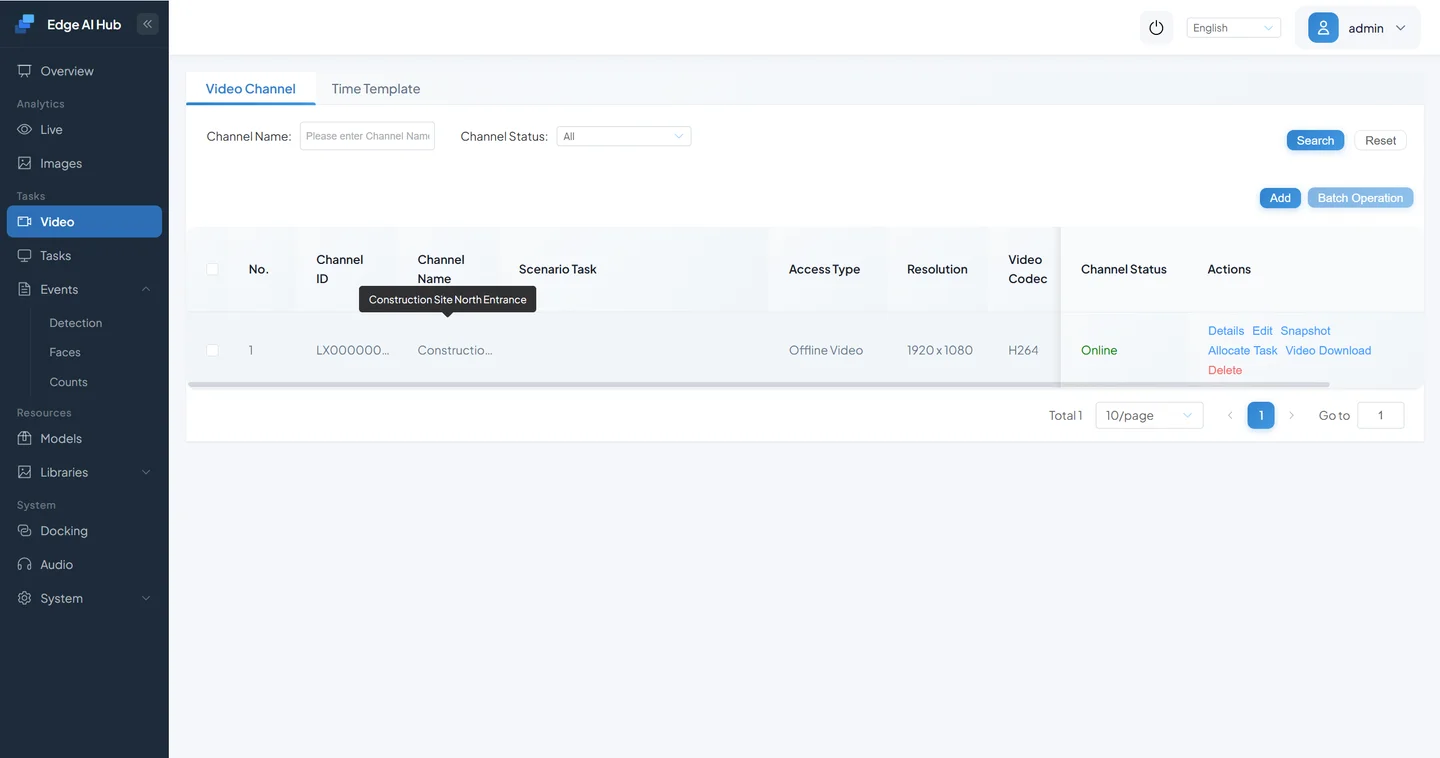
Confirm video playback before opening scenario configuration so that video-access and algorithm problems are not diagnosed at the same time.
2.2 Select the Algorithm and Understand Its Business Chain
- Open Scenario Task Assignment from the channel in Video Access.
- Select No Safety Helmet from the available services.
- Confirm that it appears in the assigned-service list.

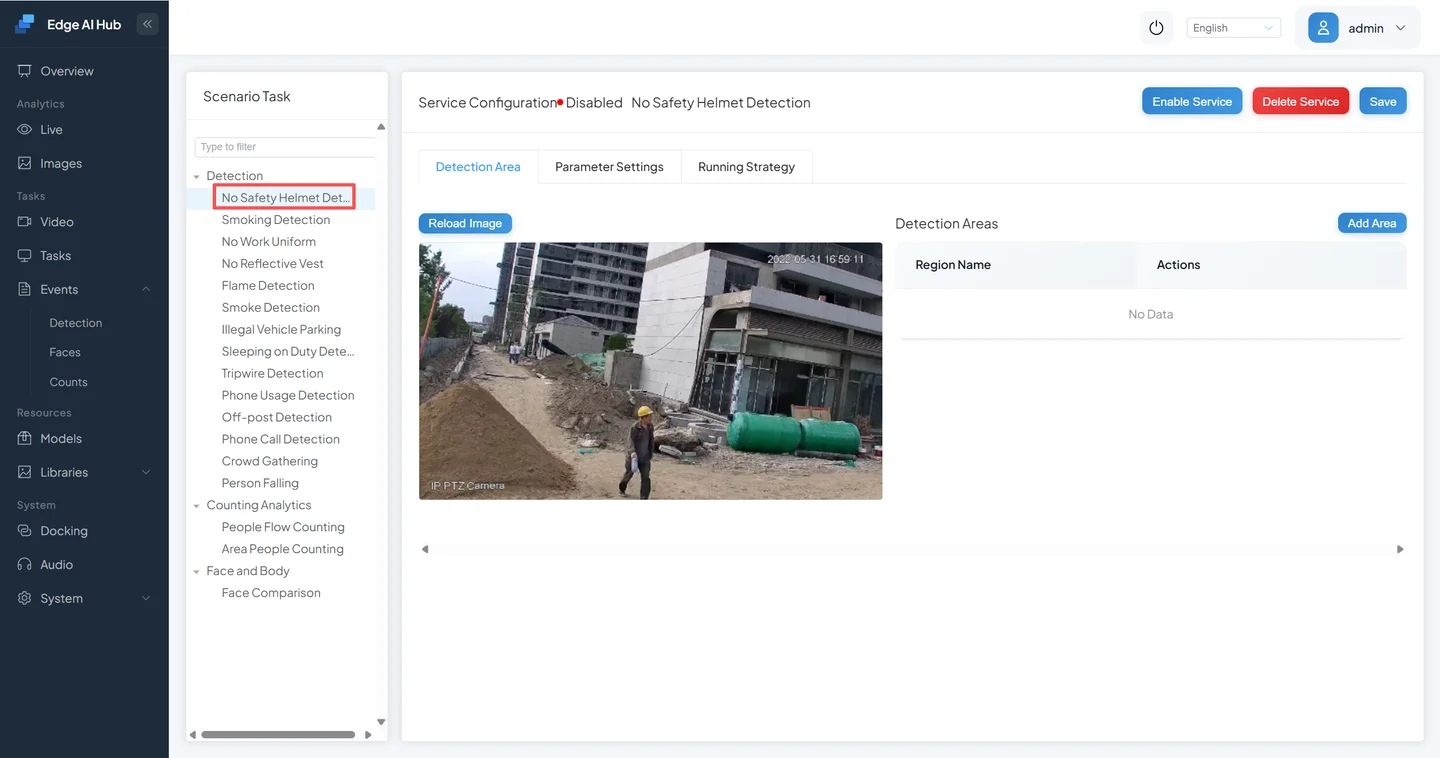
Success condition: the selected algorithm is visible and the Detection Area, Parameter Settings, and Running Strategy sections are available.
To see where the fields come from, open Task Configuration → Scenario Task and find No Safety Helmet.
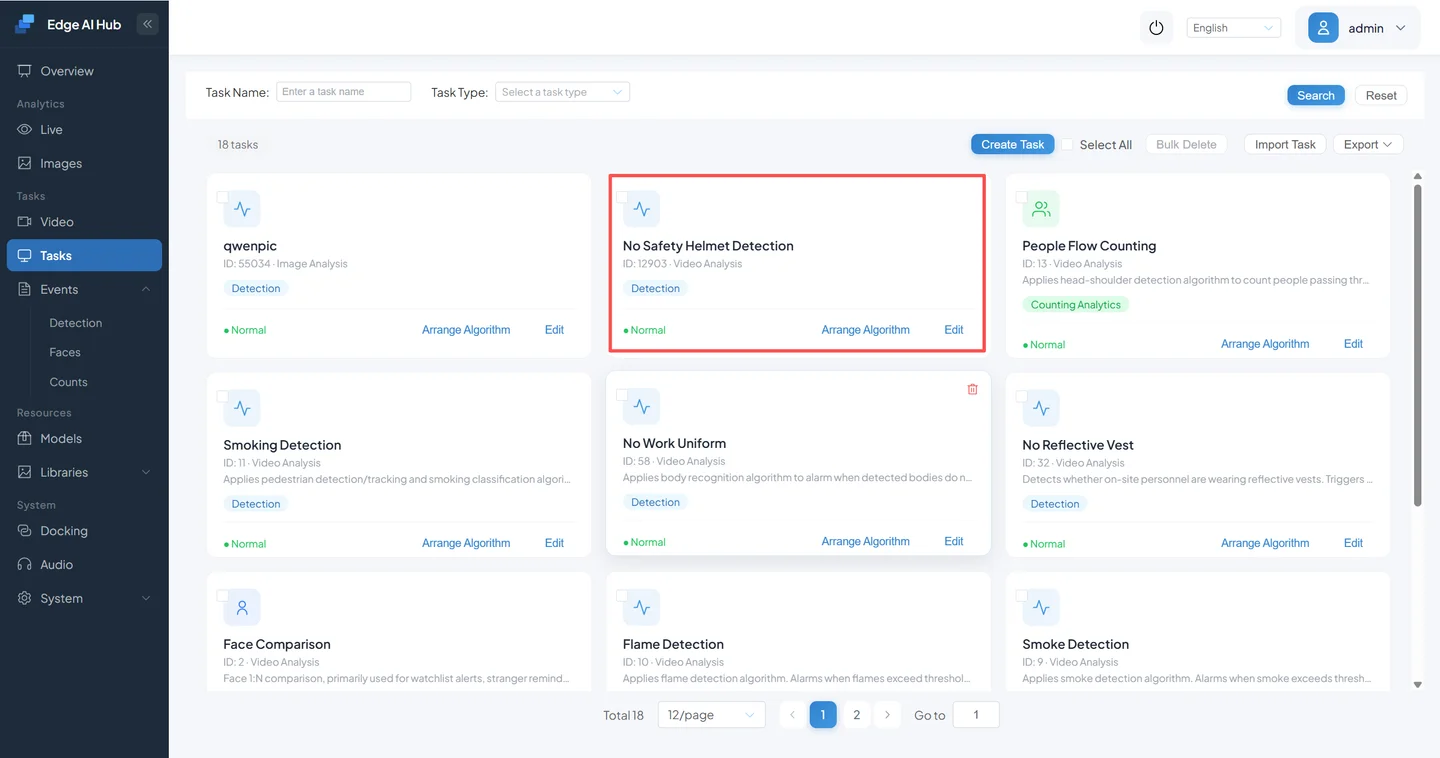
Click Pipeline Orchestration to inspect its nodes and connections.
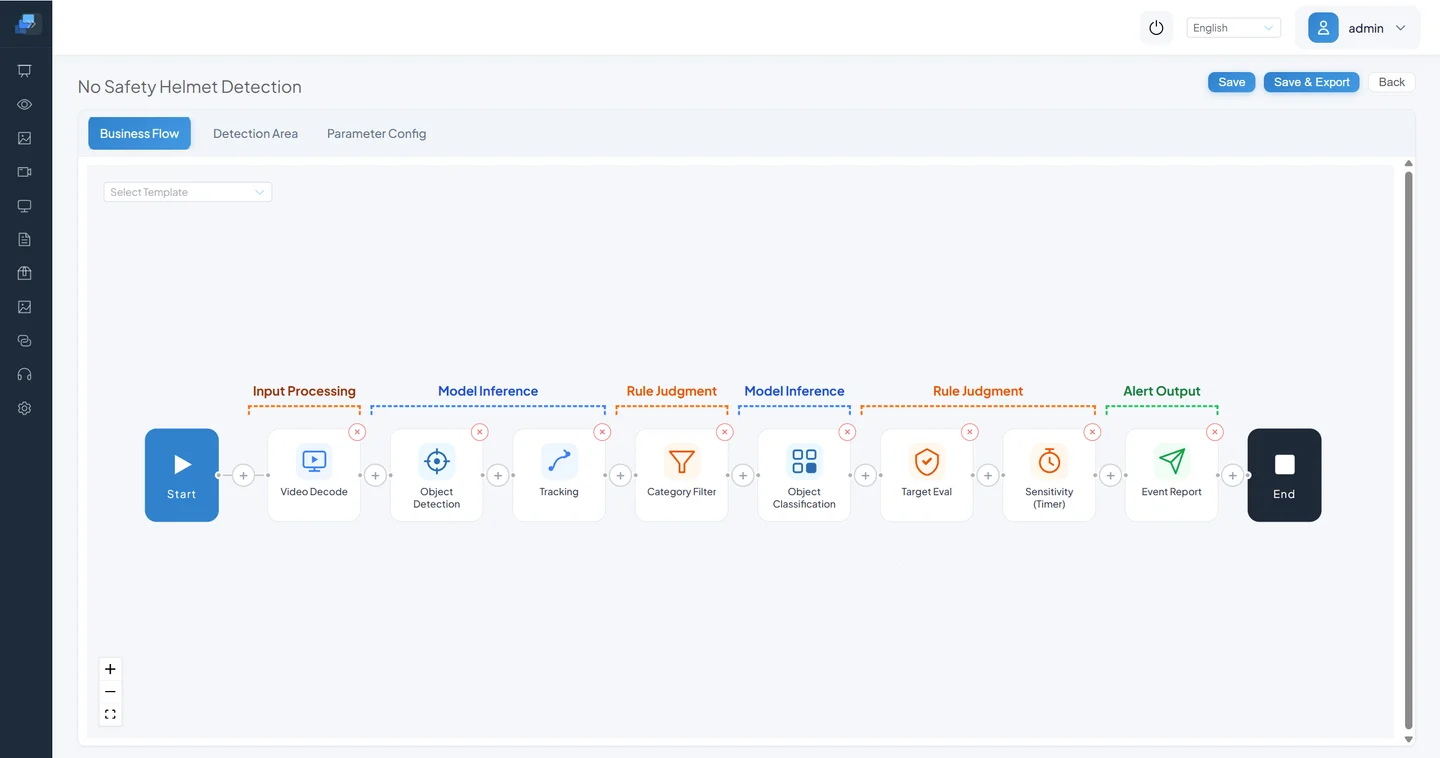
The current built-in template is ordered as follows:
- Video Decode turns the source into frames for downstream nodes.
- Object Detection locates pedestrians.
- Tracking attempts to keep one identity for the same person across frames.
- Category Filter keeps only target classes and sizes that should proceed.
- Object Classification classifies helmet, safety helmet, hatless, or uncertain results.
- Target Evaluation maps classification output to the business condition.
- Sensitivity Calculation suppresses isolated hits using a timer or counter, depending on the installed task.
- Event Report persists output according to interval, count, and deduplication settings.
This is why Detection Area, minimum target size, classification confidence, detection duration, and alarm interval are different settings. They act at different points in the chain. See Pipeline Orchestration when the nodes themselves must change.
2.3 Draw the Detection Area
A task can analyze the full image by default. A region of interest narrows the business location and reduces interference from targets outside it.
Open Detection Area and click Add Area.
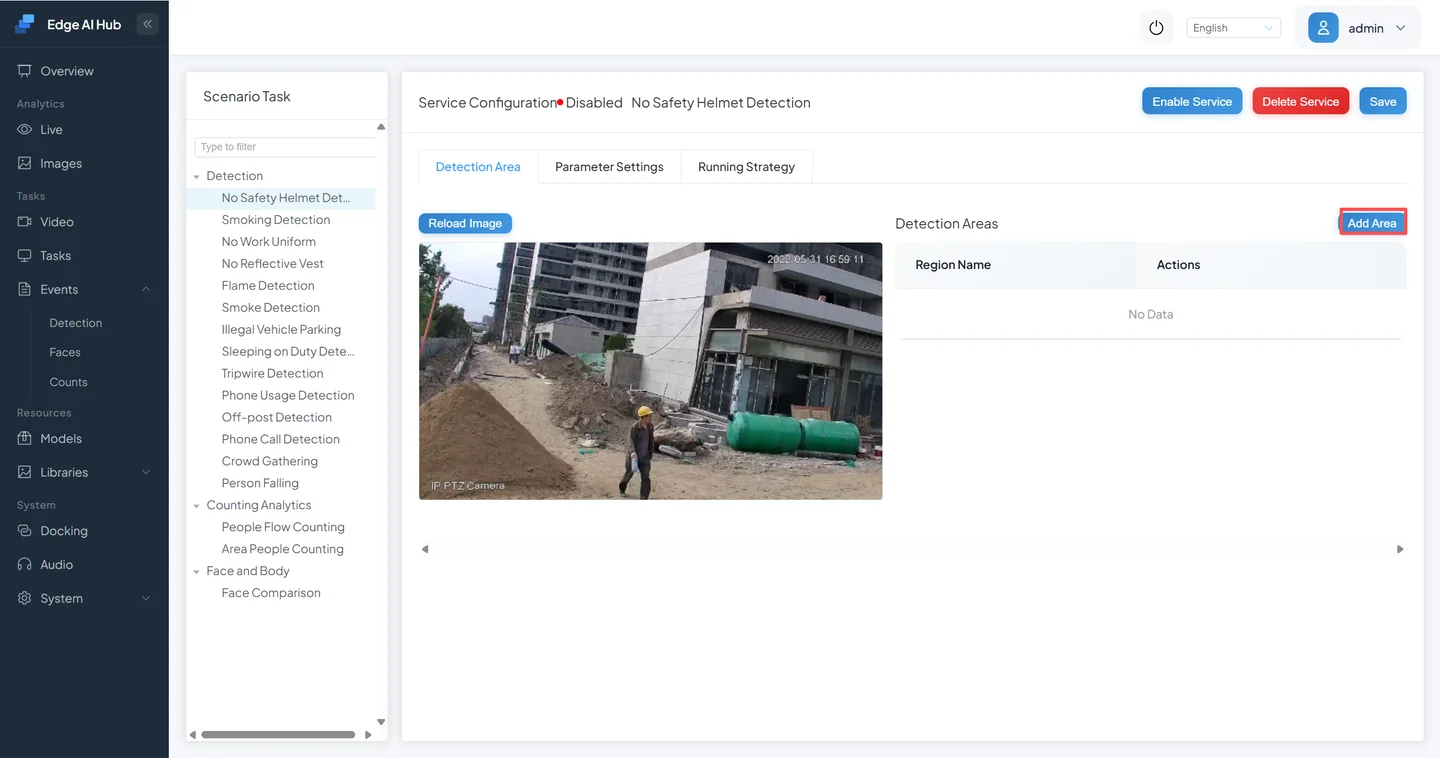
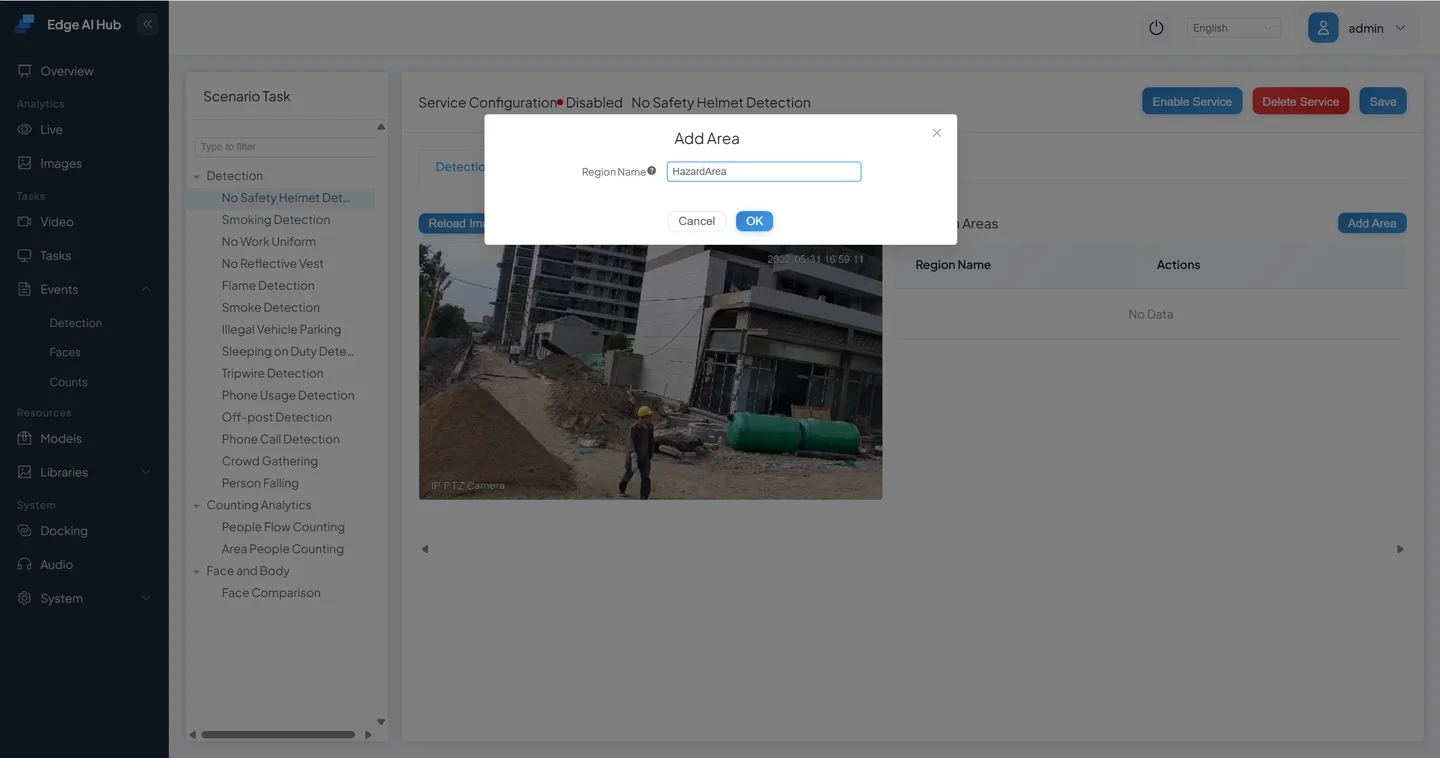
Enter a name that identifies the location, such as “North Entrance Work Area.”
An adjustable polygon appears. Drag its vertices to cover the place where protective equipment is required.
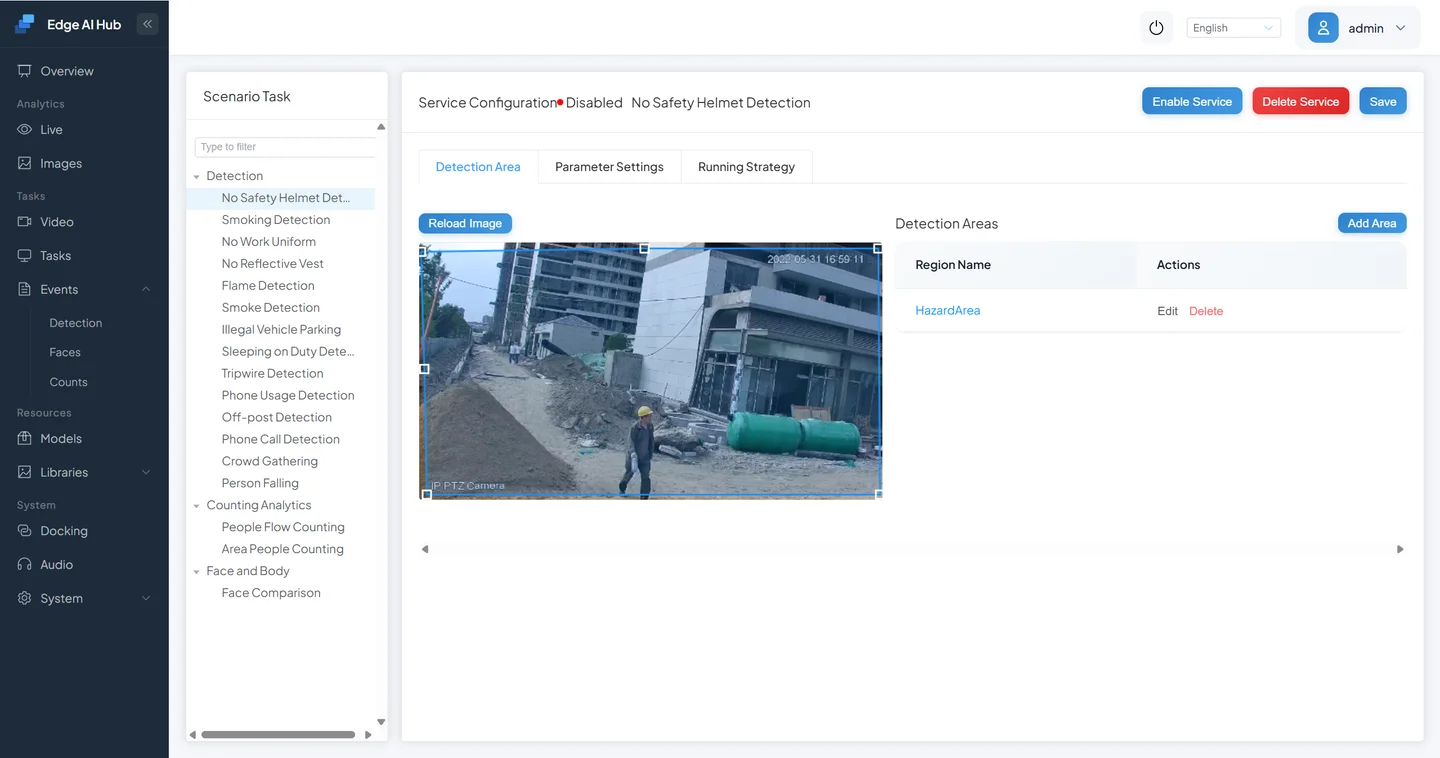
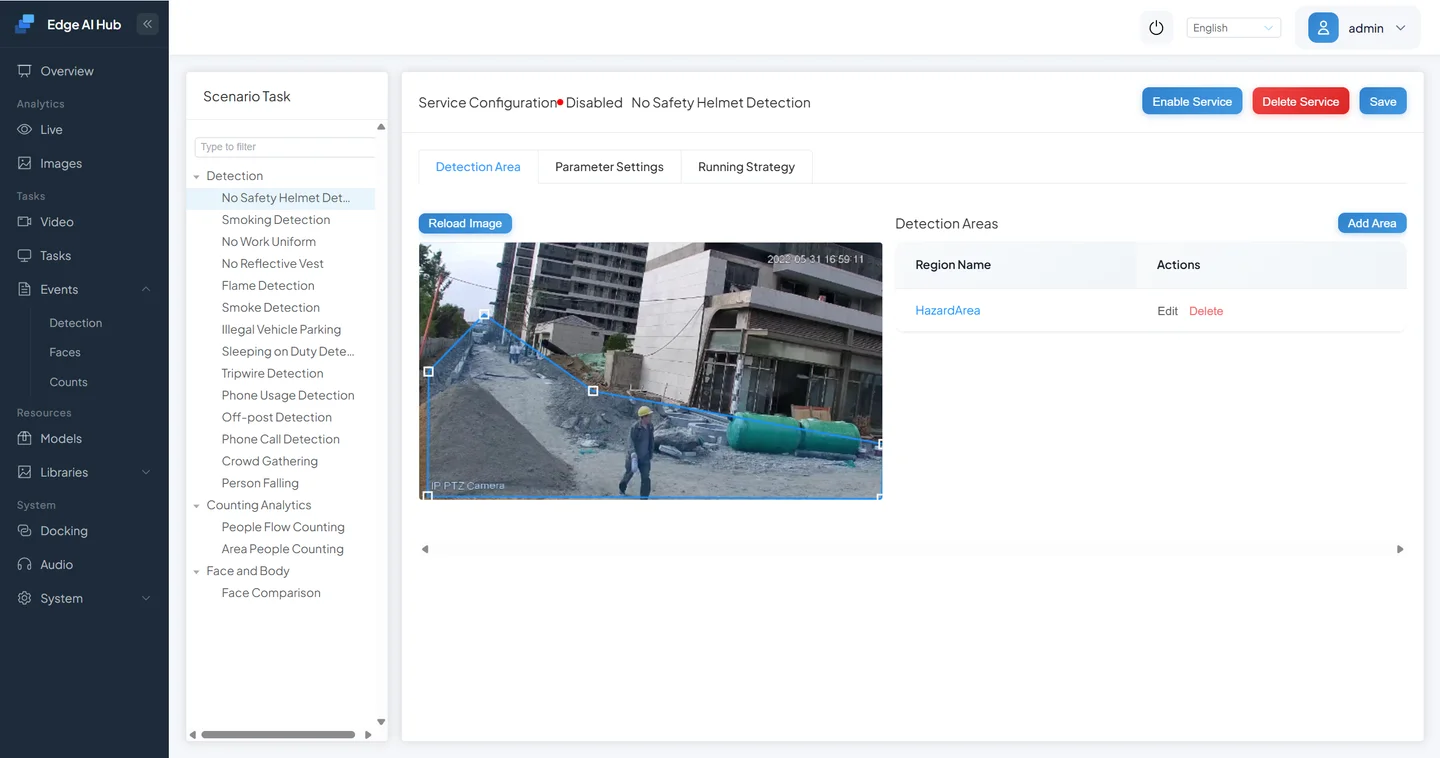
Finish drawing and save the area.
The current page supports up to four independent areas. Cover the complete worker movement zone but exclude posters, reflective displays, and unrelated roads where possible. A very small area admits a target only briefly; a very large area introduces irrelevant targets. Start slightly broad, prove the workflow, then tighten it.
“Only targets in the area proceed” describes the rule chain. An upstream detector may still run on the entire frame; only targets that meet the area condition proceed to the relevant classification or alarm decision. A smaller area does not necessarily reduce inference compute unless the specific Pipeline is designed that way.
2.4 Set Detection and Alarm Parameters
Open Parameter Settings.
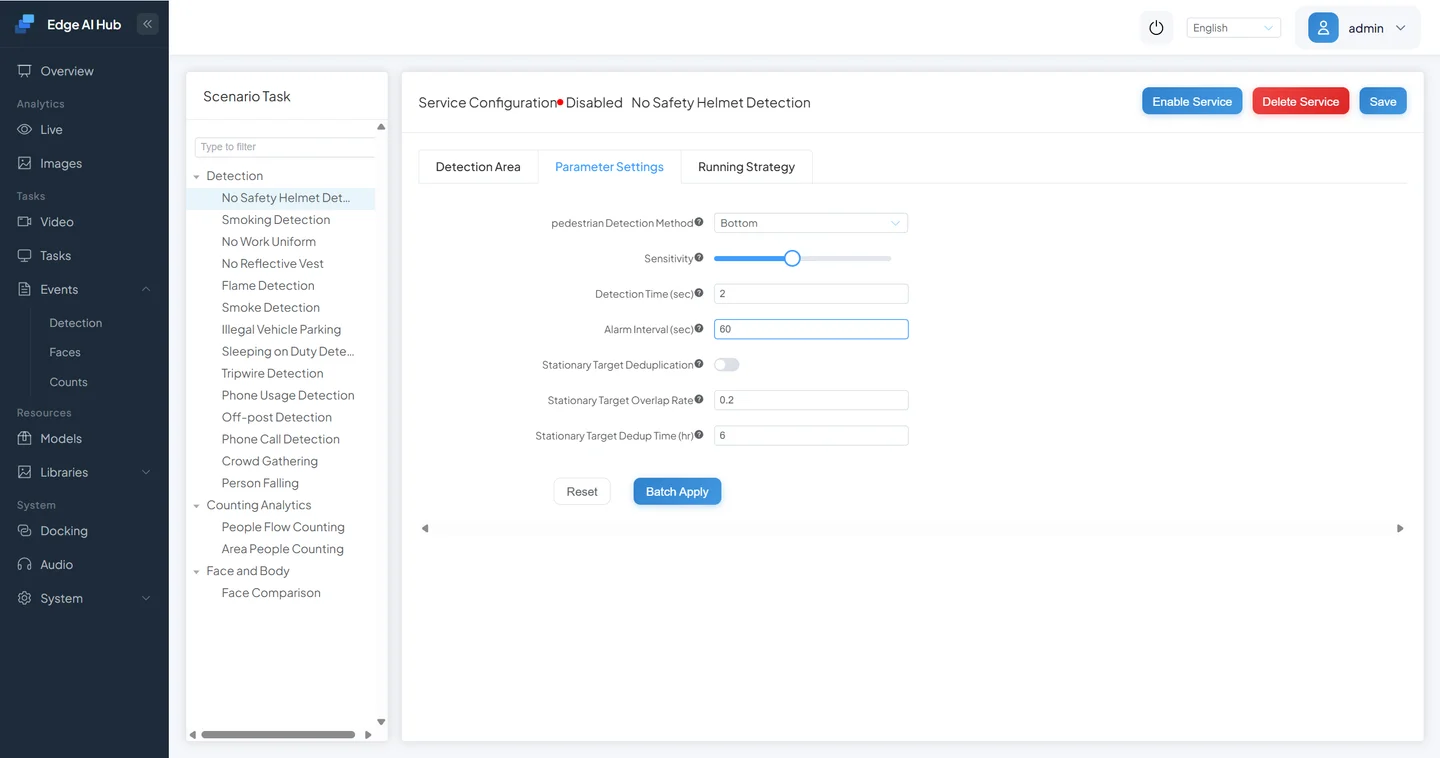
The following names and template values come from the current No Safety Helmet template shared by the Sophon and x86 resource trees. An installed task can contain saved overrides, so the current page value takes precedence.
| Current parameter | Current template value | What it controls | Guidance |
|---|---|---|---|
| Pedestrian Detection Position | Bottom | Whether the bottom, center, or top of the box determines area inclusion | Bottom is usually appropriate for a floor-level area |
| Minimum Pedestrian Size | 60 | Pedestrians smaller than about 60 × 60 pixels do not proceed | Lowering can recover distant targets but increases noise and downstream work |
| Helmet / Safety Helmet / Hatless / Uncertain Confidence | Supplied by model label thresholds | What classification score accepts each class | Tune one class at a time with site-specific positive and negative samples |
| Sensitivity | 5 | The strength of continuous hits accepted by the sensitivity node | Keep the current value first, then tune for isolated false hits or misses |
| Detection Time (seconds) | 2 | How long the condition must remain true before an event | Increasing suppresses transient output but adds delay |
| Alarm Interval (seconds) | 3 | Minimum time between neighboring events | Keep short for demonstration; increase to match production handling |
| Alarm Count | 1 | Maximum reports for the same event type; 0 means unlimited | Set according to the operational response loop |
| Static Target Deduplication | Off | Whether repeated output from the same stationary target is suppressed | Enable only when stationary interference repeats |
| Static Target Overlap | 0.2 | Overlap criterion for treating targets as the same stationary target | Tune only when deduplication is enabled |
| Static Target Deduplication Time (hours) | 6 | Period in which the same stationary target is not reported again | Align with the site's handling cycle |
| Overlay Trajectory on Panorama | Off | Whether the event panorama includes a target trajectory | Enable when a motion trail is useful and confirm image readability |
Some installed tasks use Sensitivity Calculation - Counter, while the current template uses Sensitivity Calculation - Timer. Their fields do not have identical meanings. Do not treat one saved task value as the default for every resource version.
Change one field per iteration and record the input video, old value, new value, and result. A short alarm interval can speed up a demonstration; restore a value that matches production handling afterward.
2.5 Set the Running Strategy and Save
Open Running Strategy and select active dates and time periods. During the first test, the current date and time must be inside an active period.
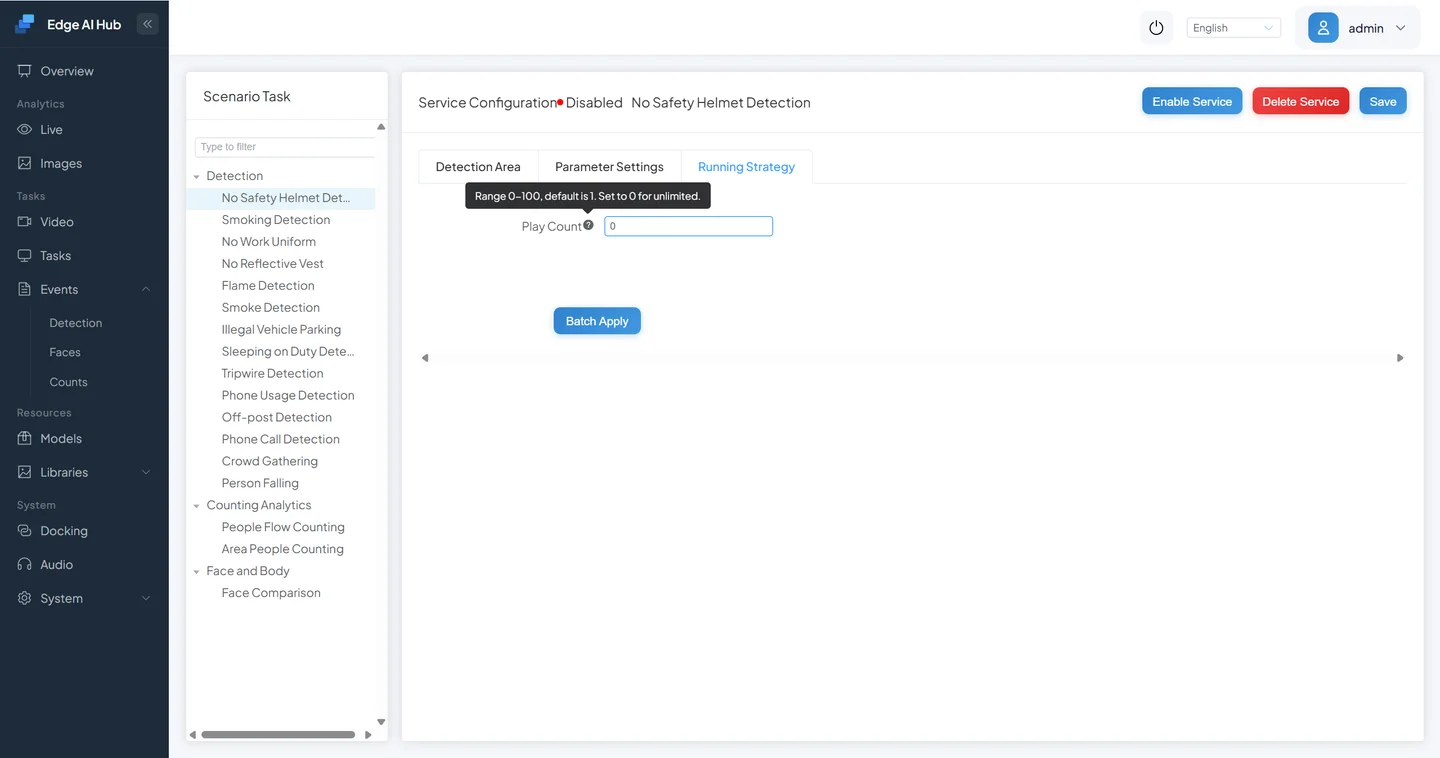
Review the area and parameters, then save.
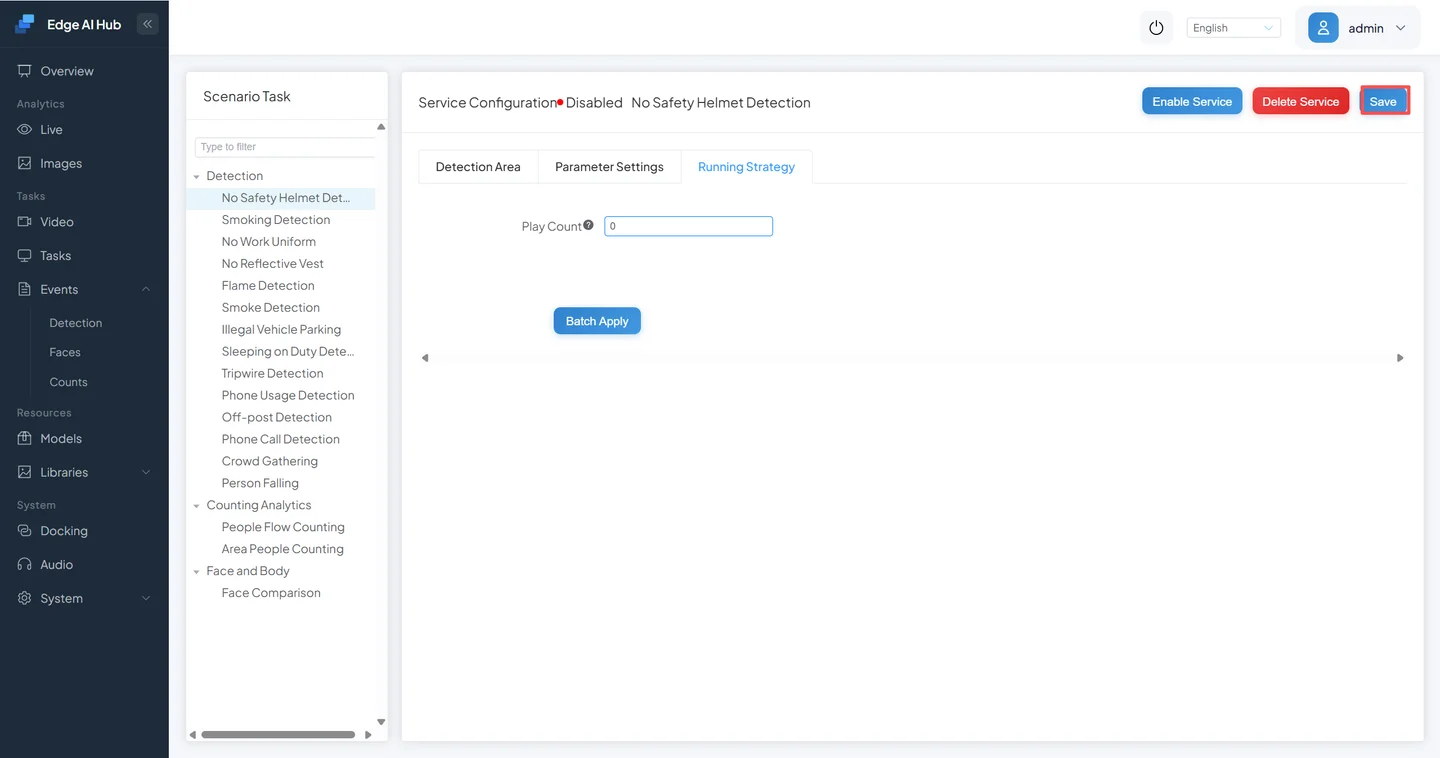
Saving starts the service. Return to Video Access and confirm that the switch is on or the channel is In Progress.
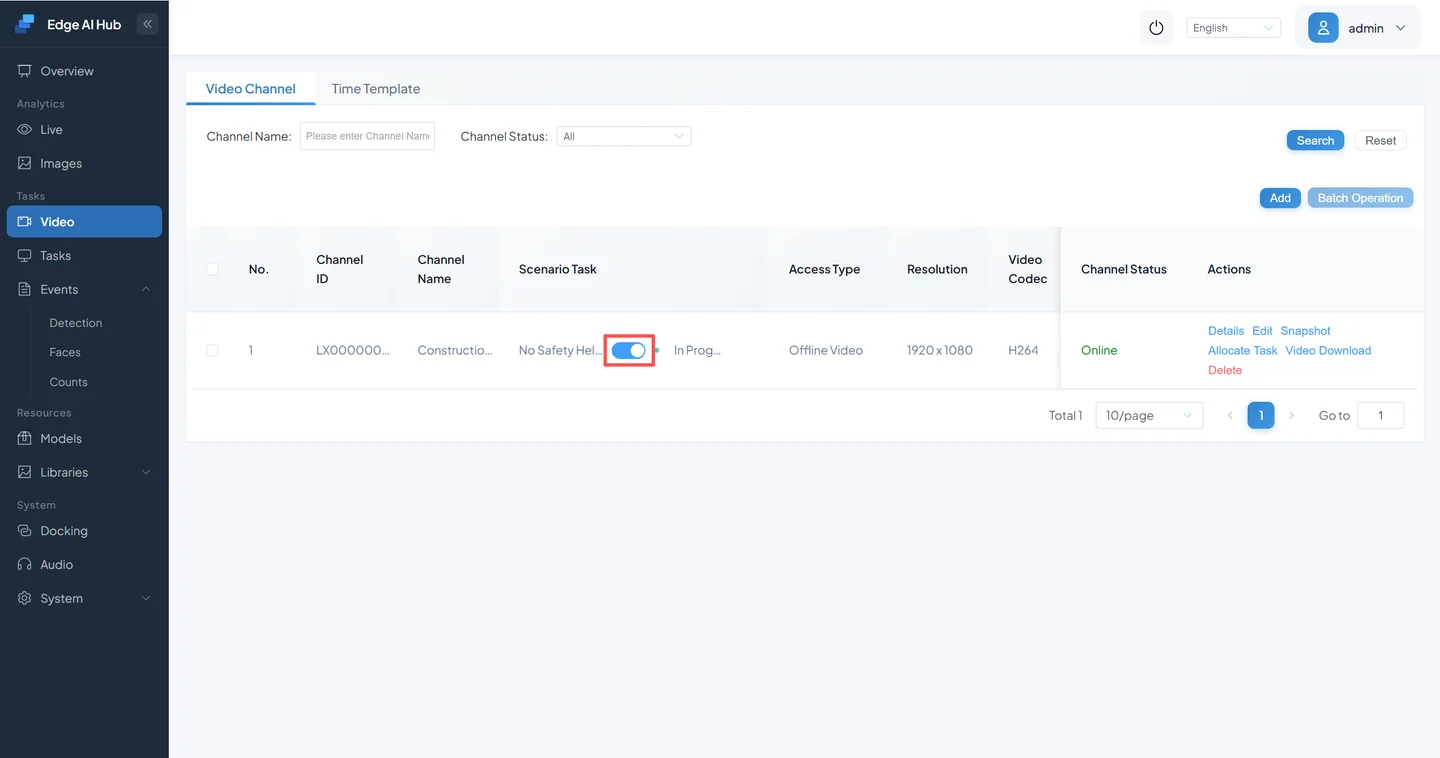
2.6 Verify the Live Visualization
Open Live Display.
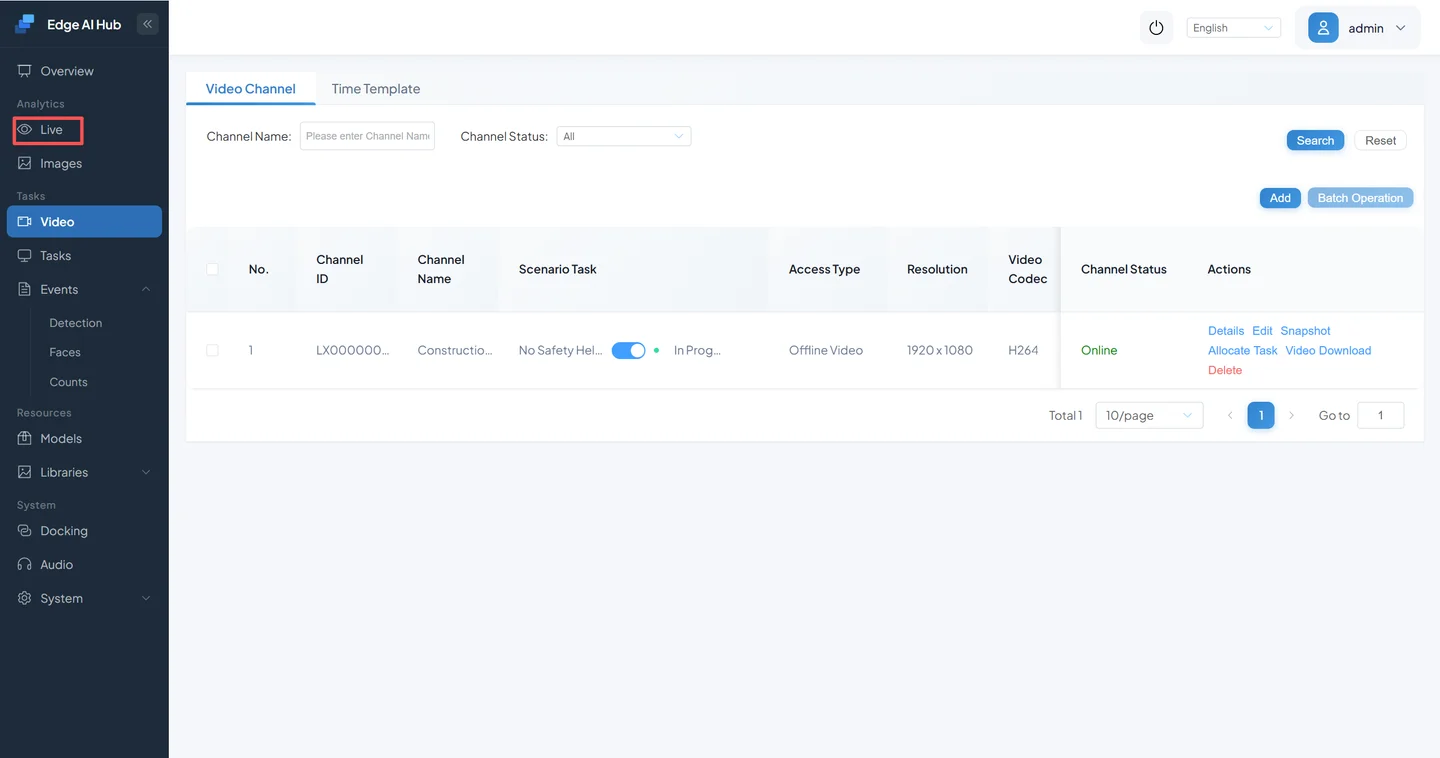
Open channel selection and select the configured channel.
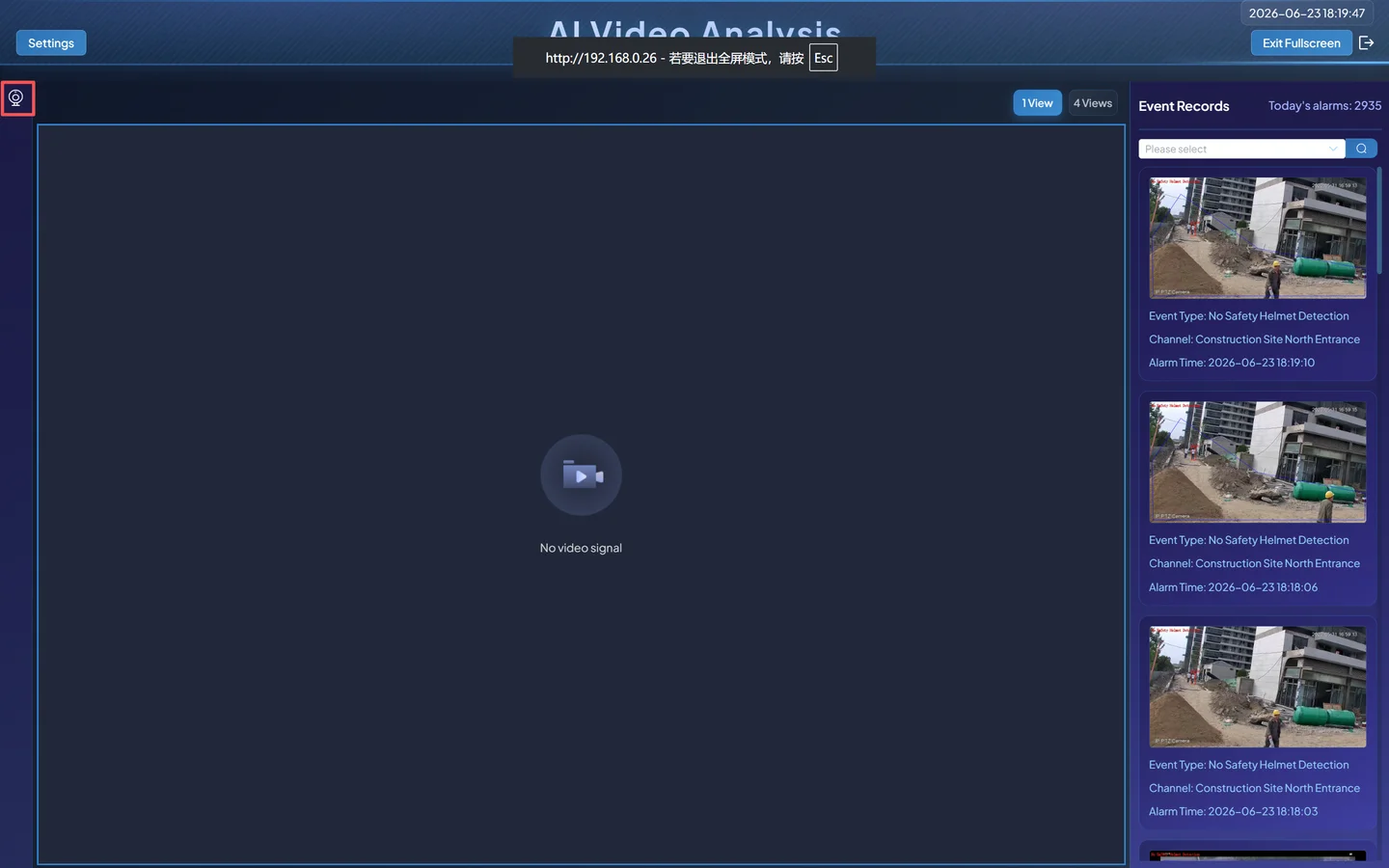
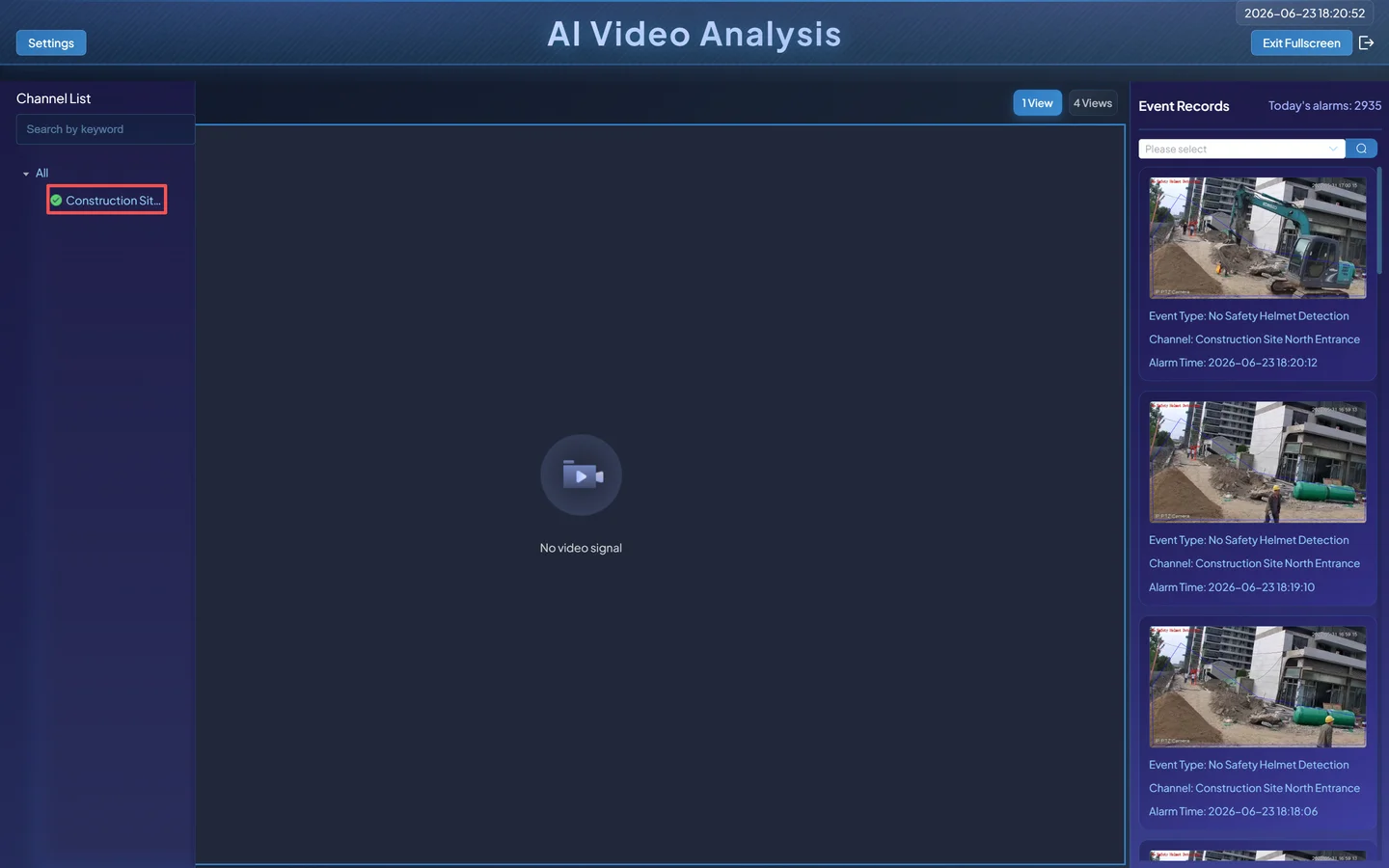
The page can initially play video without an algorithm overlay. Open the overlay selector.
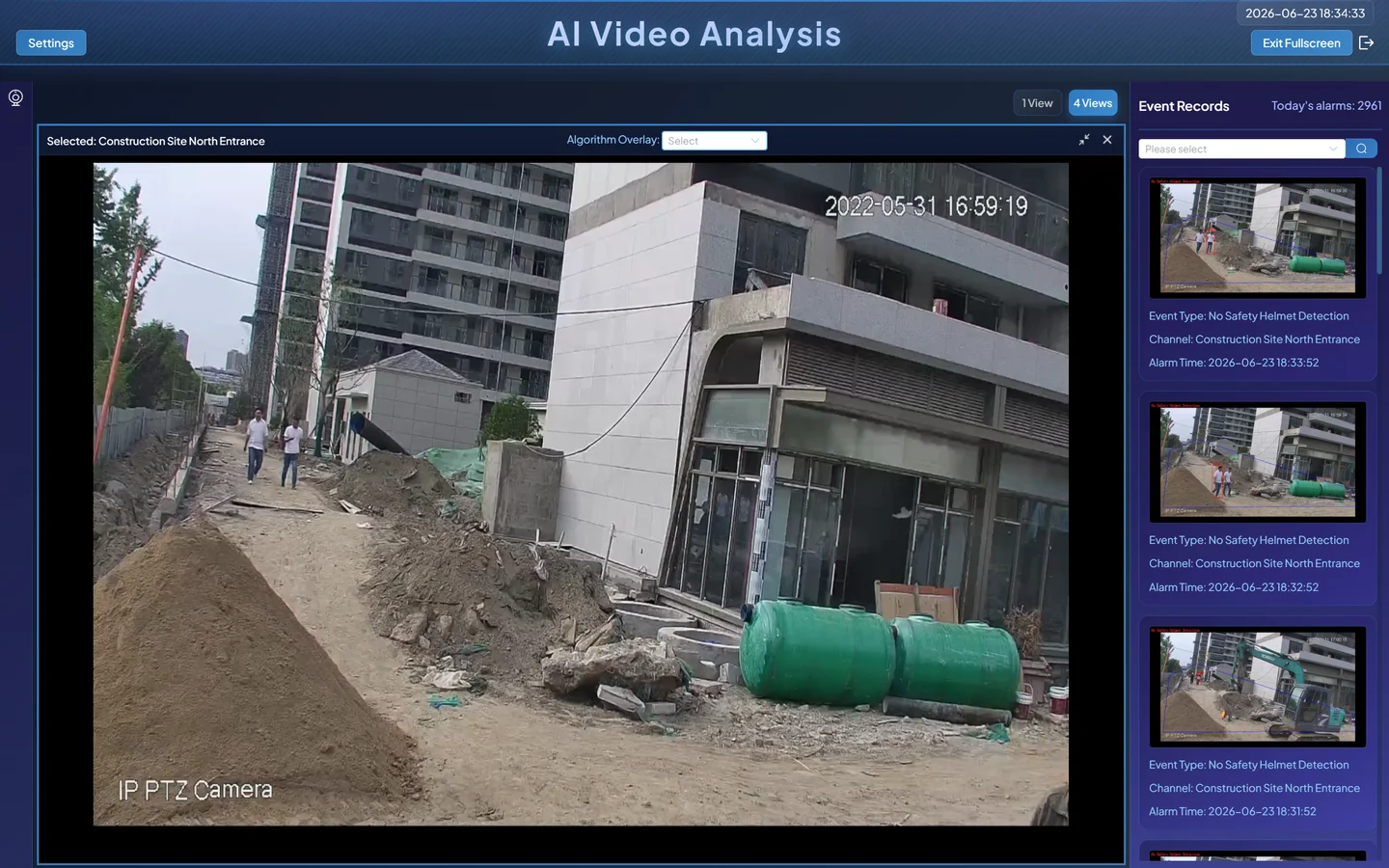
Select No Safety Helmet.
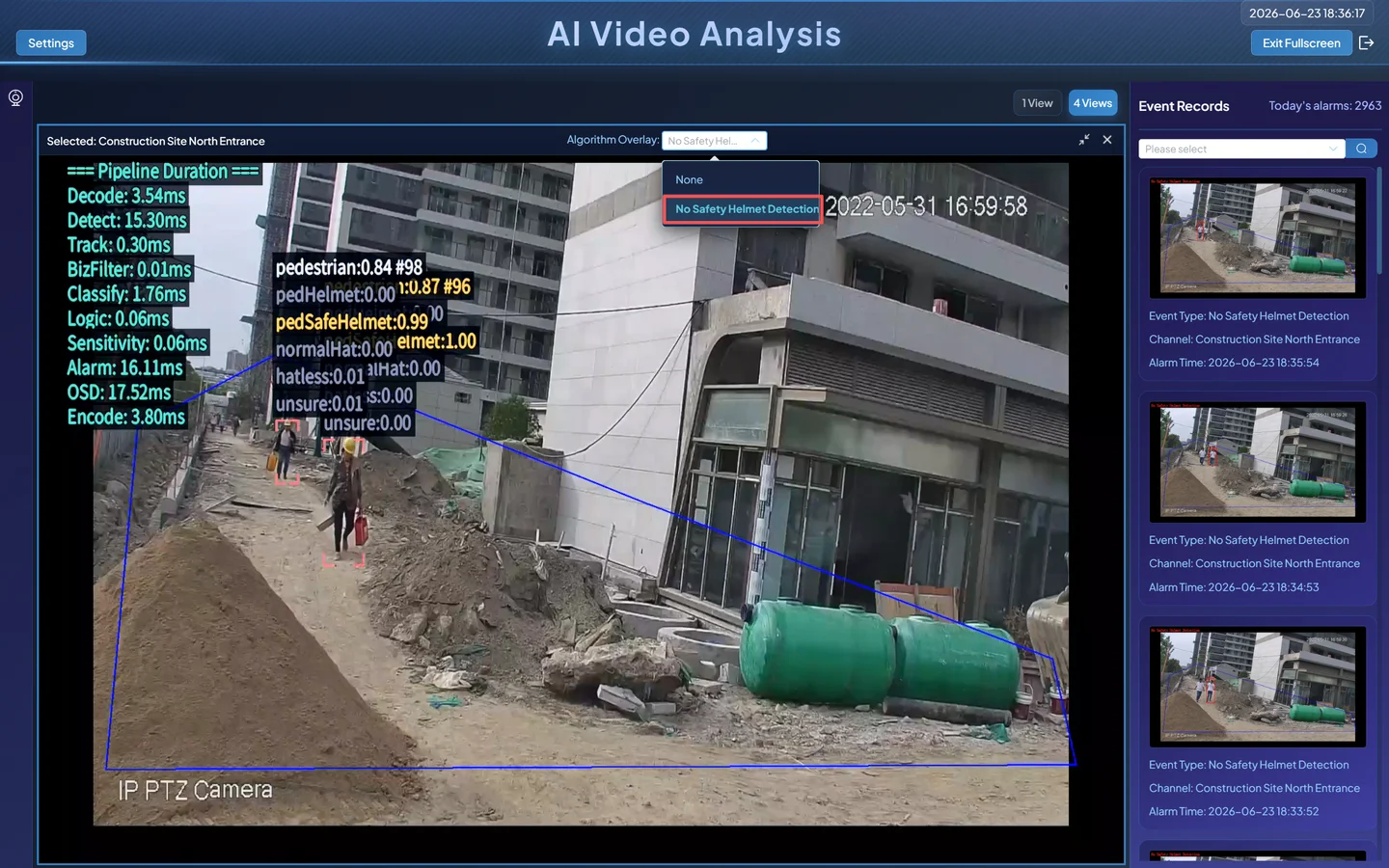
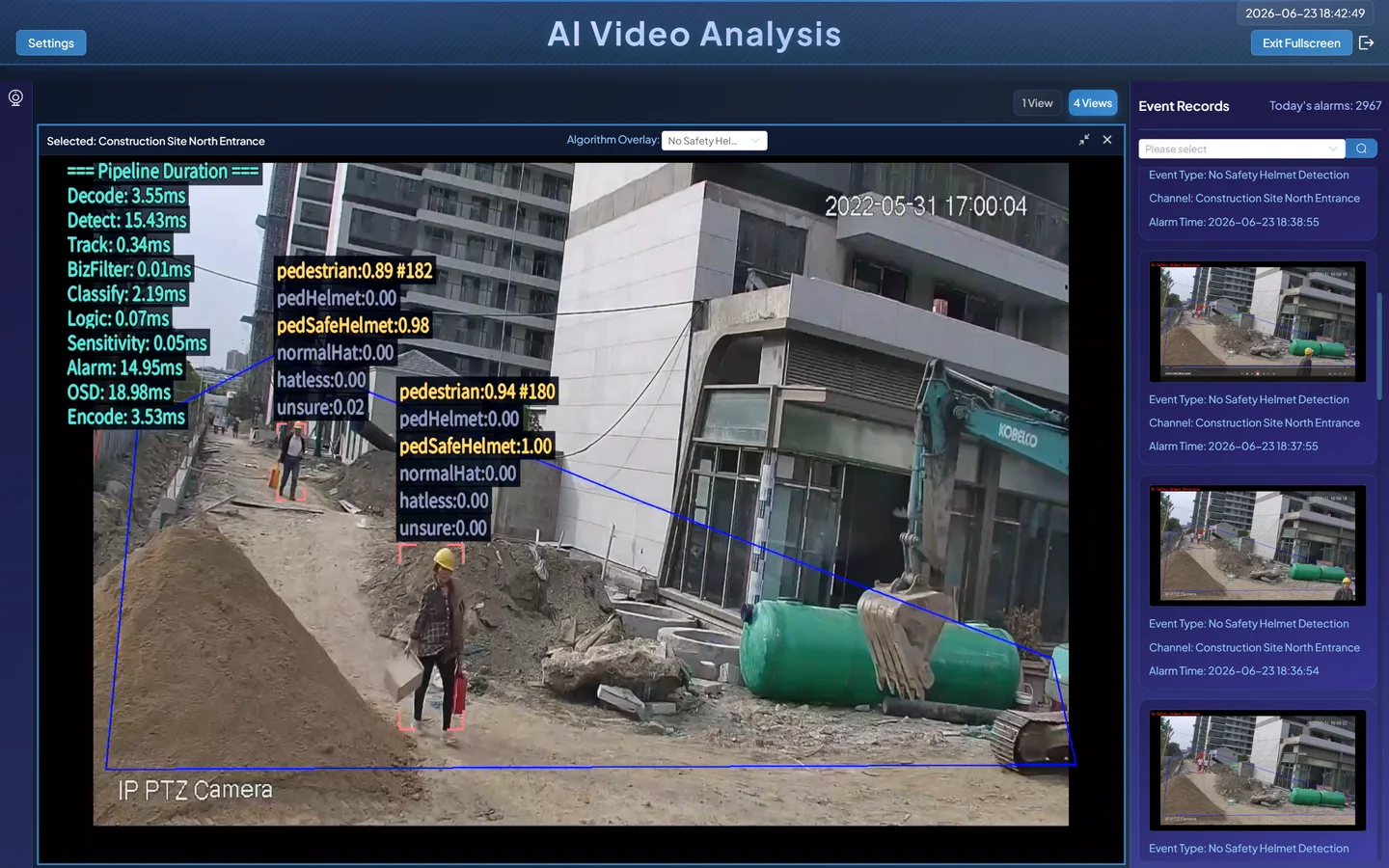
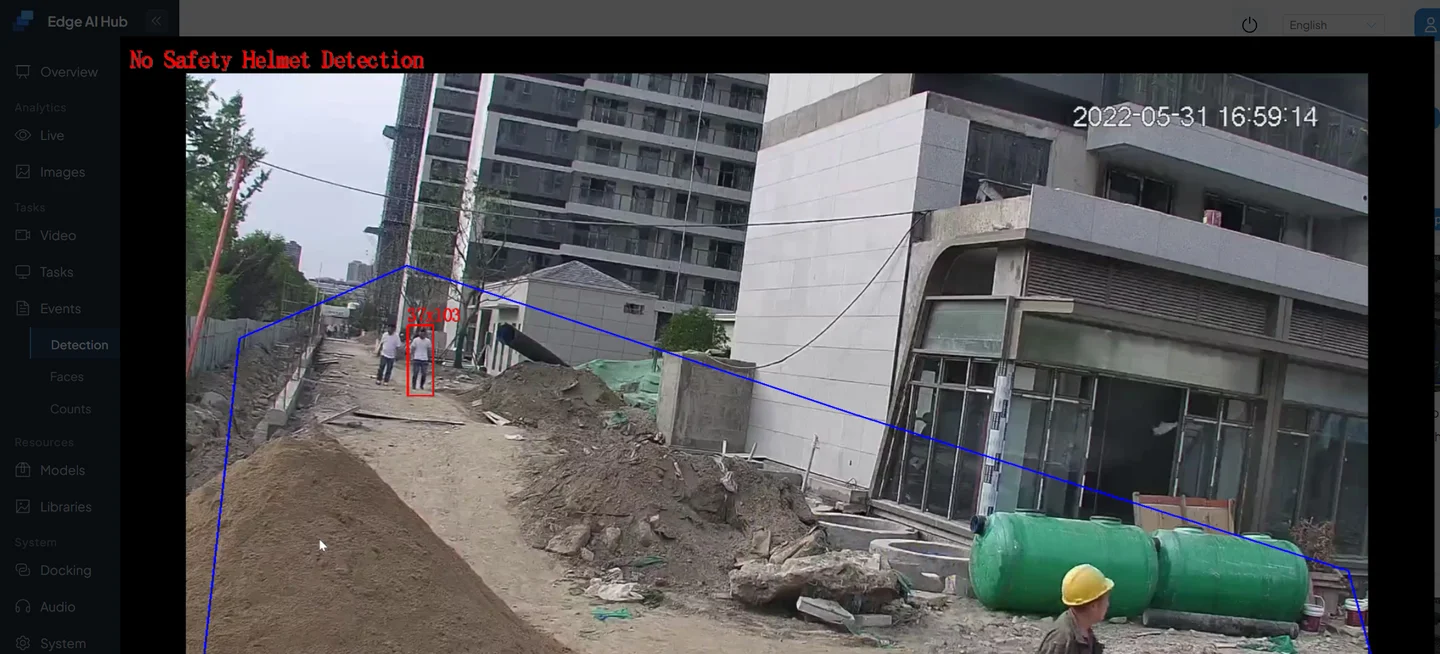
Inspect boxes, the area, node timing, and event information at the right or upper-right.
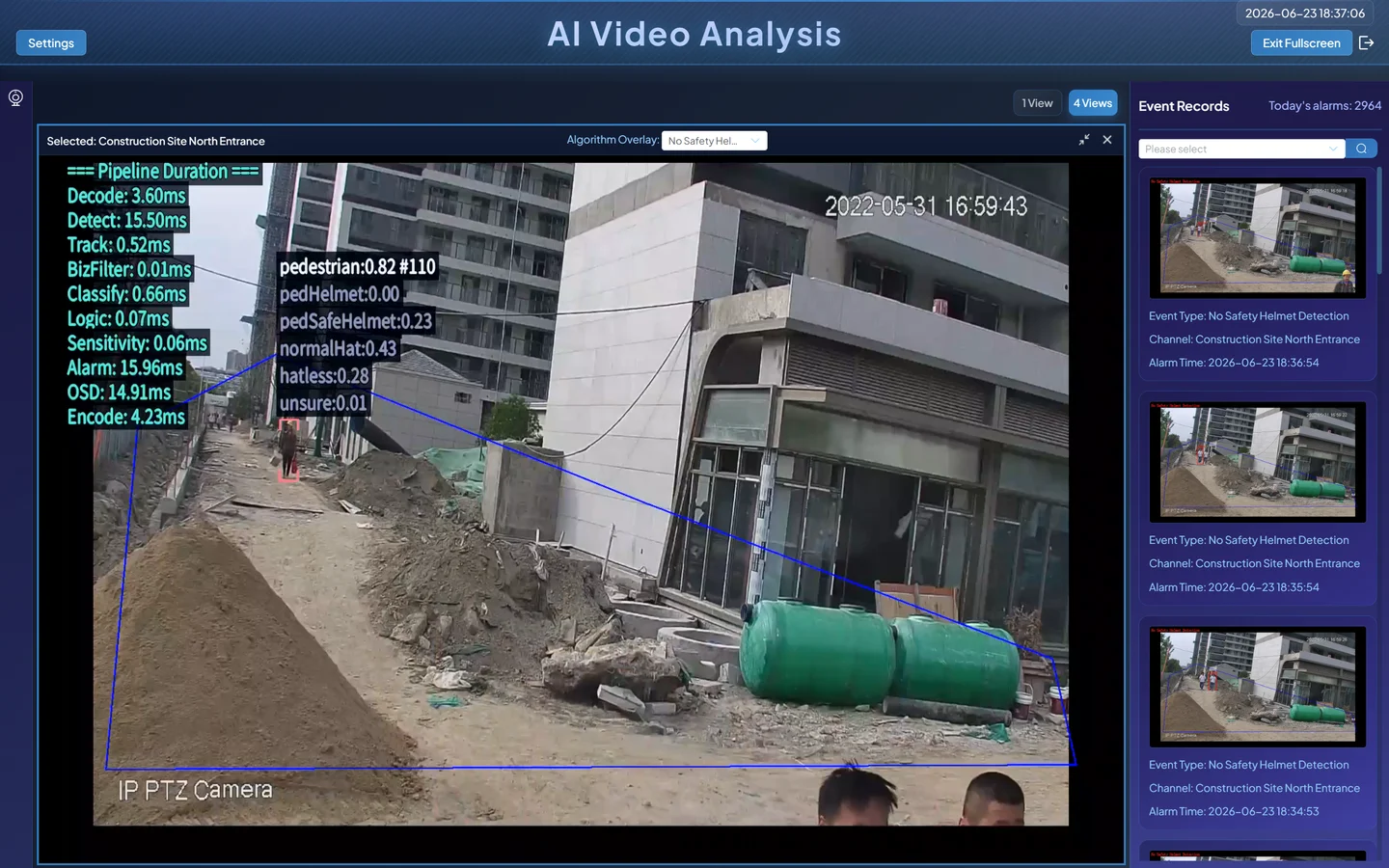
When a hatless person enters the area, the Sophon template can expose pedHelmet, pedSafeHelmet, hatless, and unsure. x86 or custom-model labels can differ; use the current model metadata.
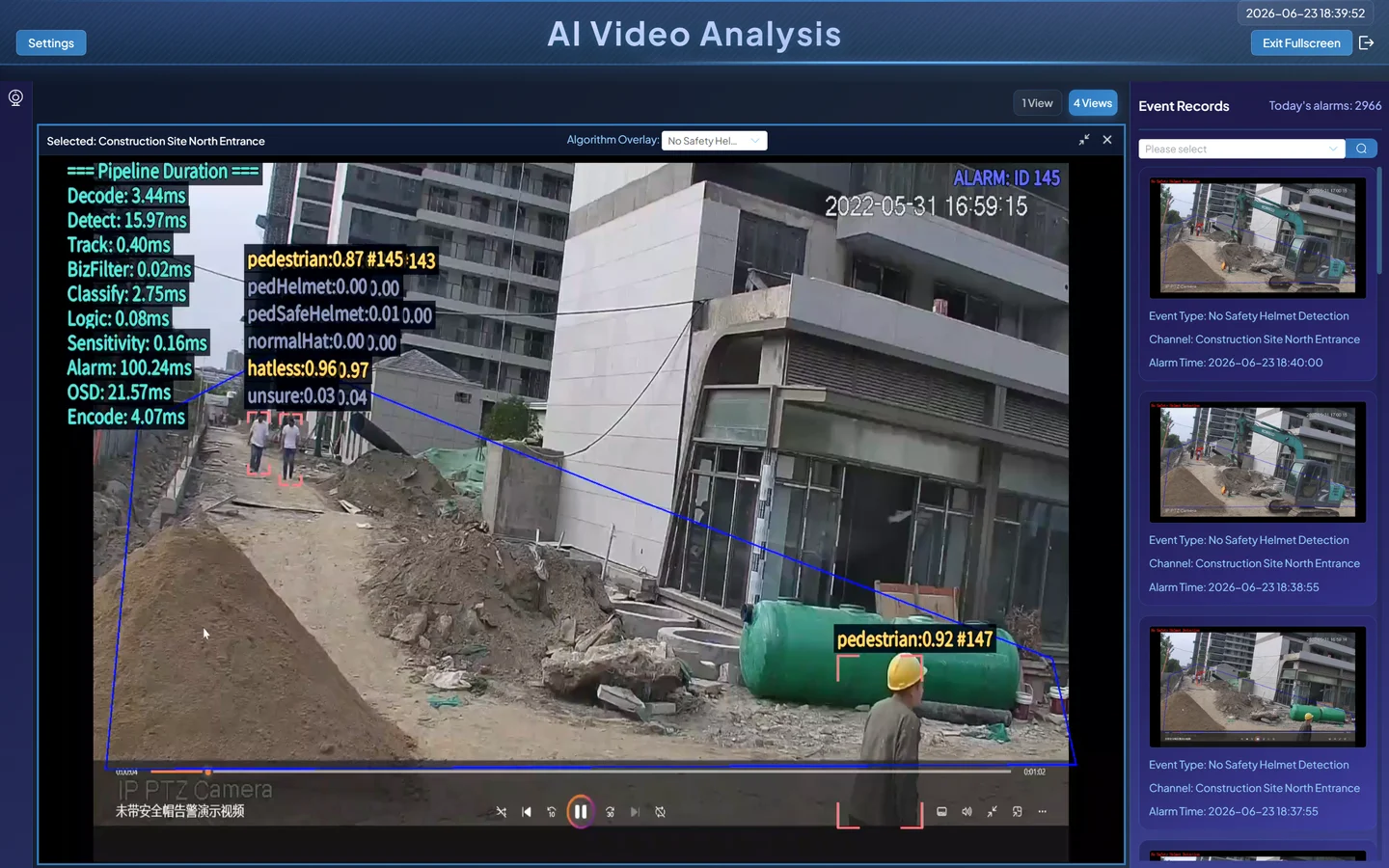
When an event is created, the page can display an alarm pop-up.
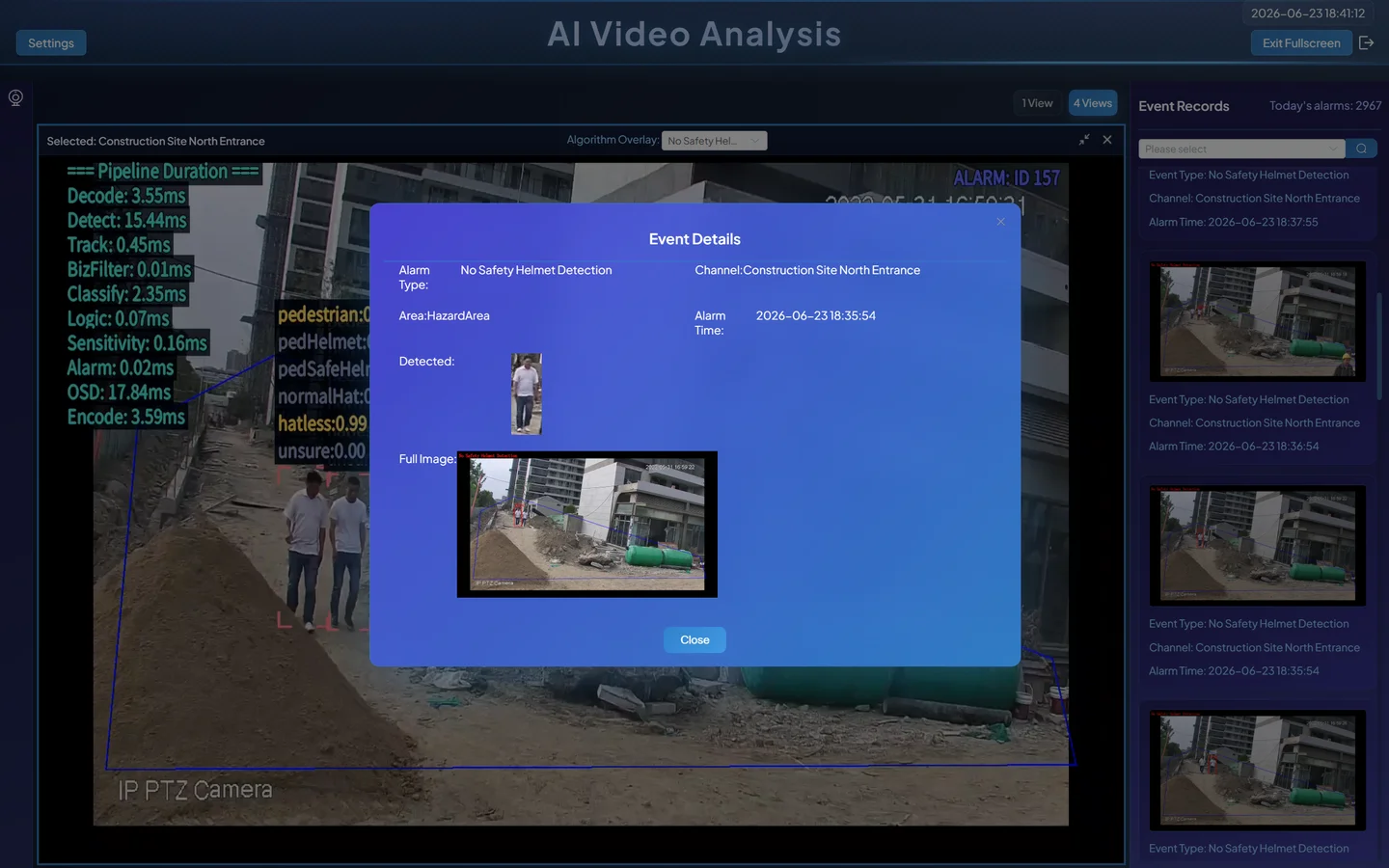
The pop-up can be controlled through the page setting or the relevant personalization option. Turning off the pop-up only changes presentation; it does not automatically stop event reporting.
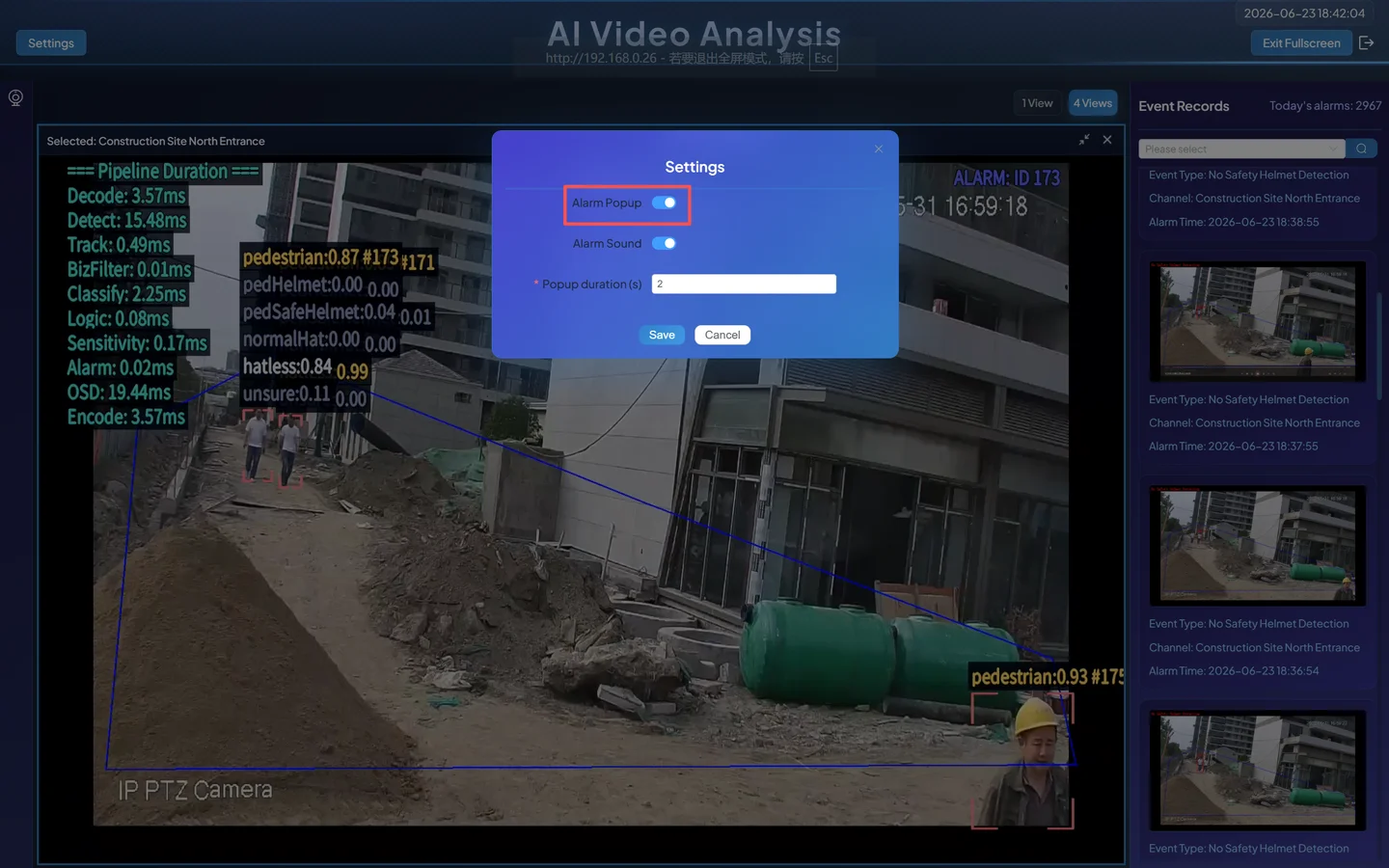
Use a correctly helmeted person as a negative sample. When the Safety Helmet class reaches its threshold, a No Safety Helmet event should not be created.
2.7 Query, Inspect, and Export Events
Open Event Center → Detection/Analysis.
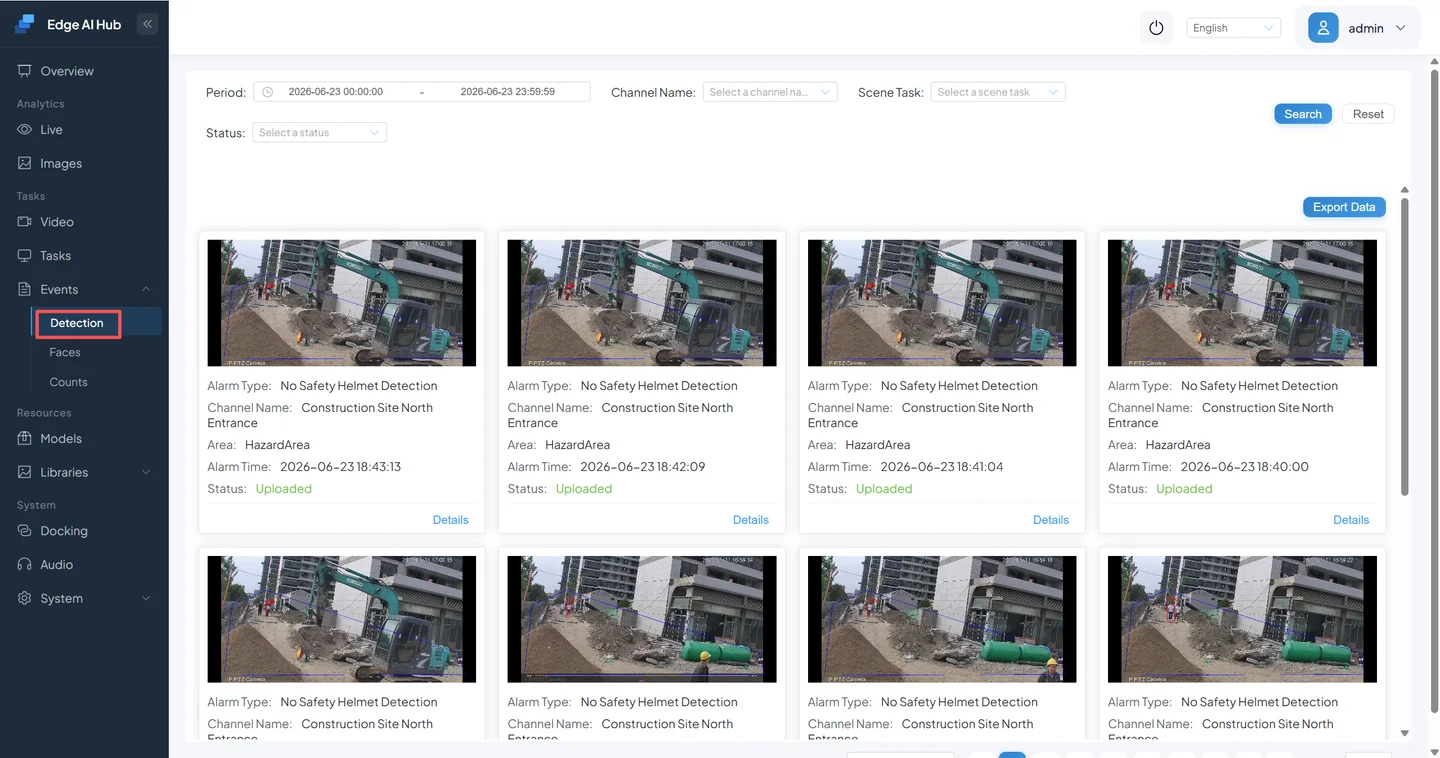
Filter by channel, alarm type, time range, and upload status as needed.
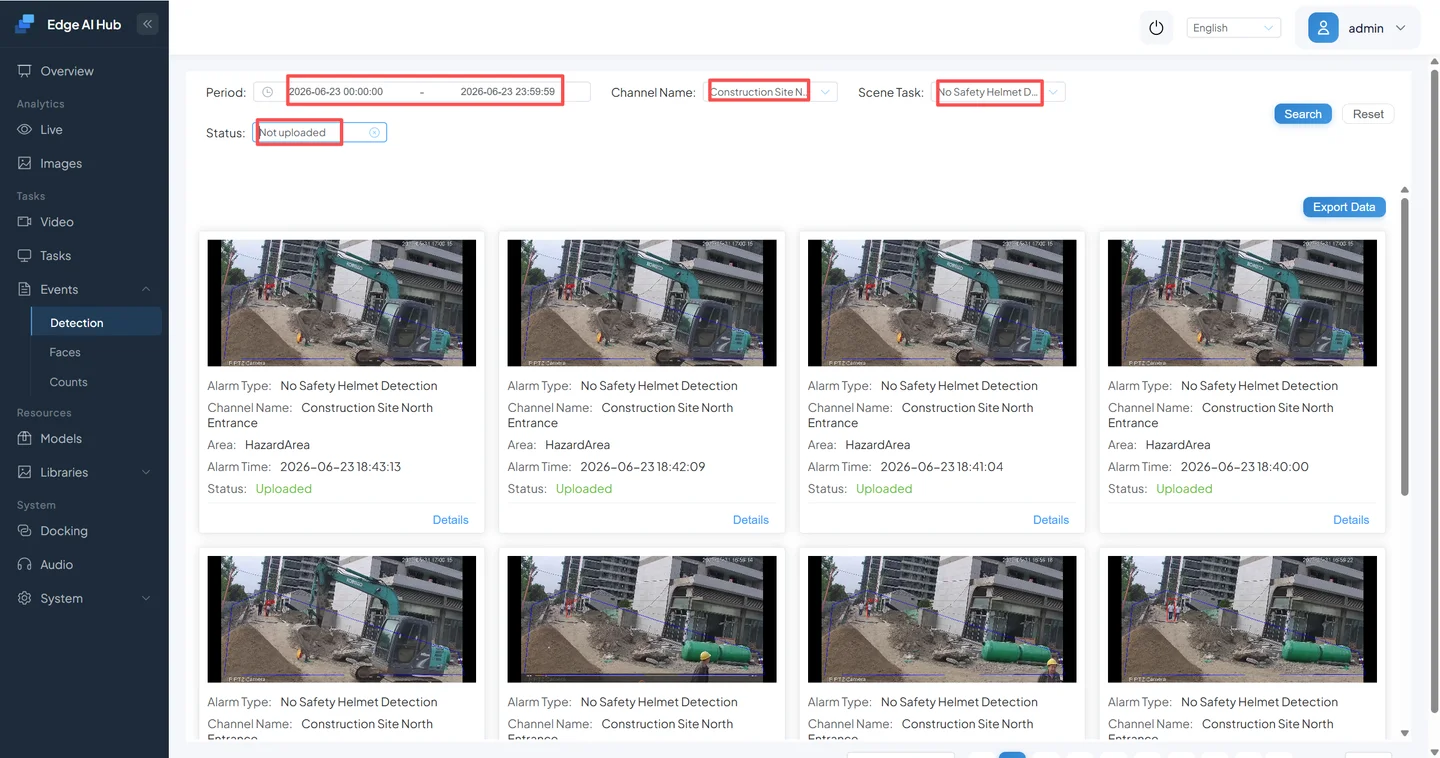
Open a captured image and check the target, area, class, and event time.
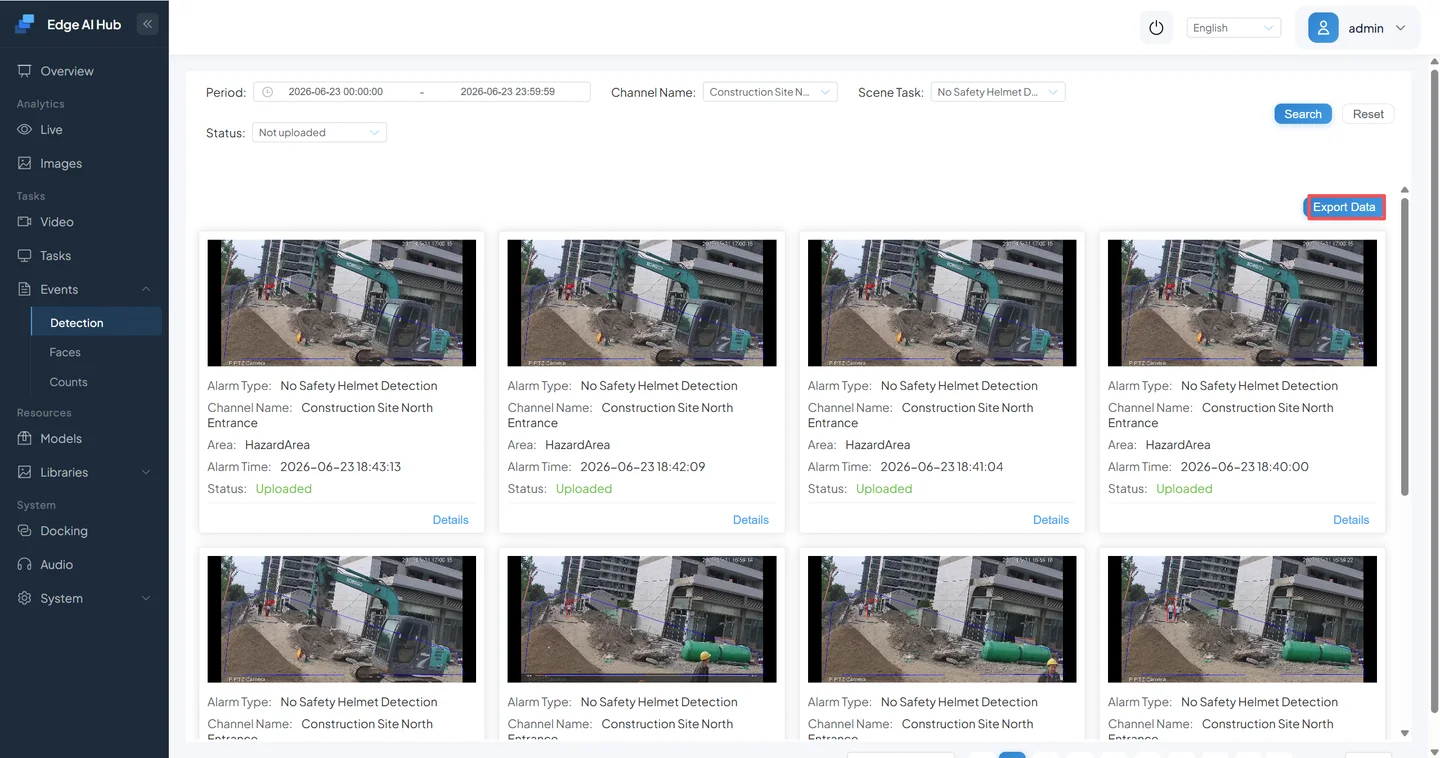
Click Data Export when an offline record is required.
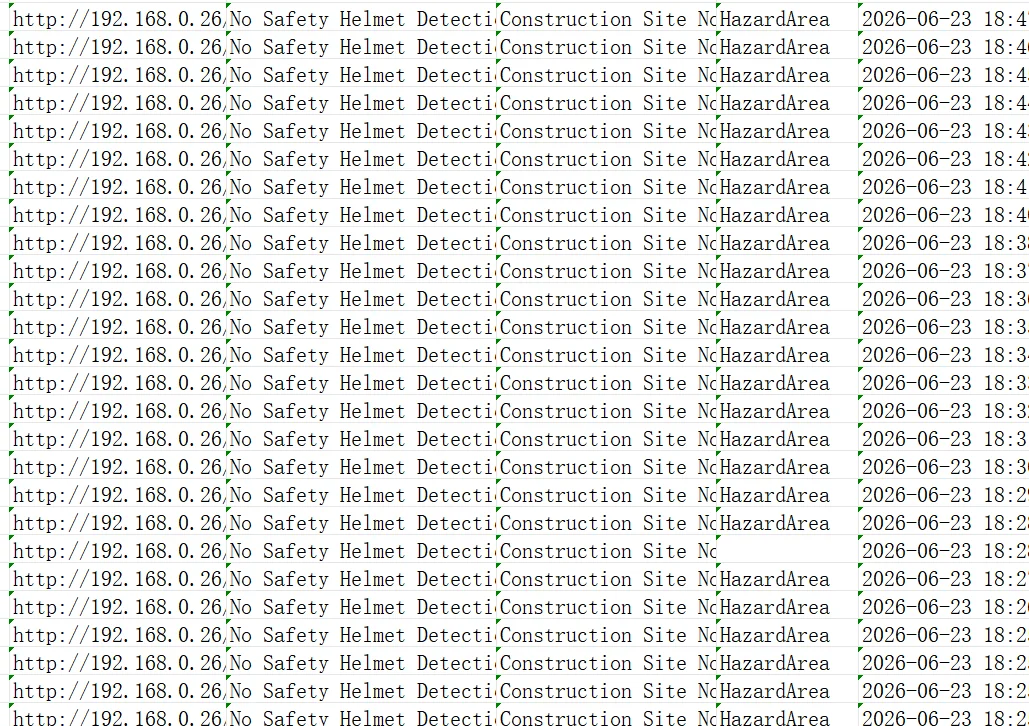
Open the CSV and verify columns, encoding, time zone, and filter scope.
The acceptance record should include the channel and algorithm, an area screenshot, every non-default setting, the running strategy, one positive event, one negative sample result, and the CSV when an export is required.
3. Complete Exercise: Post Absence Detection
Post Absence Detection asks whether a staffed area remains below the required count. It does not alarm merely because a single target was detected. The area also changes meaning:
- No Safety Helmet: only people entering the area proceed to helmet classification;
- Post Absence Detection: the area is a staffed position, and an event is created after its target-count condition persists.
3.1 Configuration Path
- Prepare a channel that contains both staffed and vacant segments.
- Select Post Absence Detection in Scenario Task Assignment.
- Draw only the actual staffed position.
- Set the count and duration rule from the following table.
- Set a running strategy that is active now and save.
3.2 Current Field Names
The resource files currently expose the following names. “Example value” implements “fewer than one person for ten continuous seconds”; it is not the template default.
| Current parameter | Template value | Example value | Meaning |
|---|---|---|---|
| Target Count Threshold | 0 | 1 | Threshold compared with the actual valid target count in the area |
| Trigger Condition | Alarm When Below Target Count | Alarm When Below Target Count | Relationship that matches the rule; above, at-or-below, at-or-above, and equal are also available |
| Detection Time | 0 | 10 | Duration value for which the count condition must remain true |
| Detection Time Unit | Seconds | Seconds | Combines with Detection Time; milliseconds, seconds, minutes, and hours are supported |
| Alarm Interval (seconds) | 3 | Match the handling cycle | Minimum interval between absence events |
| Minimum Pedestrian Size | 60 | Match the image | Whether small pedestrians participate in the count |
| Static Target Deduplication | Off | Usually off initially | Whether repeated output from the same stationary target is suppressed |
3.3 Accept with Positive and Negative Samples
- [ ] A staffed area for more than ten seconds does not create an absence event.
- [ ] An area below one person for less than ten seconds does not create an event.
- [ ] An area below one person for more than ten continuous seconds creates an event.
- [ ] After a person returns, new frames no longer satisfy the absence condition.
- [ ] Event Center contains the captured image and correct time.
For a position that requires at least two people, set Target Count Threshold to 2 and keep Alarm When Below Target Count. Do not search for placeholder fields named “absence threshold” or “minimum staff.”
4. Current Built-In Scenarios and Configurable Templates
The current Sophon and x86 resource directories each contain 29 algorithm templates. Package contents, licensing, model files, and resource-import state determine how many are actually visible and runnable on a device, so 29 is not a promise for every installation.
4.1 Conventional Business Scenario Templates
| Category | Current templates | Configuration focus |
|---|---|---|
| Construction and PPE | No Safety Helmet, No Reflective Vest, No Workwear, Region Intrusion | Business area, target size, class threshold, duration, and alarm interval |
| Behavior and staffing | Sleep-on-Duty Detection, Post Absence Detection, Phone Usage, Phone Call, Smoking | Pose or class result, target count, duration, and deduplication |
| Fire safety | Smoke Detection, Flame Detection | Target confidence, minimum size, duration, and interference areas |
| Campus security | Person Fall, Crowd Gathering, Illegal Parking, Tripwire | Area or tripwire, count, dwell time, direction, and tracking stability |
| Counting | Area People Counting, People Counting | Area or tripwire, count mode, direction, and reporting interval |
| Recognition | Face Recognition, License Plate Recognition | Gallery or recognition configuration, target quality, similarity, or parsed output |
4.2 Foundation-Model and Composition Templates
The resource tree also contains Detection Foundation Model, Segmentation Foundation Model, Vision-Language Model, vision-detection, vision-segmentation, and vision-language analysis templates, plus detect-then-classify and detect-then-segment compositions. These are not additional fixed business answers; they are starting points for a prompt-driven task or a composed Pipeline:
- for natural-language state judgment and open-vocabulary detection, see VLM and DINO;
- for node composition and detect-then-classify or segment, see Pipeline Orchestration;
- for a custom model, see Third-Party Model Integration.
Run one or two business-relevant tasks end to end before enabling every template. The selected template generates the actual fields; do not infer parameters from the scenario name.
5. Prove That the Configuration Is Active
Verify five layers in order:
- Persistence: leave and reopen the page; the area, parameters, and strategy retain the saved values.
- Runtime: the channel is enabled and the current time is inside the strategy.
- Detection: targets, area, class, or count output in Live Display matches the expectation.
- Events: a positive sample creates an event, a negative sample does not, and capture and time are explainable.
- Export: when records are required, the CSV scope, fields, and time zone match the page query.
A “saved” message does not prove that the algorithm is running. Visible boxes do not prove that the alarm rule is correct.
6. Troubleshooting Order
The Configuration Cannot Be Saved or Does Not Persist
- Check for required fields, an unfinished area, or an out-of-range parameter.
- Retry with one minimal area and current template values.
- Reopen the page and check persistence.
- Inspect the save request in the browser and the related backend error log.
There Is No Detection or Alarm
- Does video play correctly?
- Is the task assigned and the channel enabled?
- Is the current time inside the running strategy?
- Does the target enter the area or cross the tripwire, and is the box-position option appropriate?
- Does Live Display already show upstream detection or classification output?
- Does the positive sample satisfy duration, count, or sensitivity continuously?
- Is output suppressed by alarm interval, alarm count, or static-target deduplication?
- Only then tune confidence and minimum target size with fixed samples.
The Alarm Pop-Up Does Not Appear
Query Event Center first. If the event exists, the issue is in the pop-up setting or Live Display, not event reporting. If no event exists, check the chain from video through the business rule.
There Are Too Many False Positives
- Use captures to determine whether the source is an outside-area target, wrong class, unstable tracking, or transient output.
- Tighten the area, adjust the tripwire, or change the box-position option first.
- Enable stationary-target deduplication for fixed interference.
- Then increase the relevant confidence, sensitivity, or detection duration gradually.
- Change one field at a time and rerun the same positive and negative samples.
Exported Data Does Not Match the Page
Recheck channel, task, status, and time range. Confirm that browser, device, and exported timestamps use the expected time zone, then rerun the query and export. Repeating the query refreshes the page, so record the filters used at export time.
If area, rule, and threshold tuning still cannot meet the requirement, a better-matched algorithm or model may be needed instead of more parameter changes.
Next Step
Read VLM and DINO to learn which long-tail tasks can be defined in natural language and which should remain on a conventional detector.