
Third-Party Model Integration: Convert, Upload, and Validate
| Item | Details |
|---|---|
| Who this is for | ML engineers and integration developers bringing a custom detector or classifier to CosmoEdge |
| What you will accomplish | Evaluate runtime compatibility, convert and upload a model, configure parsing, and complete image, video, and sustained-run validation |
| Prerequisites | Understand Pipelines and know the model input, output, preprocessing, postprocessing, and label order |
| Estimated time | About 40–60 minutes for x86 ONNX; Sophon or Rockchip conversion commonly adds 30–60 minutes |
| Device required | x86 requires an ONNX Runtime CosmoEdge build; Sophon and Rockchip require the actual target device and matching conversion toolchain |
| Final acceptance result | The model loads, its output is parsed correctly, image and video results pass, and it runs without resource failure on the target device |
Complete third-party integration in this order:
- Confirm support conditions and the model contract.
- Export ONNX; convert it into a chip-specific
bmodelfor Sophon orrknnfor Rockchip. - Validate the artifact on the conversion host.
- Upload and configure the model.
- Run positive and negative image tests first.
- Connect it to a video Pipeline.
- Validate loading, parsing, events, and sustained operation.
“Upload succeeded” proves only that the file was accepted. It does not prove that operators, input shape, output layout, and postprocessing are compatible with CosmoEdge.
1. Confirm Support Conditions
1.1 Current Backends and File Formats
| Target backend | File accepted by Add Model | Main file in an imported model package | Current runtime | Device condition |
|---|---|---|---|---|
| x86 CPU | .onnx | model.onnx | ONNX Runtime CPU | x86_64 host and matching CosmoEdge build |
| Sophon | .bmodel | model.nn | Sophon BMRT | BM1688 or CV186X; the artifact must target the actual chip |
| Rockchip RKNN | .rknn | model.rknn | RKNN Runtime | RK3576 or RV1126B; the artifact must target the actual chip |
model.nn is the internal file name in a CosmoEdge model package. It wraps the device model. When adding an individual Sophon model in the UI, select its .bmodel; do not rename an extension to .nn.
PyTorch .pt, TensorFlow SavedModel, and other training-framework artifacts cannot be uploaded directly. Export them to ONNX first. Sophon deployments then convert ONNX into a chip-specific .bmodel, while Rockchip deployments produce a chip-specific .rknn. RK3576 and RV1126B .rknn artifacts are not interchangeable.
1.2 Contracts Beyond the File Format
| Contract | Required information |
|---|---|
| Model type | Detection, classification, keypoint, feature, or another type; the UI subtype selects a parser |
| Input | Name, type, shape, batch, and whether dynamic dimensions are fixed |
| Preprocessing | RGB/BGR, resize, padding color, normalization mean, and scale |
| Output | Tensor names, shapes, dimension order, and whether NMS is built in |
| Postprocessing | Model family, confidence, NMS/IoU, coordinate format, and maximum results |
| Labels | Exact class-ID and class-name order |
| Resources | File size, runtime memory, channel concurrency, and target frame rate |
| License | Whether model weights, training data, and export tools permit the intended use and distribution |
CosmoEdge currently includes parsers such as YOLOV8_DET, but “any ONNX file” is not automatically compatible. Custom output, built-in NMS, dynamic shape, or unsupported operators may require a new parser or runtime code.
1.3 Verified Capability vs Conditional Compatibility
- Directly supported by current code: Add
.onnxon x86, add.bmodelon Sophon, and import packages containingmodel.onnxormodel.nn; RKNN builds add.rknnand package it asmodel.rknn. - Reference evidence in this repository: a YOLOv8 detector has completed x86 ONNX import, live overlay, and event output.
- Still required on the target candidate: validate your exact model, Sophon artifact, performance, resource usage, concurrency, and long-term stability.
- Not promised from format alone: other ONNX model families, other output layouts, and untested chip/quantization combinations.
2. Reproducible Example: YOLOv8n Person Detection on x86
This example exports the public YOLOv8n weights with fixed Ultralytics packages and detects COCO class person in data/test-video/Safety Helmet.mp4. It validates single-stage detection, not the separate No Safety Helmet classification task.
2.1 Prepare a Fixed Environment and Model
Reference environment:
| Item | Version |
|---|---|
| Python | 3.13.11 |
| Ultralytics | 8.2.84 |
| ONNX | 1.20.1 |
| ONNX Runtime | 1.26.0 |
| Export input | 1 × 3 × 640 × 640 |
Create an isolated environment:
python -m venv .venv
source .venv/bin/activate
python -m pip install --upgrade pip
python -m pip install \
  "ultralytics==8.2.84" \
  "onnx==1.20.1" \
  "onnxruntime==1.26.0"
Download the pinned release asset and record the source hash:
curl -L \
  -o yolov8n.pt \
  https://github.com/ultralytics/assets/releases/download/v8.2.0/yolov8n.pt
sha256sum yolov8n.pt
On macOS, use shasum -a 256 yolov8n.pt.
Export and record the ONNX hash:
yolo export \
  model=yolov8n.pt \
  format=onnx \
  imgsz=640 \
  batch=1 \
  dynamic=False
sha256sum yolov8n.onnx
Keep the command output, Python and package versions, source-weight hash, and ONNX hash. Two files with the same name but different hashes are different model candidates.
2.2 Pre-Conversion Checks
From the repository root, run the shared checker for ONNX validation and one zero-input inference:
python tools/check_onnx_model.py yolov8n.onnxFor dynamic inputs, repeat --shape images=1,3,640,640. Add --json <output-path> for a machine-readable record. The script records dependency versions and the model SHA-256 without saving inference tensors.
Pass criteria:
onnx.checkerreports no error;- ONNX Runtime creates a session and performs one inference;
- input is the expected
1 × 3 × 640 × 640float tensor; - output shapes match the export log.
A zero-input test verifies loading, not detection accuracy.
2.3 Prepare Model Metadata
This example uses raw YOLOv8 detection output:
| Configuration | Example value |
|---|---|
| Main type | Detection |
| Subtype | YOLOV8_DET |
| Input size | [640, 640], following the UI's height/width order |
| Resize | Keep aspect ratio and center-pad |
| Padding color | 114, 114, 114 |
| Color | RGB |
| Normalization | 0–1, scale approximately 1/255 |
| Output | Raw YOLOv8 detection tensor; CosmoEdge applies thresholds and NMS |
| Labels | Original COCO 80-class order; only ID 0, person, is enabled in the example Pipeline |
Print labels from the source model instead of reordering them manually:
python - <<'PY'
from ultralytics import YOLO
for class_id, name in YOLO("yolov8n.pt").names.items():
    print(f"{class_id}\t{name}")
PY
Stop and correct the export or implement a matching parser if the ONNX output already contains NMS, does not use the expected raw YOLOv8 layout, or has a different label count.
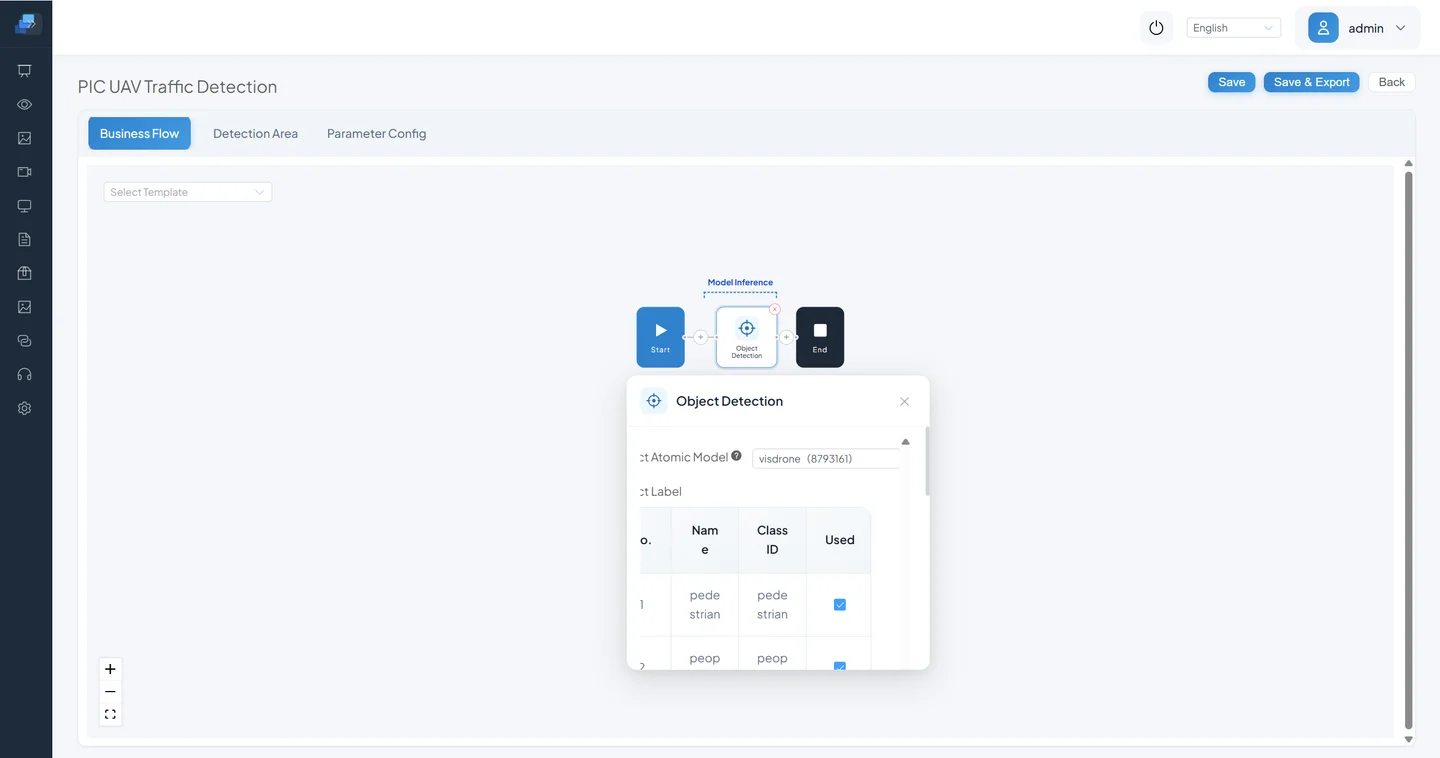
About the Earlier VisDrone Screenshots Below
This page restores every UI screenshot from the earlier VisDrone walkthrough so that no operational step is lost. Its ten labels are pedestrian, people, bicycle, car, van, truck, tricycle, awning-tricycle, bus, and motor; do not copy them to the COCO YOLOv8n example. If you reuse VisDrone, pin the model source, version, hash, I/O contract, and license. A screenshot is not reproducibility evidence.
3. Sophon Path: Convert the Same ONNX to bmodel
Run this section only for a Sophon target. Record the conversion tool version, target chip, and model candidate together.
When delegating the task to a coding agent, first read Agent-Assisted Development. An ordinary user states the target device, model materials, business preference, and expected deliverable. The agent generates the run-local contract through scripts/agent/start.sh, which copies named materials and selects a route. It reruns assess.sh after task or authority changes, then runs doctor.sh in the actual Linux execution environment. Once admitted, convert_model.sh and verify.sh record the toolchain, commands, hashes, and layered evidence. Users do not hand-pick releases, images, or commands; the content below is an advanced manual and troubleshooting reference.
When the user supplies an isolated Linux development host, account, and password and explicitly asks to connect, that already confirms this task's remote execution. The agent creates a sanitized record and uses the password only through scripts/agent/connect.sh's interactive OpenSSH prompt; it does not ask again for an SSH key or authorization form. Installation, privilege elevation, and device writes remain separate decisions when they become necessary.
The formal executor currently begins with ONNX. .pt and .pth may be assessed as materials, but exporting ONNX from the training framework is a separate requested or assessed stage. doctor, conversion, and the evidence chain remain blocked while route assessment is unresolved. Do not install Ultralytics first, perform one ad hoc export, and describe that as a fixed repository capability.
Separate an officially supported installation route, local capability, and this run's resolved identity. Use the current official TPU-MLIR installation instructions at execution time. Supported wheel, source, and prebuilt-Docker routes are all candidates; they need not match one exact release or directory layout from this page. A route becomes READY only when tpu_mlir imports, compiler entries are callable, runtime libraries are intact, and the actual candidate passes preflight. Admission then freezes package release, image ID/digest, Python, command paths, and hashes.
The official Sophon compiler path executes on Linux. Windows remains suitable for agent orchestration and material preparation, but route this section's conversion to an isolated Linux x86_64 environment. Use a compatibility layer only as an experimental route with explicitly accepted risk.
An official development image represents a base execution environment; capability checks determine whether it also contains a complete compiler. Pulling, starting, or changing it requires separate authority, and the resolved image identity must be recorded. The v3.2 image below is a reusable repository example, not the only admitted version for every task; other upstream-supported routes are assessed by callable capabilities.
3.1 Install and Verify Docker
Follow the official Docker Engine installation instructions for the target operating system. Do not treat the earlier tutorial's single apt or yum command as a universal installation method.
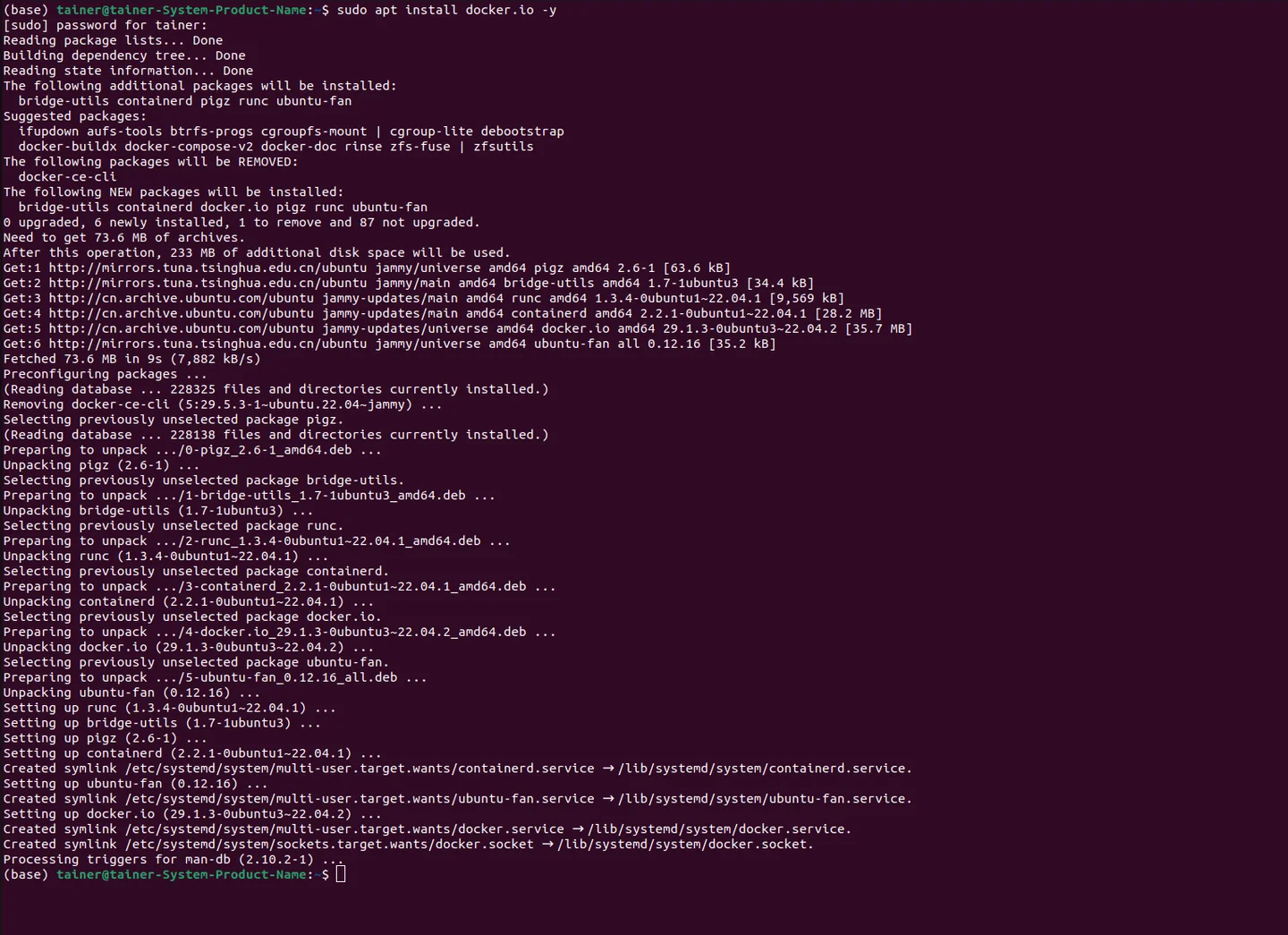
Check both the client and daemon after installation:
docker --version
docker info
On Linux, if non-root users must run Docker, follow Docker's post-install instructions for the docker group and sign in again. Membership grants high host privileges, so follow the host security policy.

3.2 Download and Load the Pinned Conversion Image
The commands below use the repository's existing v3.2 reference toolchain. Download the archive and record its hash:
curl -L \
  -o sophgo-tpuc_dev-v3.2_191a433358ad.tar.gz \
  https://sophon-file.sophon.cn/sophon-prod-s3/drive/24/06/14/12/sophgo-tpuc_dev-v3.2_191a433358ad.tar.gz
sha256sum sophgo-tpuc_dev-v3.2_191a433358ad.tar.gz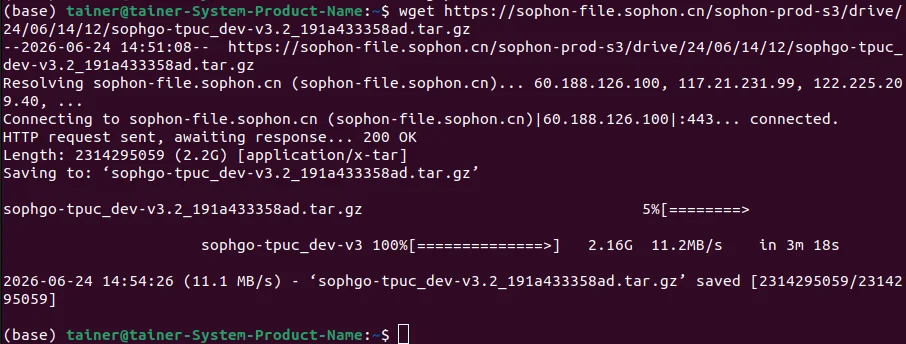
Load the image and confirm its tag:
docker load -i sophgo-tpuc_dev-v3.2_191a433358ad.tar.gz
docker images sophgo/tpuc_dev

Common commands:
| Command | Purpose |
|---|---|
docker images | List local images and tags |
docker run --rm -it -v "$PWD:/workspace" sophgo/tpuc_dev:v3.2 bash | Start the pinned image and mount the current directory |
exit | Leave the container; --rm also removes the stopped temporary container |
3.3 Start the Container and Check the Tools
Put yolov8n.onnx in the current directory and start the container:
docker run --rm -it \
  -v "$PWD:/workspace" \
  -w /workspace \
  sophgo/tpuc_dev:v3.2 \
  bash
The image should contain the conversion tools. Check model_transform --help, model_deploy --help, and version output first. Install another package only if the pinned image actually lacks the commands, and record its source and version instead of silently replacing the image environment.
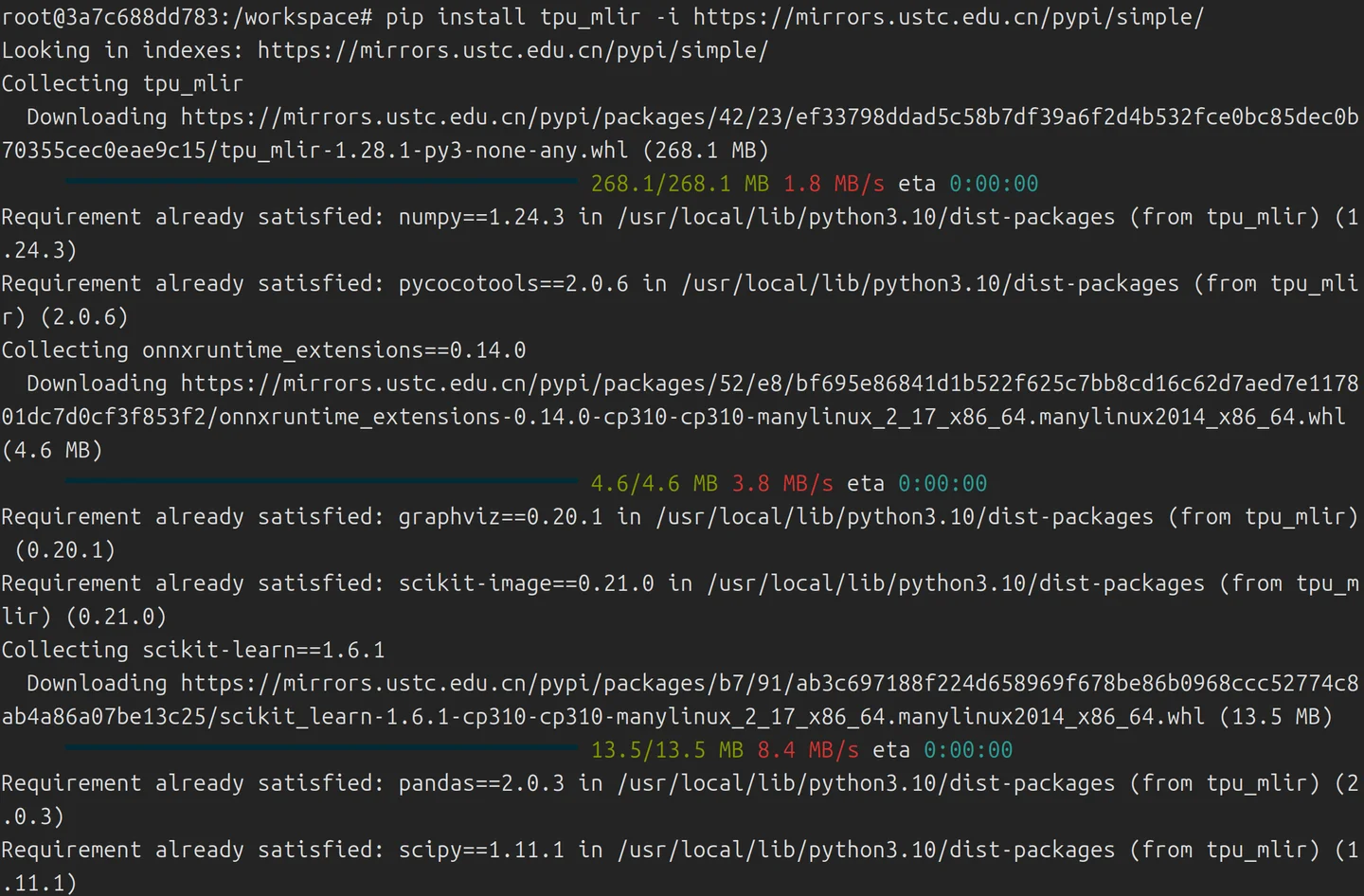
3.4 Transform to MLIR
The following command is for the pinned v3.2 reference image. Check the relevant --help before changing toolchain versions. Inside the container, run:
cd /workspace
model_transform \
  --model_name yolov8n \
  --model_def yolov8n.onnx \
  --input_shapes '[[1,3,640,640]]' \
  --pixel_format rgb \
  --mlir yolov8n.mlir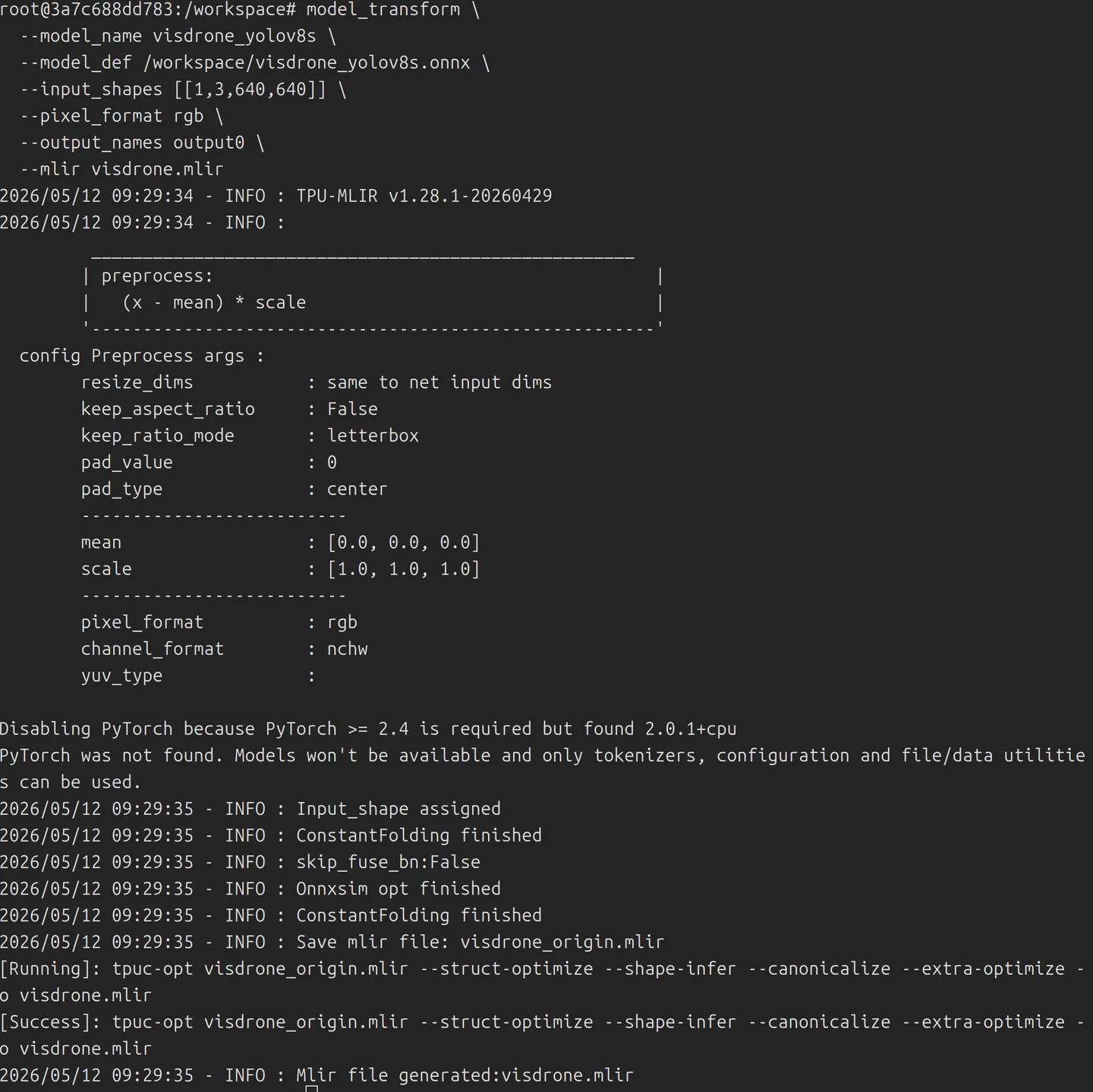

If the model needs explicit output names, mean, scale, or a test input, use the actual export contract and that tool version's help. Do not copy VisDrone-specific arguments from the screenshot.
3.5 Compile a bmodel for the Target Chip
BM1688 F16 example:
model_deploy \
  --mlir yolov8n.mlir \
  --quantize F16 \
  --chip bm1688 \
  --model yolov8n_bm1688_f16.bmodel

model_tool --info yolov8n_bm1688_f16.bmodel
sha256sum yolov8n_bm1688_f16.bmodel
Passing x86 preflight in a newer ONNX environment does not prove that the same file is accepted by the selected TPU-MLIR. Combine the ONNX versioning rules and ONNX Runtime compatibility guidance with checks of the actual candidate's IR, opset, and operators in the frozen compiler. If incompatible, re-export a supported ONNX from the source weights; do not edit ir_version to pretend it is compatible.
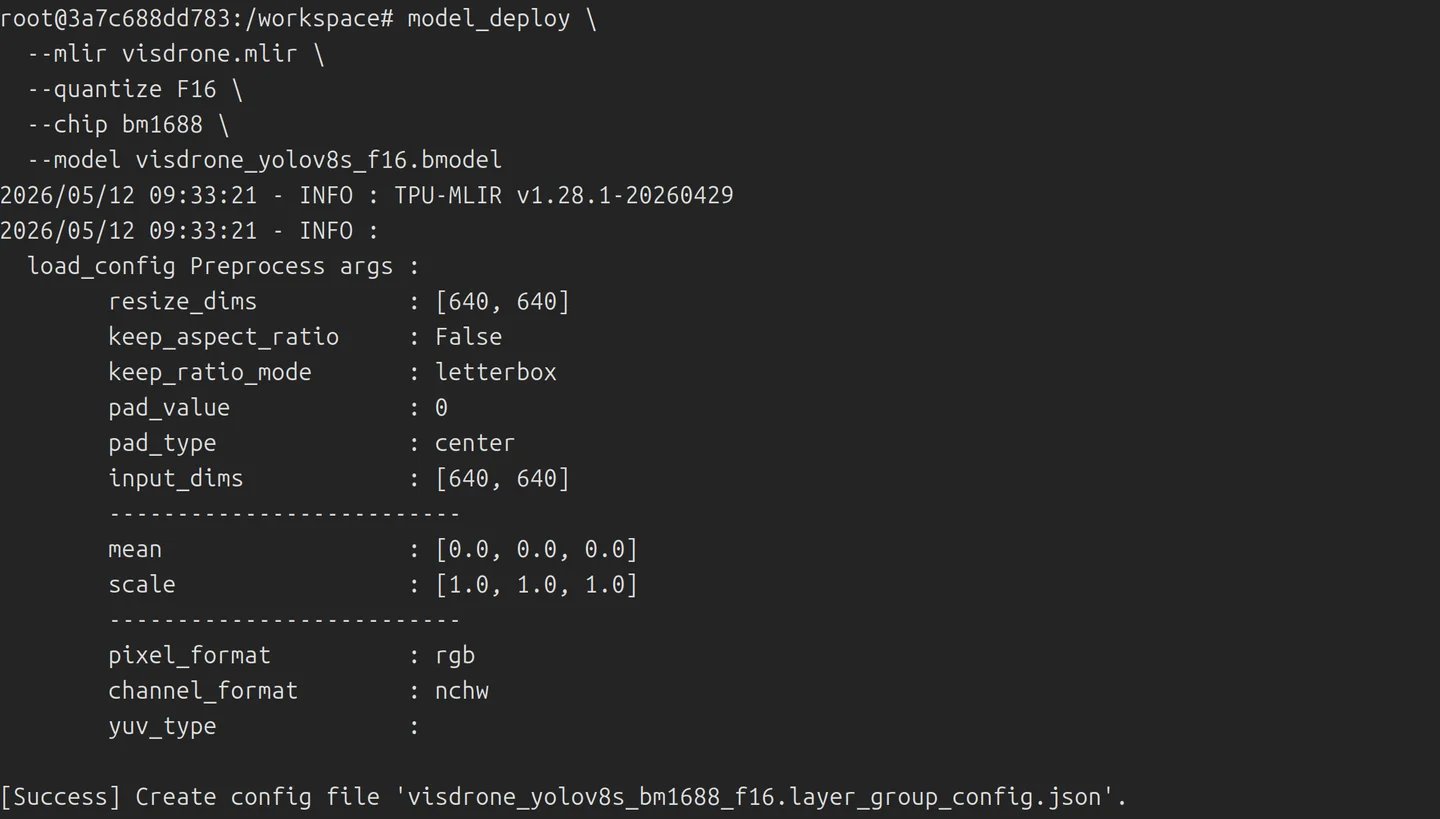
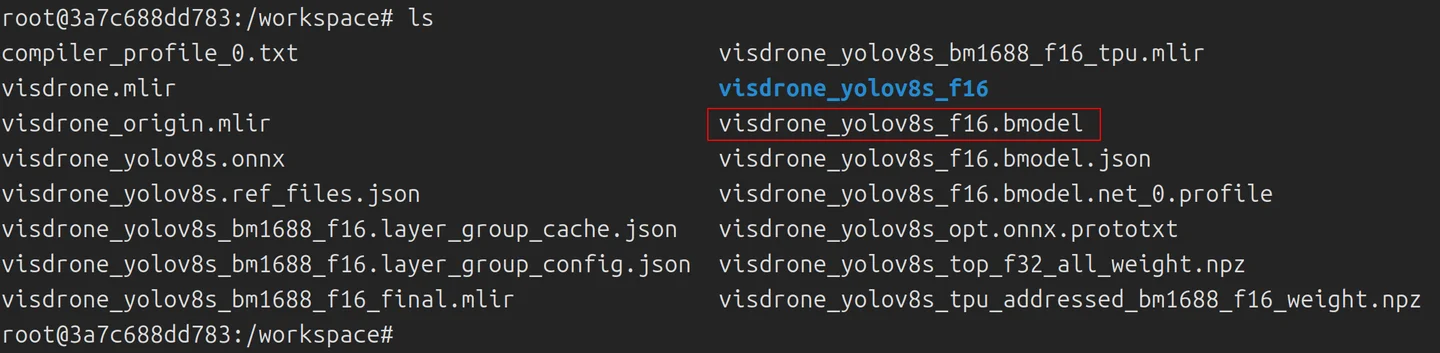
CV186X requires a toolchain and chip option that support CV186X. A BM1688 artifact cannot be used on a CV186X device. Unsupported operators, output mismatches, or compilation errors mean conversion failed; renaming the extension does not fix them.
3.6 Validate After Conversion
Inspect model metadata first:
model_tool --info yolov8n_bm1688_f16.bmodelThen use the toolchain's model runner and one fixed test image to compare boxes, classes, and scores across the source framework, ONNX, and bmodel. Post-conversion evidence must include:
- toolchain version, chip option, and full command;
- ONNX, MLIR, and
.bmodelhashes; - input shape, output tensors, and model inspection;
- when test input exists, pre/post-conversion tensor comparison using a user override or the current tool's default tolerance policy, with that policy recorded;
- after device authorization, box, class, and score comparison across the source framework, ONNX, and target device on the same image;
- any F16 or quantization accuracy difference.
The agent path writes these results to the current run's execution-manifest.json and evidence.md. Each rerun archives the prior manifest in the private run. A new UNVERIFIED result cannot erase a prior failure; only a new measured PASS or an explicitly user-confirmed waiver with a reason explains the later conclusion. Remote execution also records sanitized data-flow status without storing transfer credentials. An entry is eligible as an official example only after two real recordings with a fixed toolchain, passing tensor comparison, conversion-verified status, active lifecycle, and a still-valid verification seal. The short code is only a seal reference. A revoked example keeps its historical recordings and seal but cannot be selected or cited for compatibility. A normal candidate can still be delivered against its own task acceptance, but it must not borrow another example's fixed shapes or hashes as proof.
The Sophon Add Model page requires a .bmodel file.
Rockchip RKNN Path: Shared Backend, Target-Specific Artifacts
RK3576 and RV1126B share one CosmoEdge RKNN inference implementation, Rockchip media interface, and model contract. Chip differences come from config/rknn/platforms/<chip>.json. A model spec does not hard-code a chip, but every conversion binds one platform profile, so the resulting .rknn remains target-specific and must not be copied between chips.
The agent-assisted flow always enters through scripts/agent/convert_model.sh and verify.sh. It selects RKNN Toolkit2 from the task contract and freezes Python, wheel, platform profile, model spec, calibration set, and artifact hashes. RK3576 and RV1126B do not maintain separate conversion scripts. For manual diagnosis, follow the RK3576 RKNN development guide and select the actual target profile:
python tools/rknn/convert_model.py \
  --spec config/rknn/models/yolov8.json \
  --platform-profile config/rknn/platforms/rv1126b.json \
  --model yolov8-heads.onnx \
  --output yolov8-rv1126b-int8.rknn \
  --quantize --dataset calibration/dataset.txt
Conversion-host success is not device acceptance. Validate the matching Runtime/driver, numerical output, image and video postprocessing, OSD, rules, alerts, the 5 FPS target, and stability on the actual device, with results bound to the target chip and artifact SHA-256.
4. Upload and Configure the Model
4.1 Open Model Repository
Open Model Repository. Its list supports search and shows each model's type and related tasks.
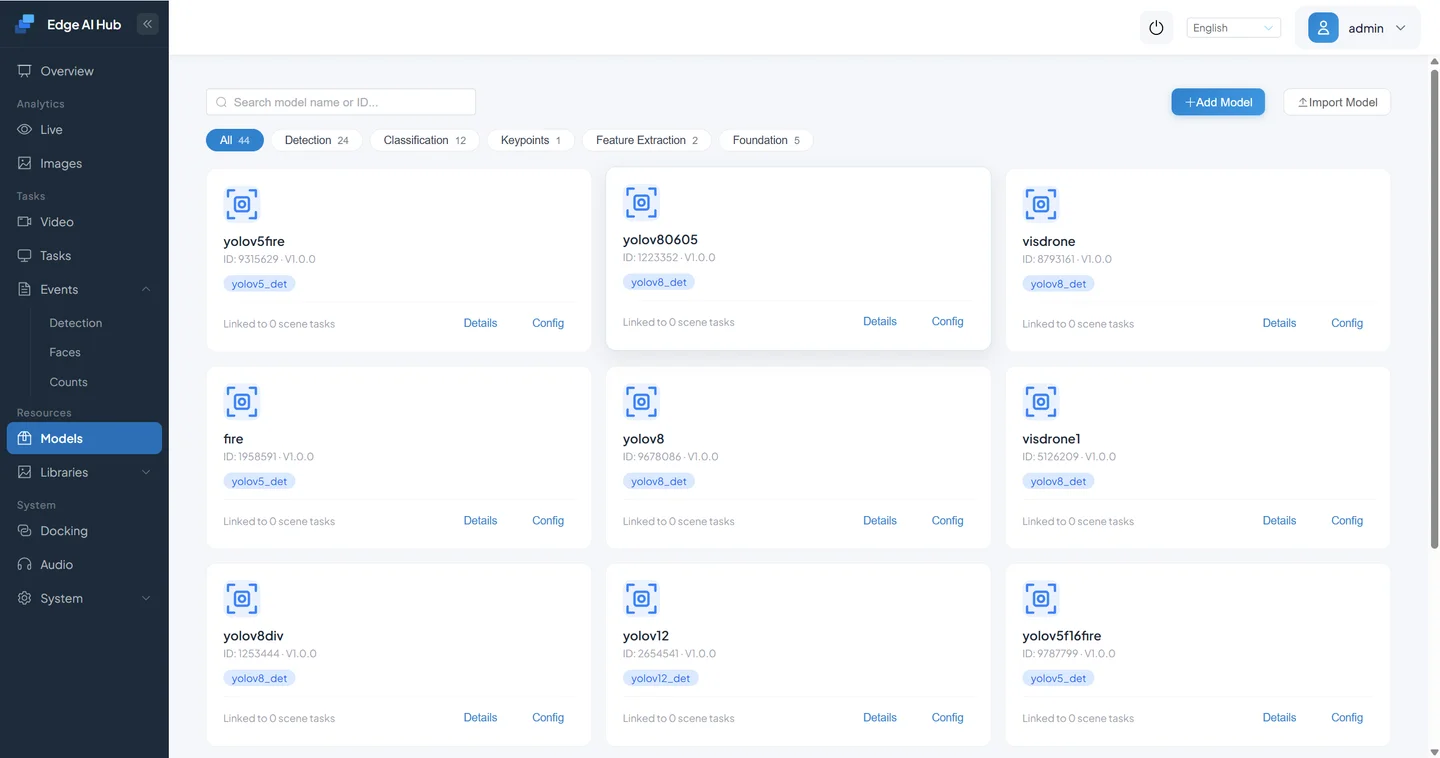
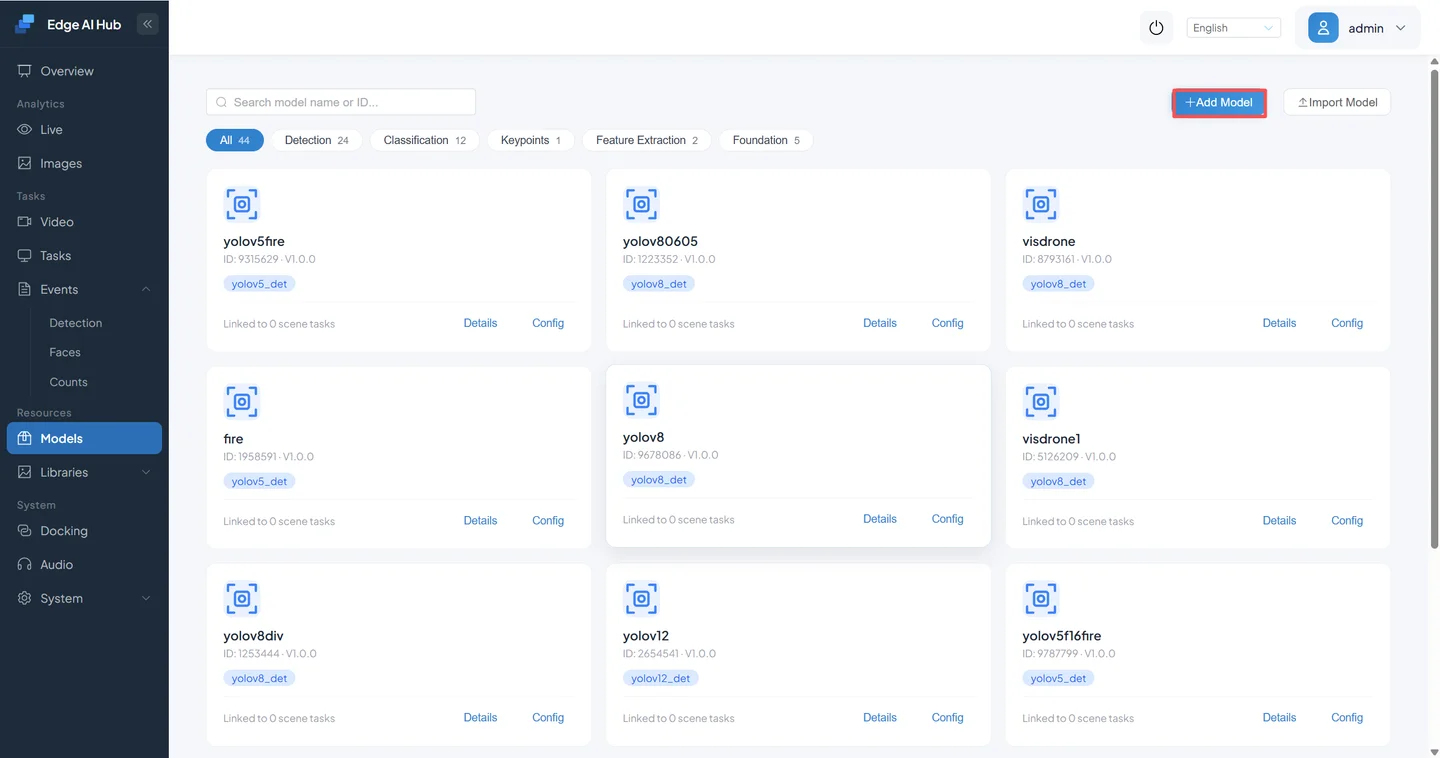
Select Add Model. Import Model is for a complete model package, not the single-file path used here.
4.2 Enter Details and Upload
- Set the main type to Detection.
- Select
YOLOV8_DETonly when it matches the output parsing contract. - Use a model name and description that identify the candidate version.
- Select normalization and color channel.
- Upload
yolov8n.onnxon x86 or a bmodel compiled for the exact Sophon chip. - Save.
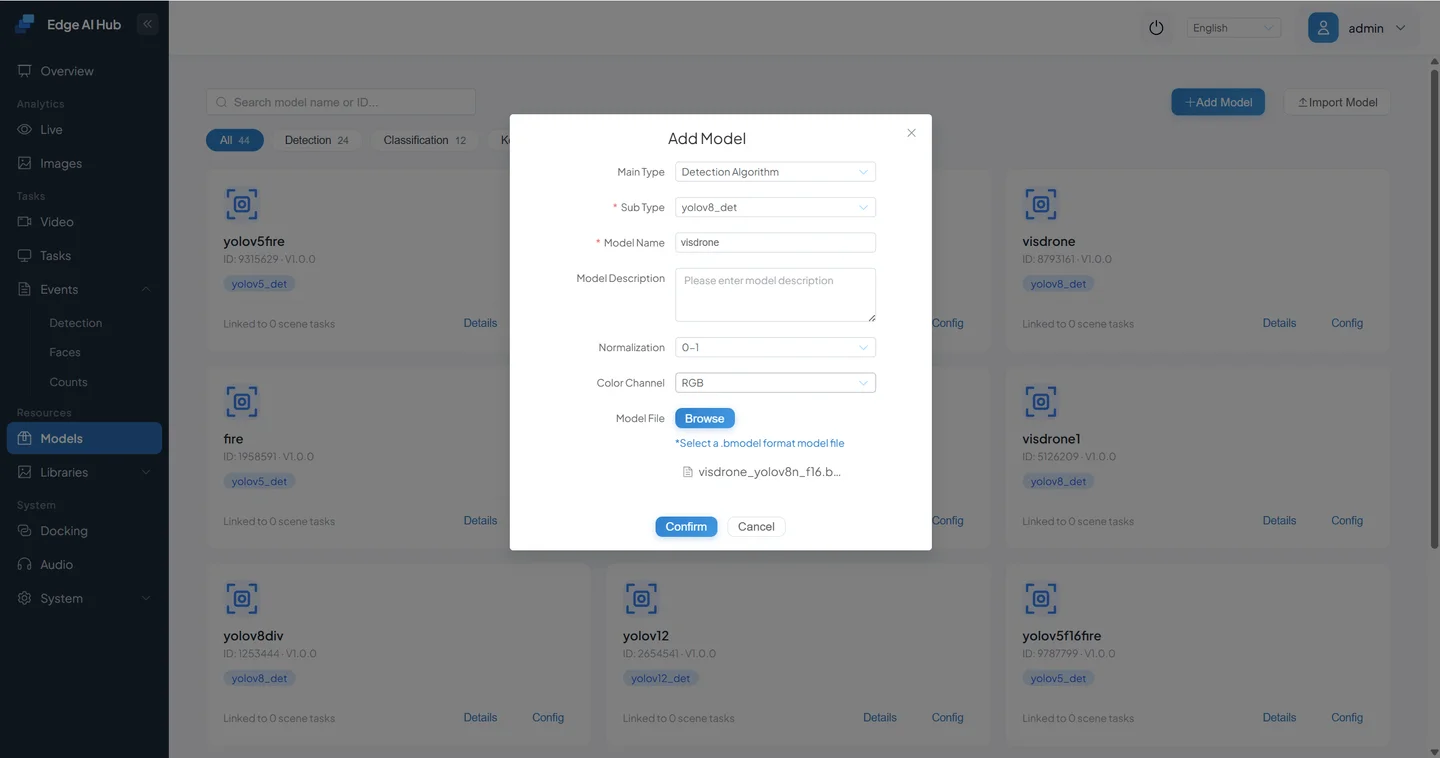
Screenshot Difference
The screenshot uses a Sophon VisDrone model, so it shows a .bmodel and VisDrone name. The x86 example on this page uploads yolov8n.onnx. Both backends must use preprocessing and labels that match the artifact.
Confirm that the entry appears in the list and record the model ID assigned by the system. The model is not yet proven runnable.
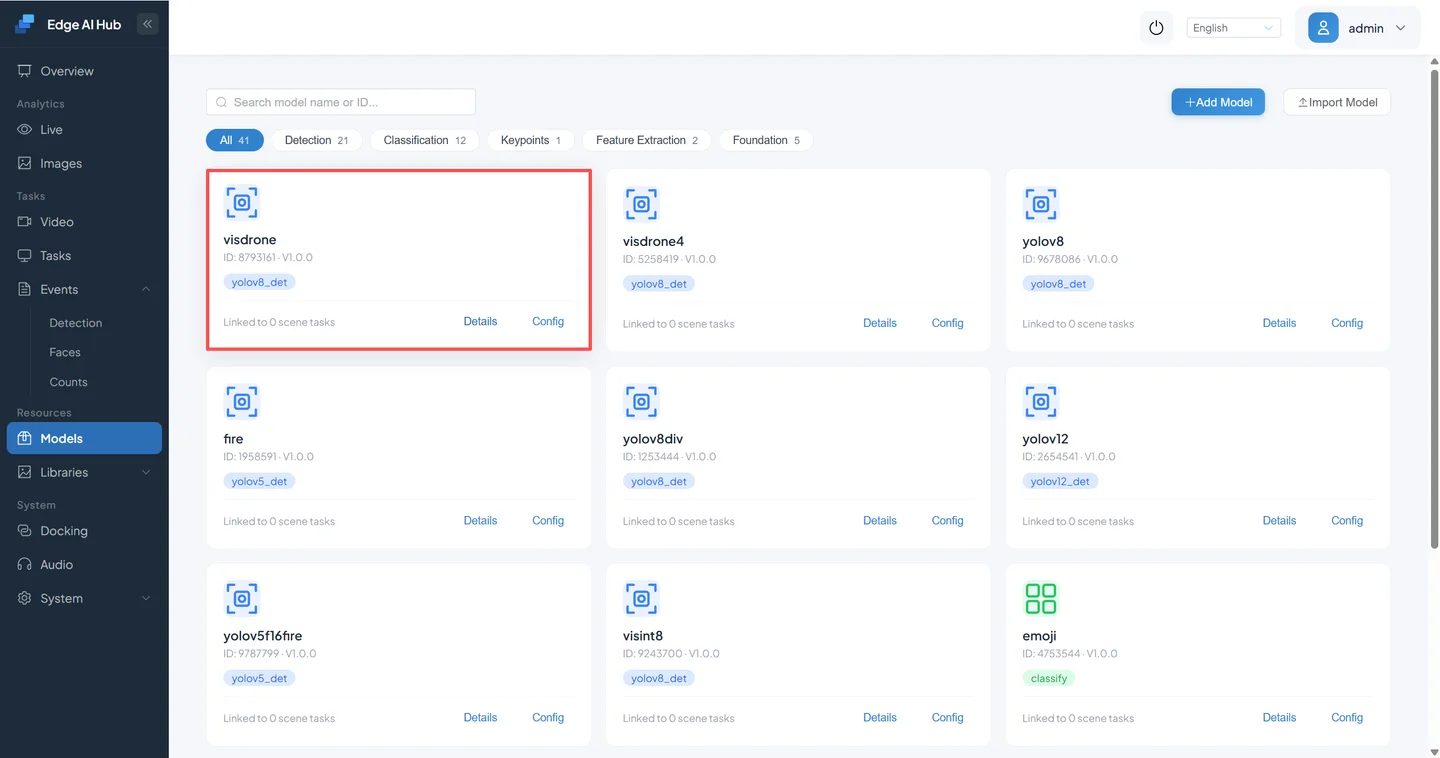
4.3 Configure Input, Postprocessing, and Labels
Open Configure and compare every item with the export record:
- input size and resize/padding;
- RGB/BGR and normalization;
- confidence and NMS thresholds;
- maximum retained targets;
- class IDs, names, and order;
- output or advanced settings shown by the page.
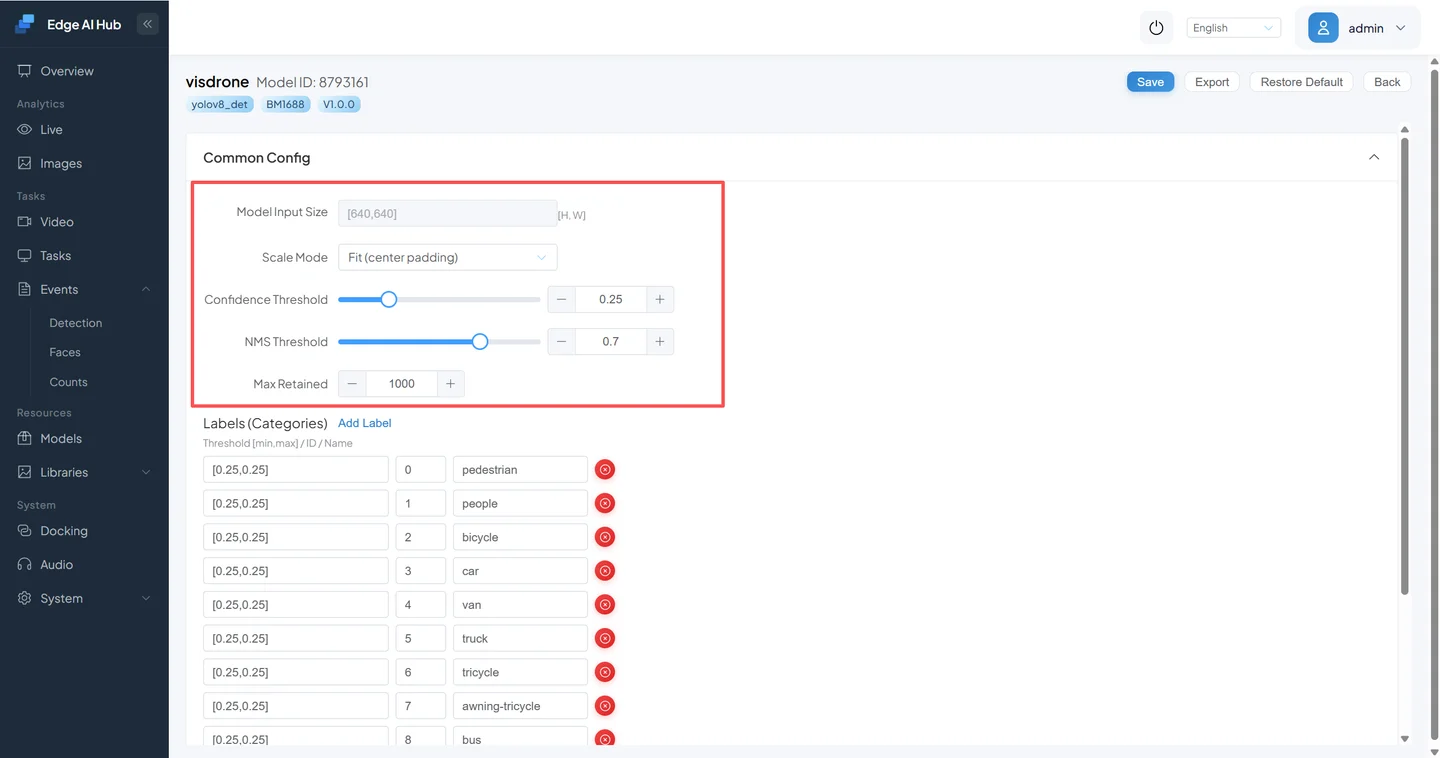
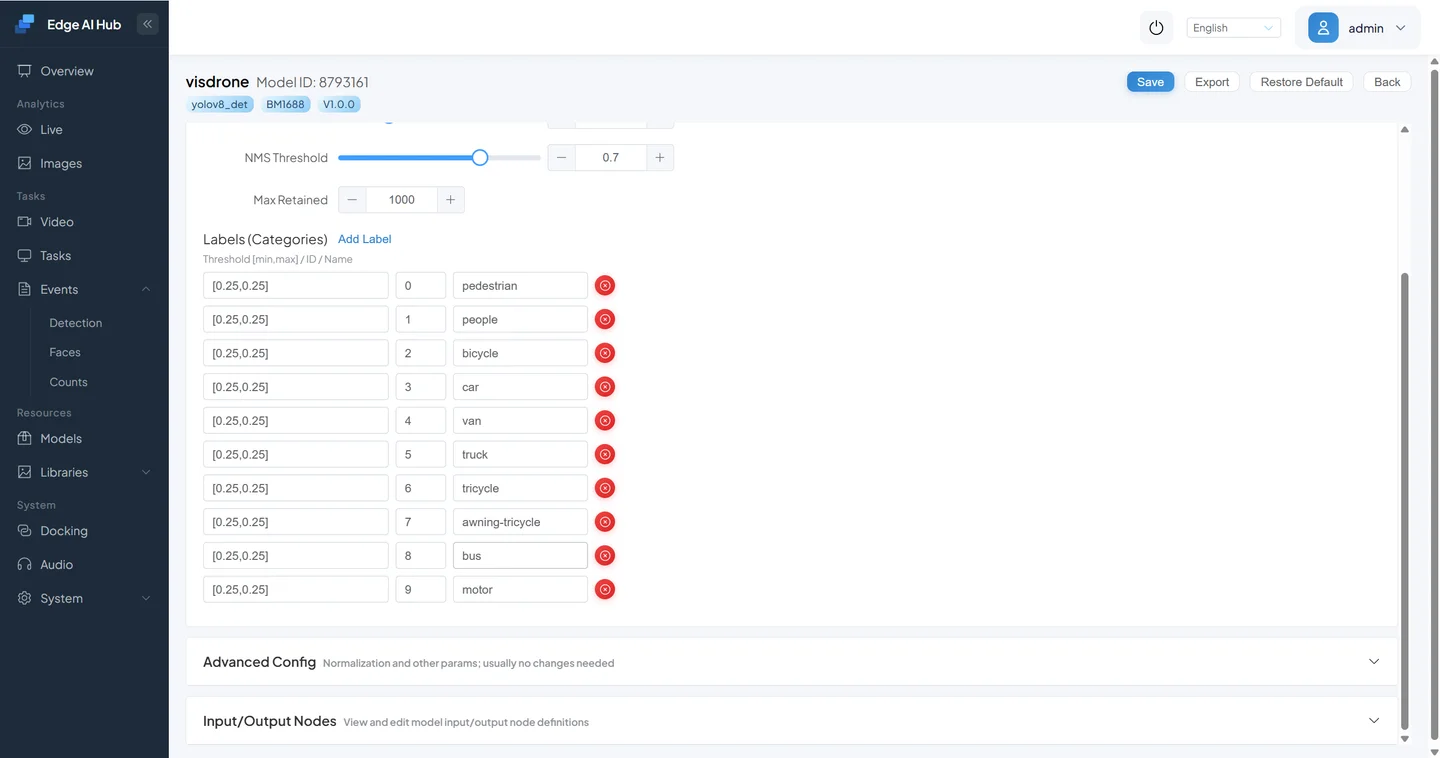
Save and reopen the page to prove persistence. The ten VisDrone labels in the screenshot apply only to that model. Keep the original 80-class COCO order for this YOLOv8n, then enable only person in the video Pipeline.
5. Image Validation: Prove Loading and Parsing First
The image path removes video decoding, tracking, and event rules from the problem, making model and parser faults easier to isolate.
5.1 Create an Image-Analysis Task
Open Task Configuration and select New Task.
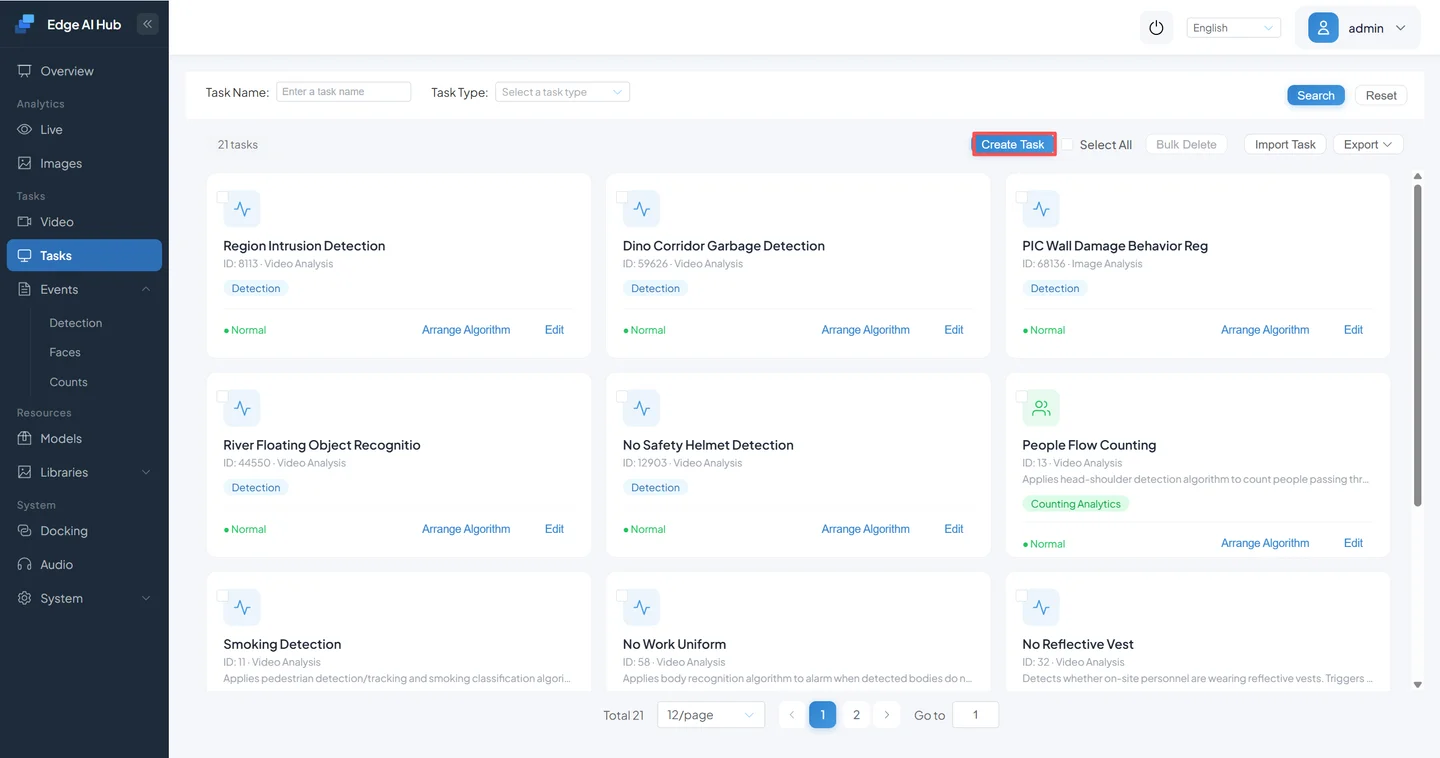
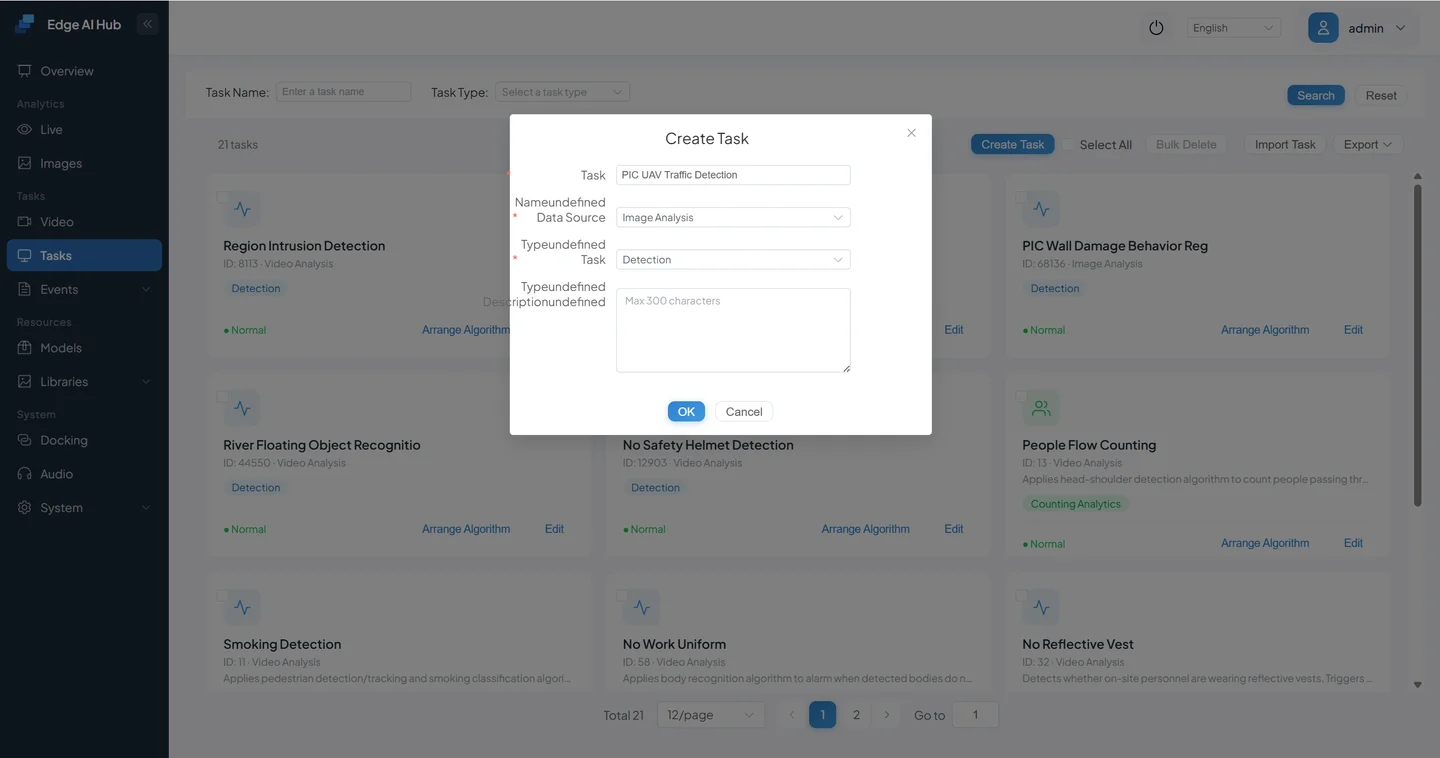
Enter:
- task name:
YOLOv8n Person Image Validation; - data source type: Image Analysis;
- task type: Detection / Analysis.
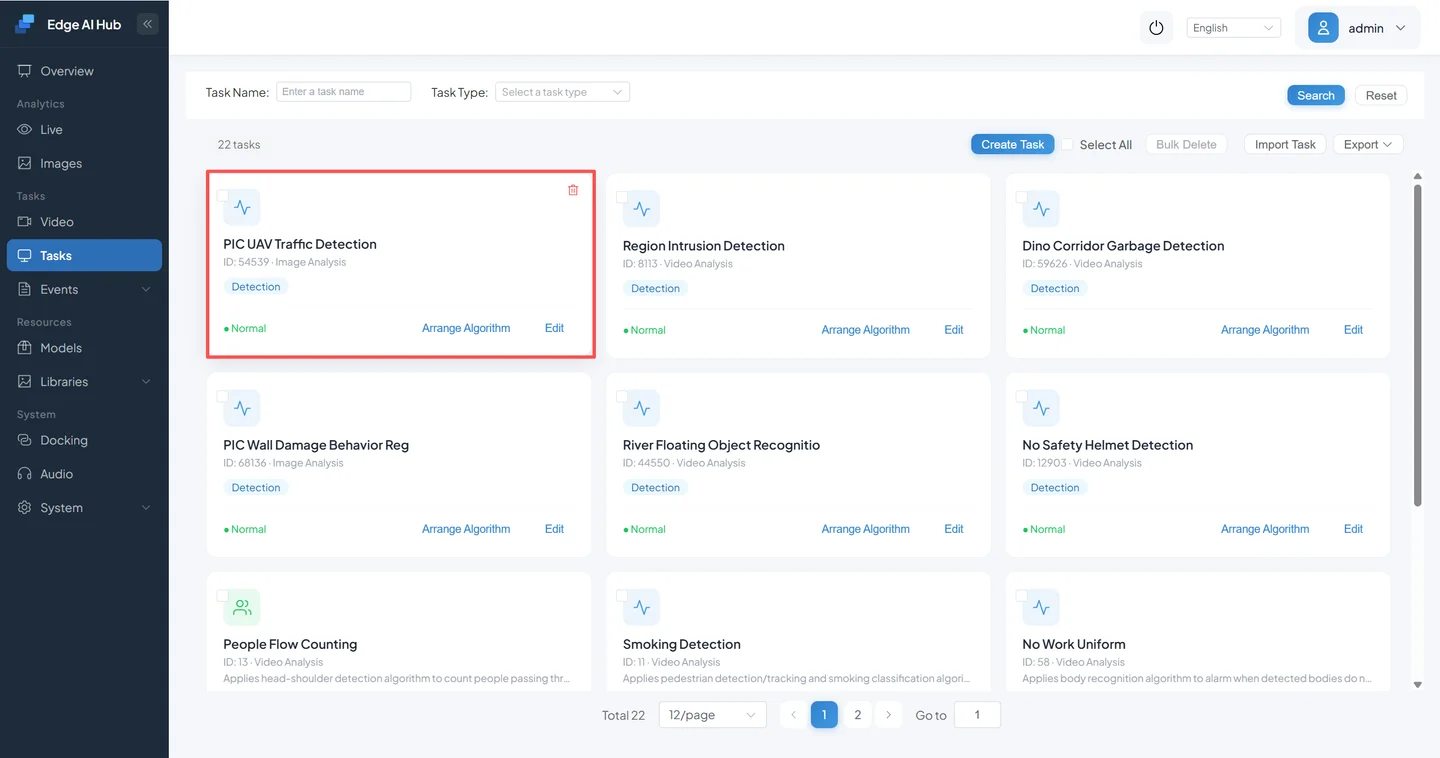
Save and confirm that the task appears in the list with a normal status.
5.2 Arrange the Minimum Image Chain
Select Arrange Algorithm for the task.
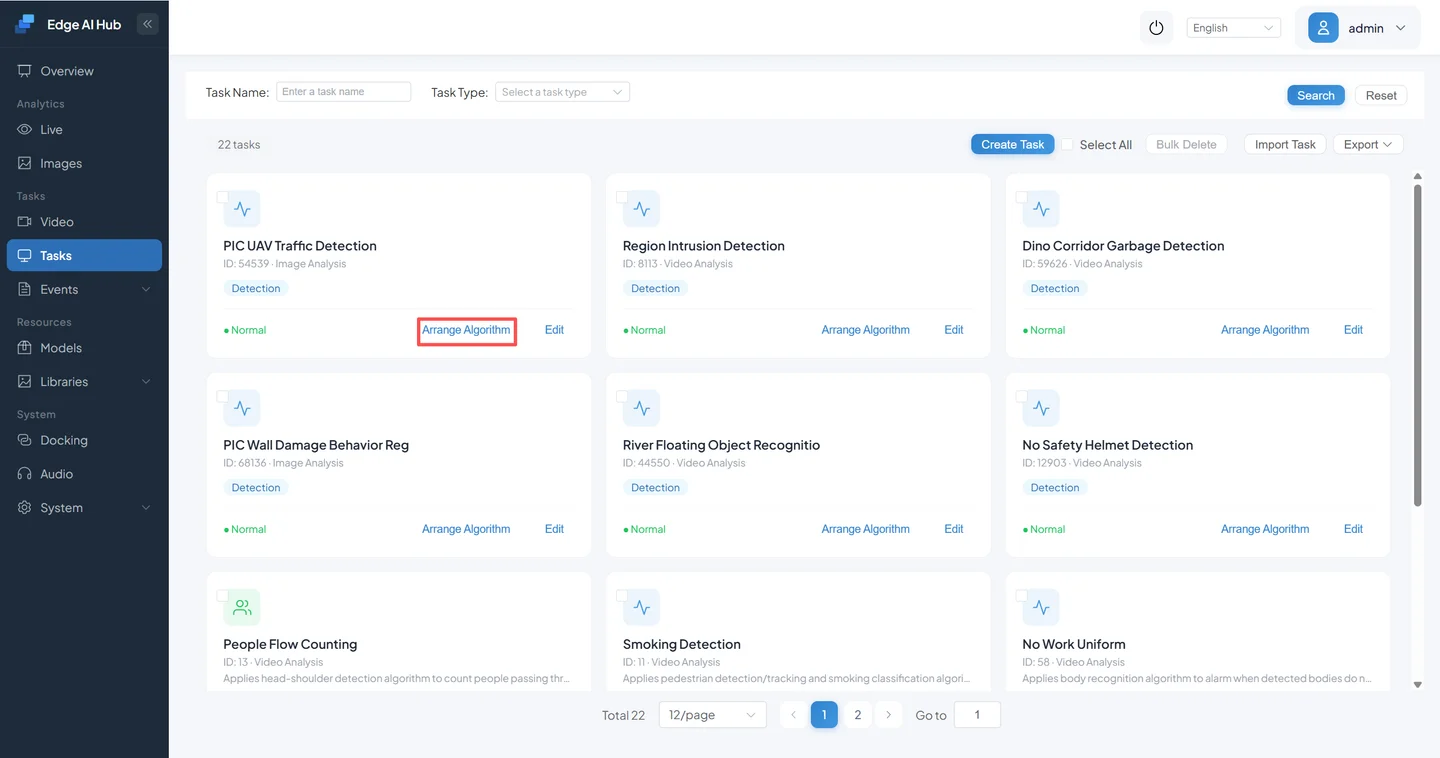
Add only Object Detection to keep the causal chain short.
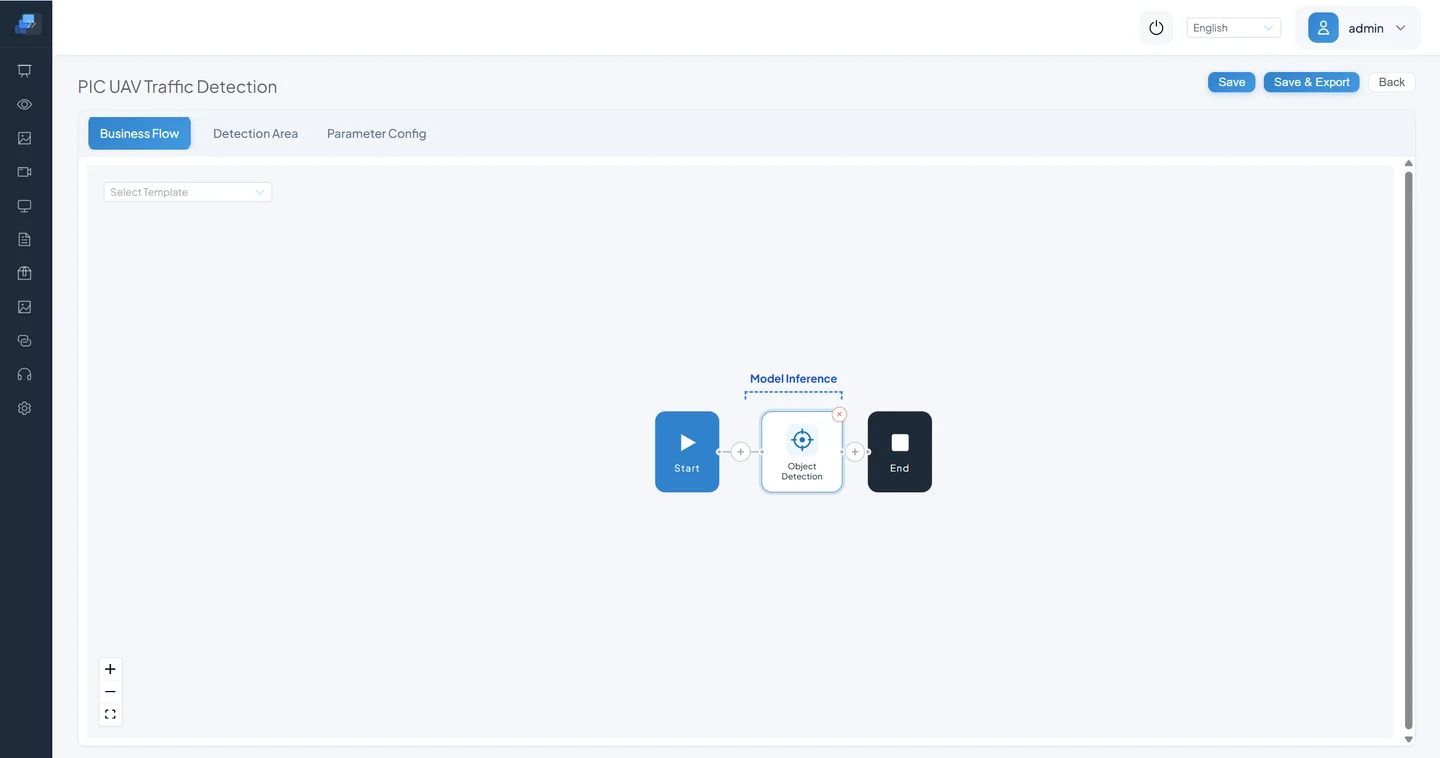
Select the uploaded YOLOv8n, enable only person, and save.
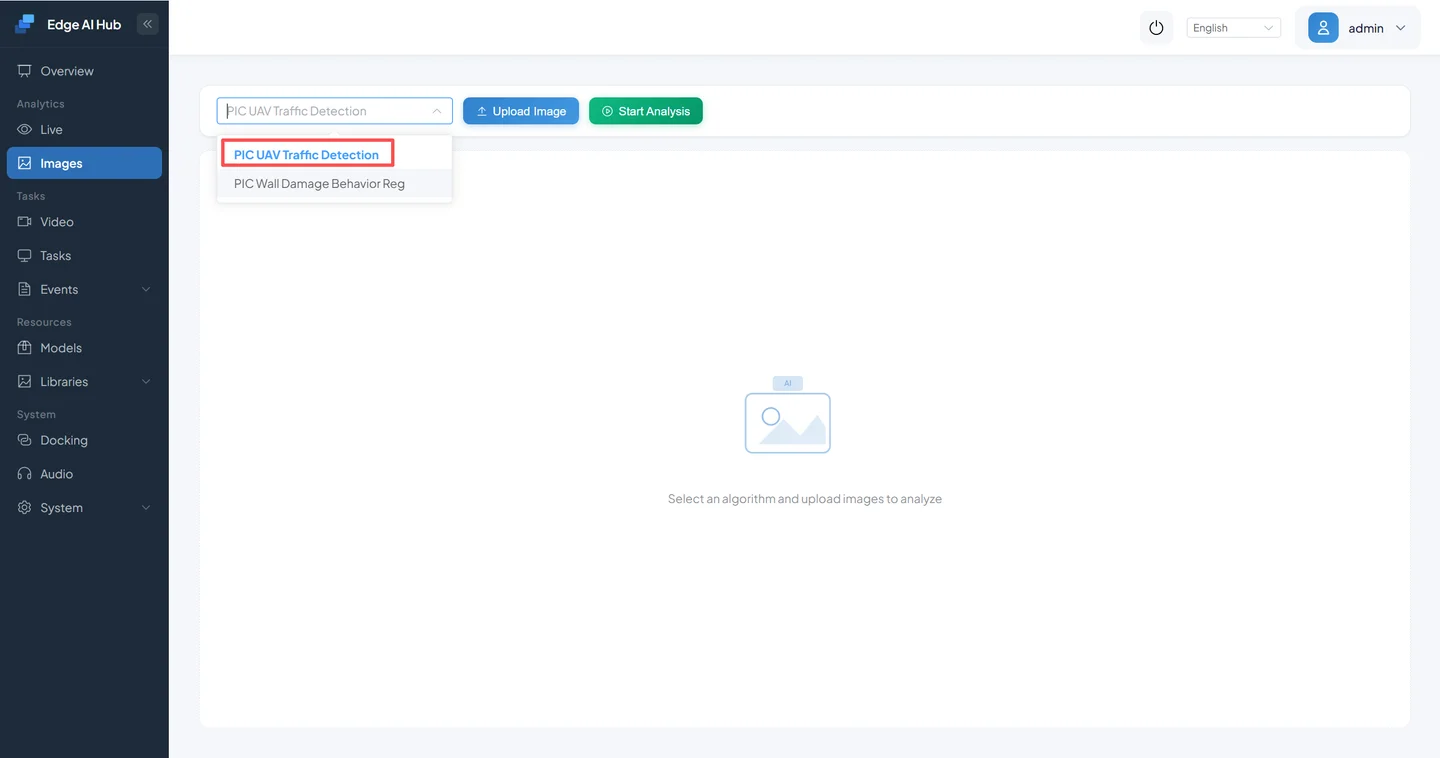
5.3 Upload Positive and Negative Samples
Open Image Analysis and choose YOLOv8n Person Image Validation.
Prepare at least:
- one clear positive image containing a sufficiently large person;
- one negative image without a person;
- optionally, small, occluded, and edge-position targets.
Upload the images.
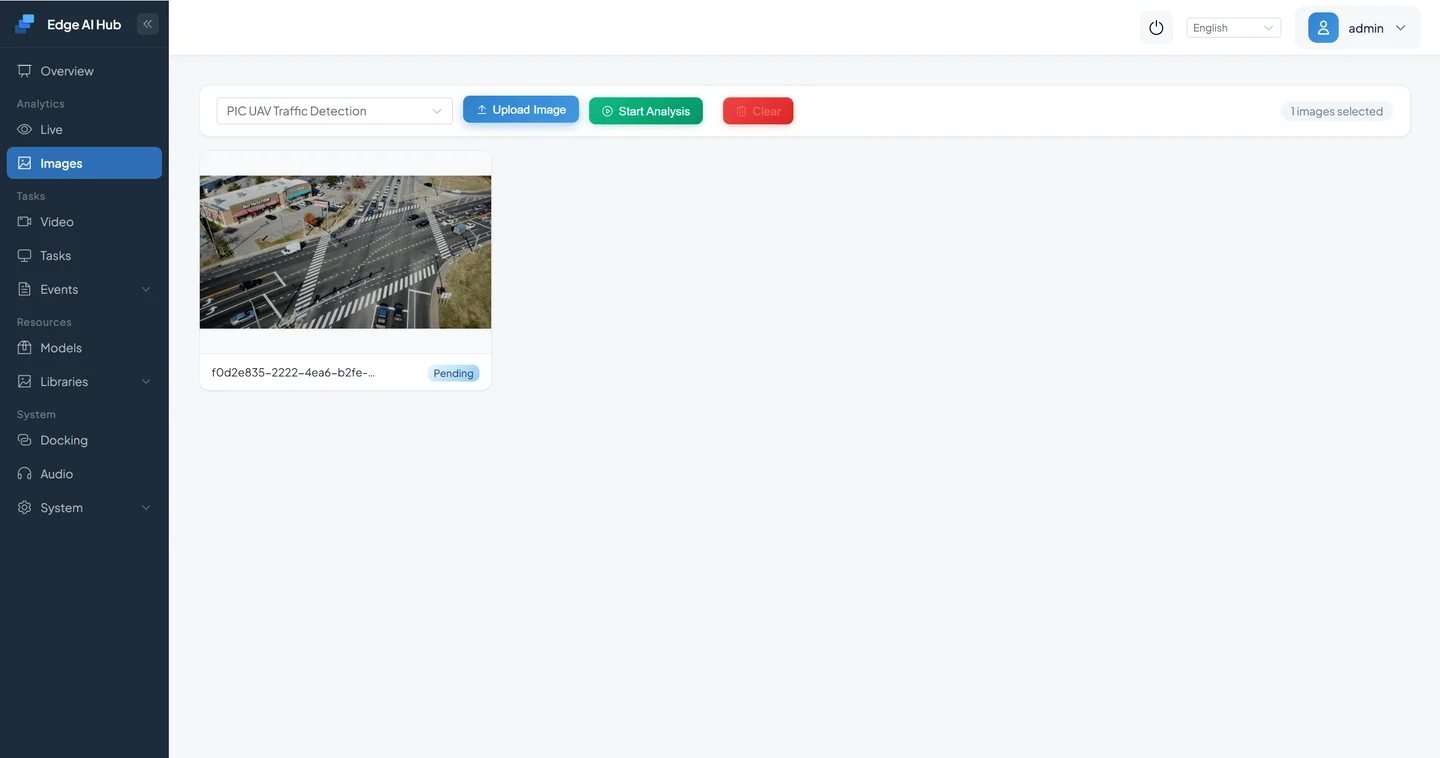
Select Start Analysis and wait for the completed status.
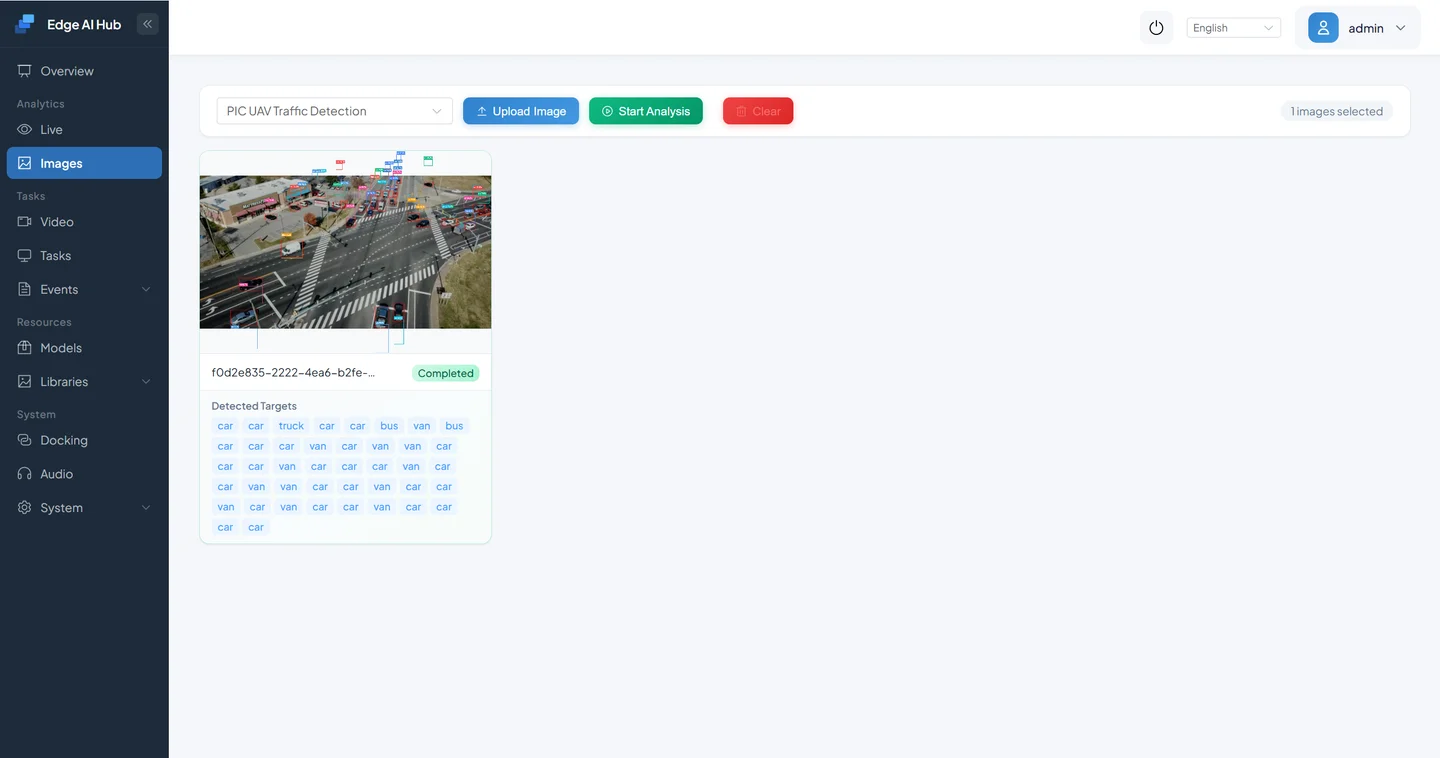
Open details and inspect boxes, classes, confidence, and the result list.
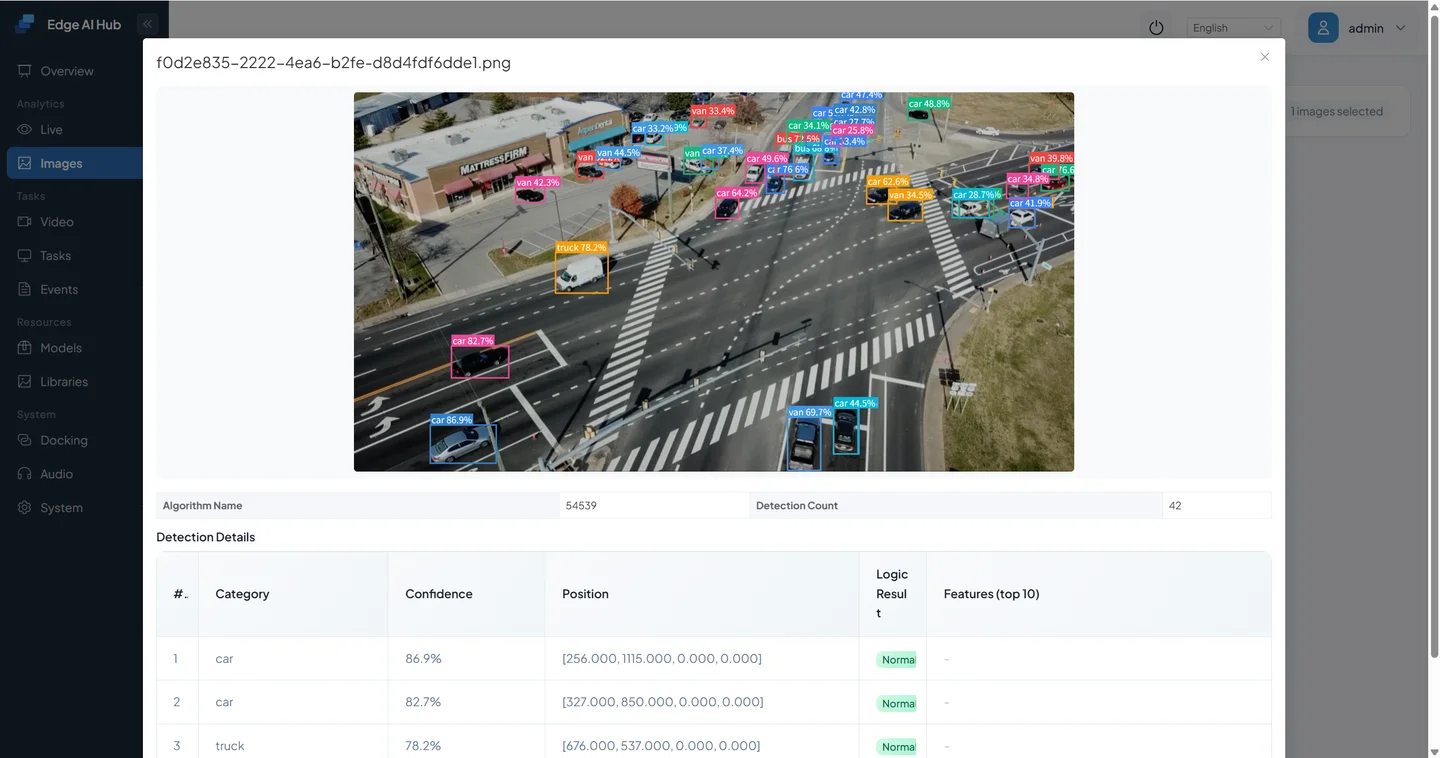
Pass criteria:
- model initialization reports no error;
- the positive image has a reasonably placed box labeled
person, not an incorrect ID; - the negative image does not produce many person boxes;
- confidence values are finite and plausible, not empty, NaN, or a fixed abnormal value.
Do not proceed to video while image validation fails.
6. Connect the Model to a Video Pipeline
6.1 Create a Video-Analysis Task
Return to Task Configuration and create another task.
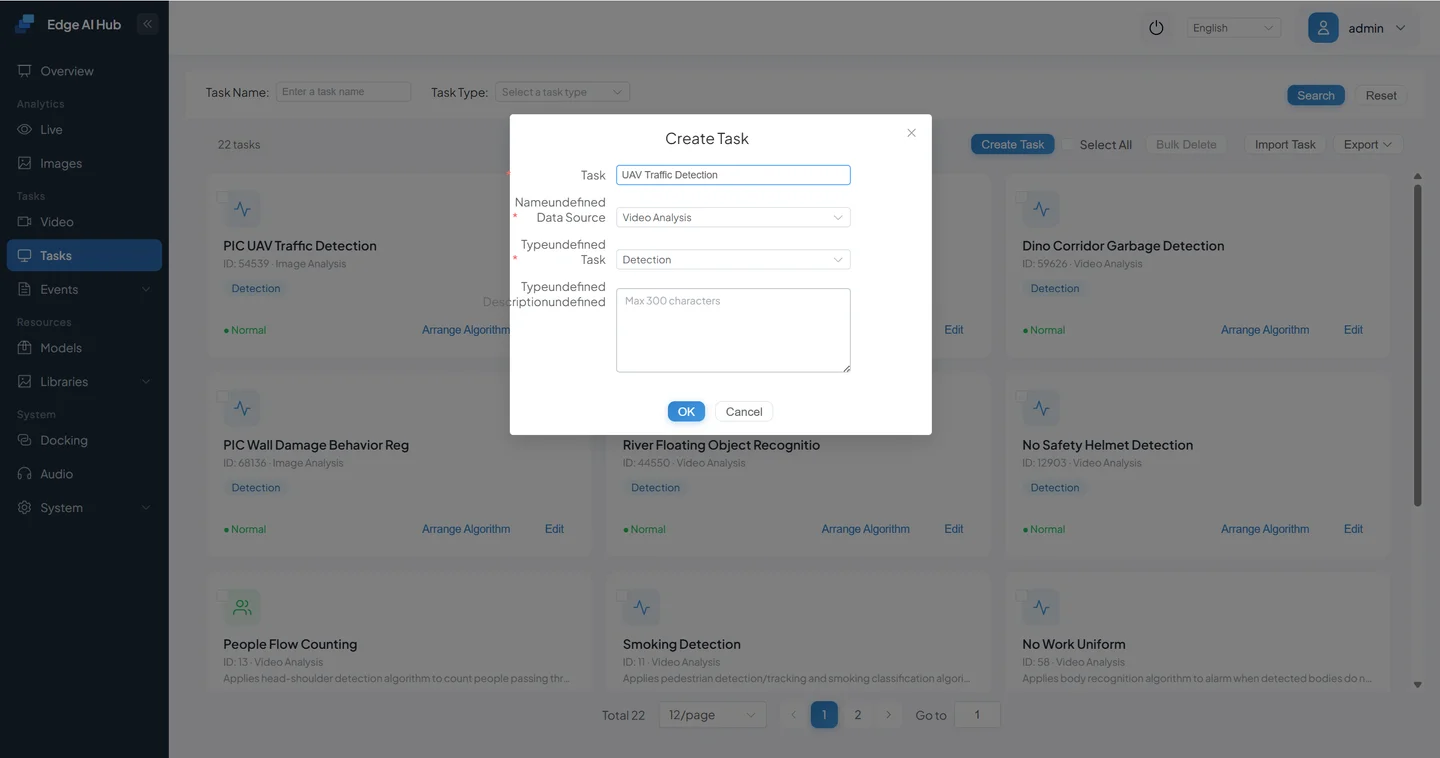
Enter:
- task name:
YOLOv8n Person Detection Validation; - data source type: Video Analysis;
- task type: Detection / Analysis.
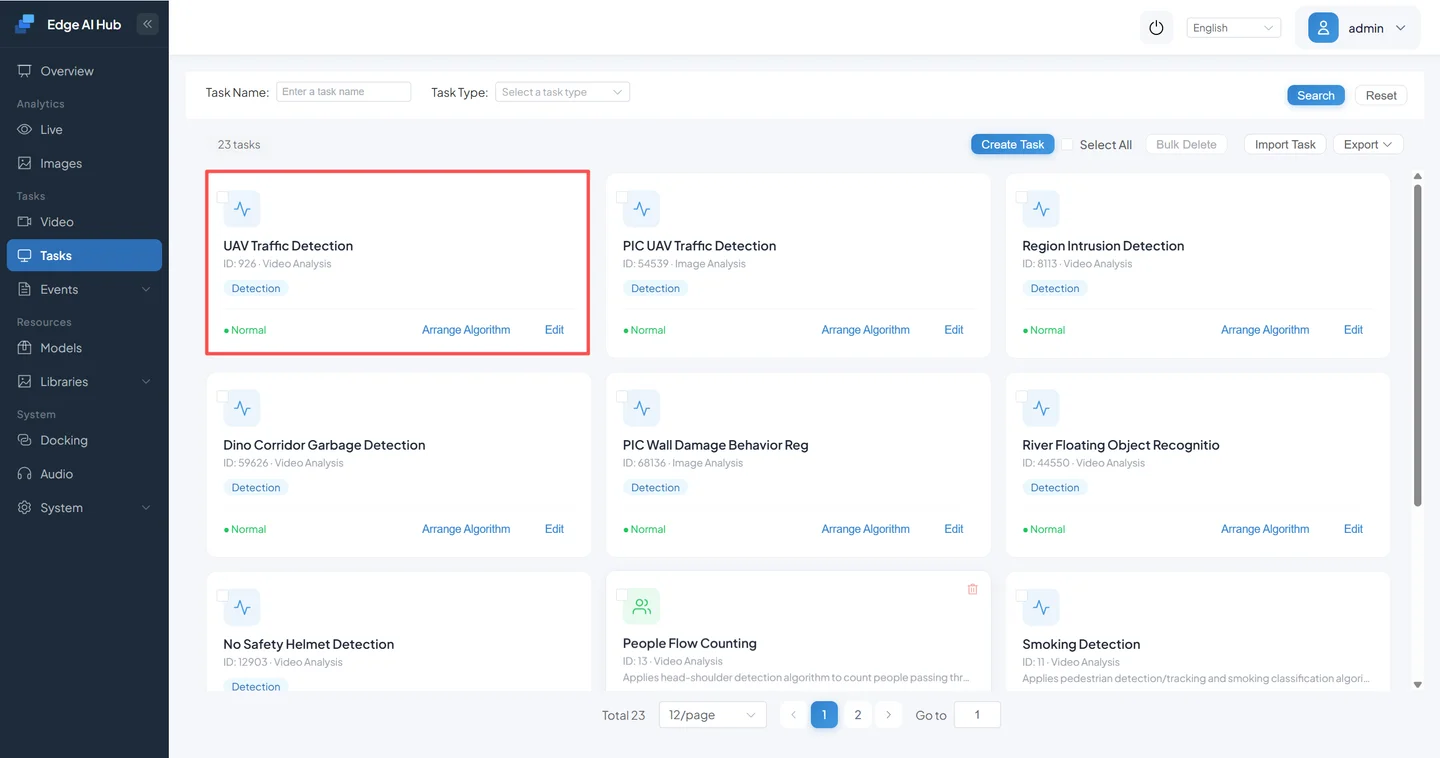
Save and confirm that the new task appears in the list.
6.2 Build the Minimum Acceptable Chain
Select Arrange Algorithm and start from the empty flow.
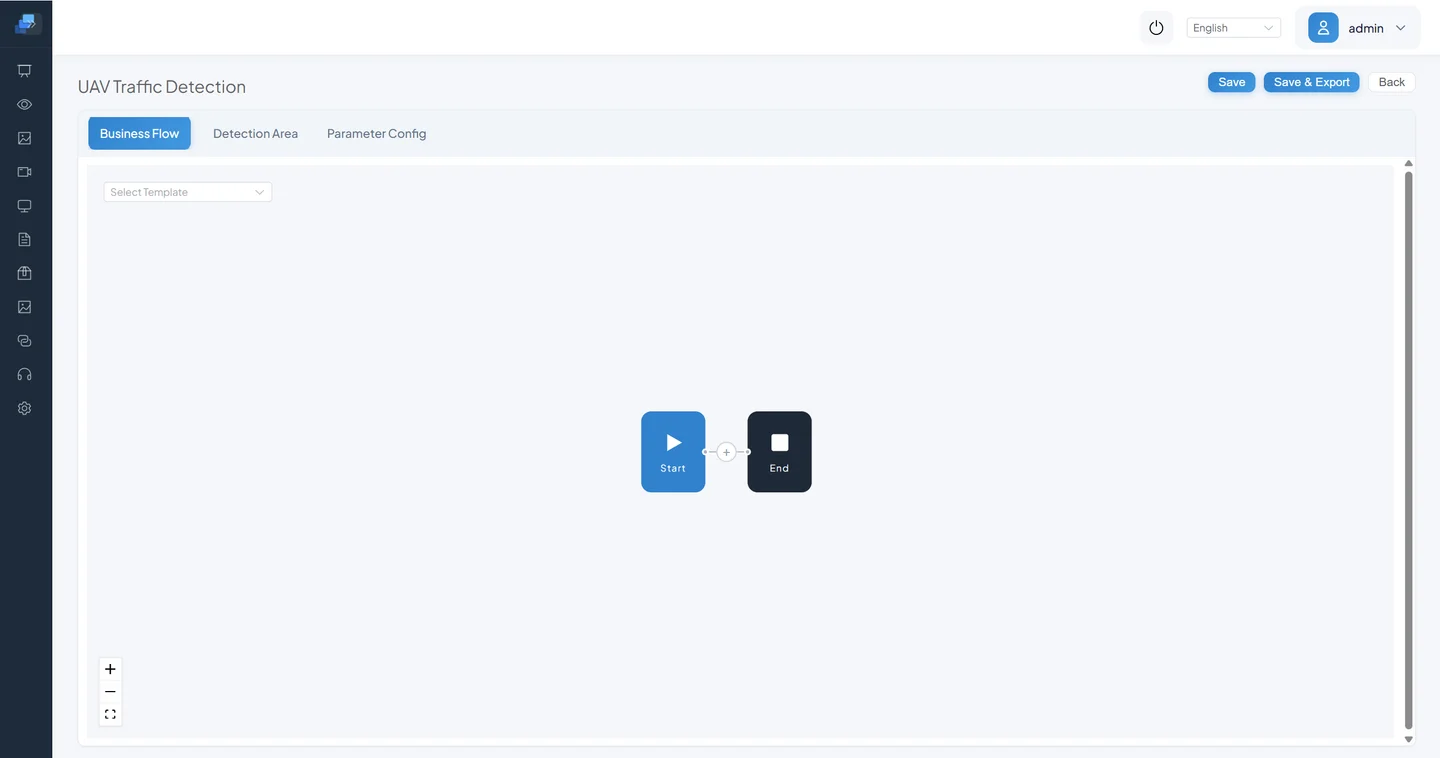
Configure these components in order:
- Video Decode.
- Object Detection: select the uploaded YOLOv8n and enable only
person. - Tracking.
- Category Filter: keep
person; start Min Pedestrian Size at60. - Region Alarm: use the main area and configure detection time.
- Event Report: retain a snapshot for the first validation.
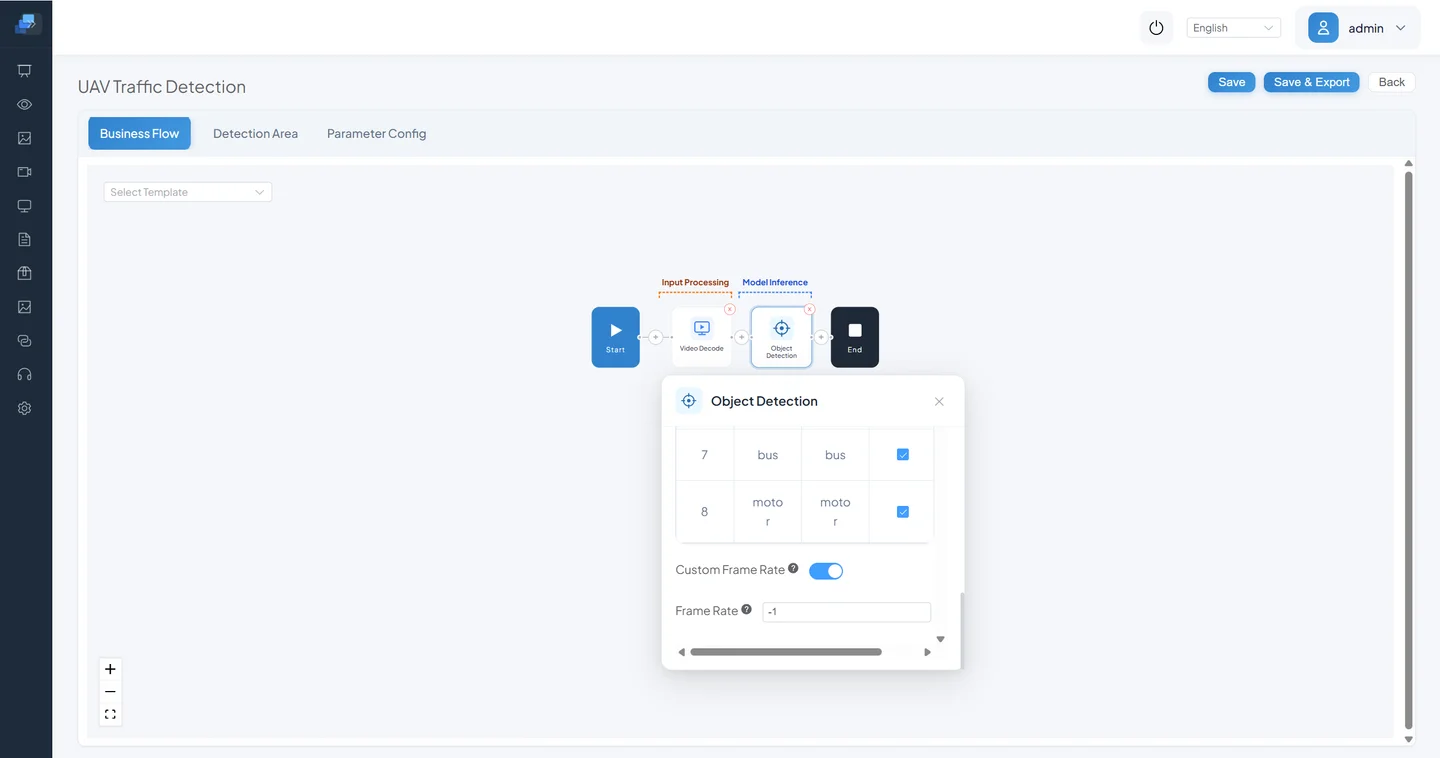
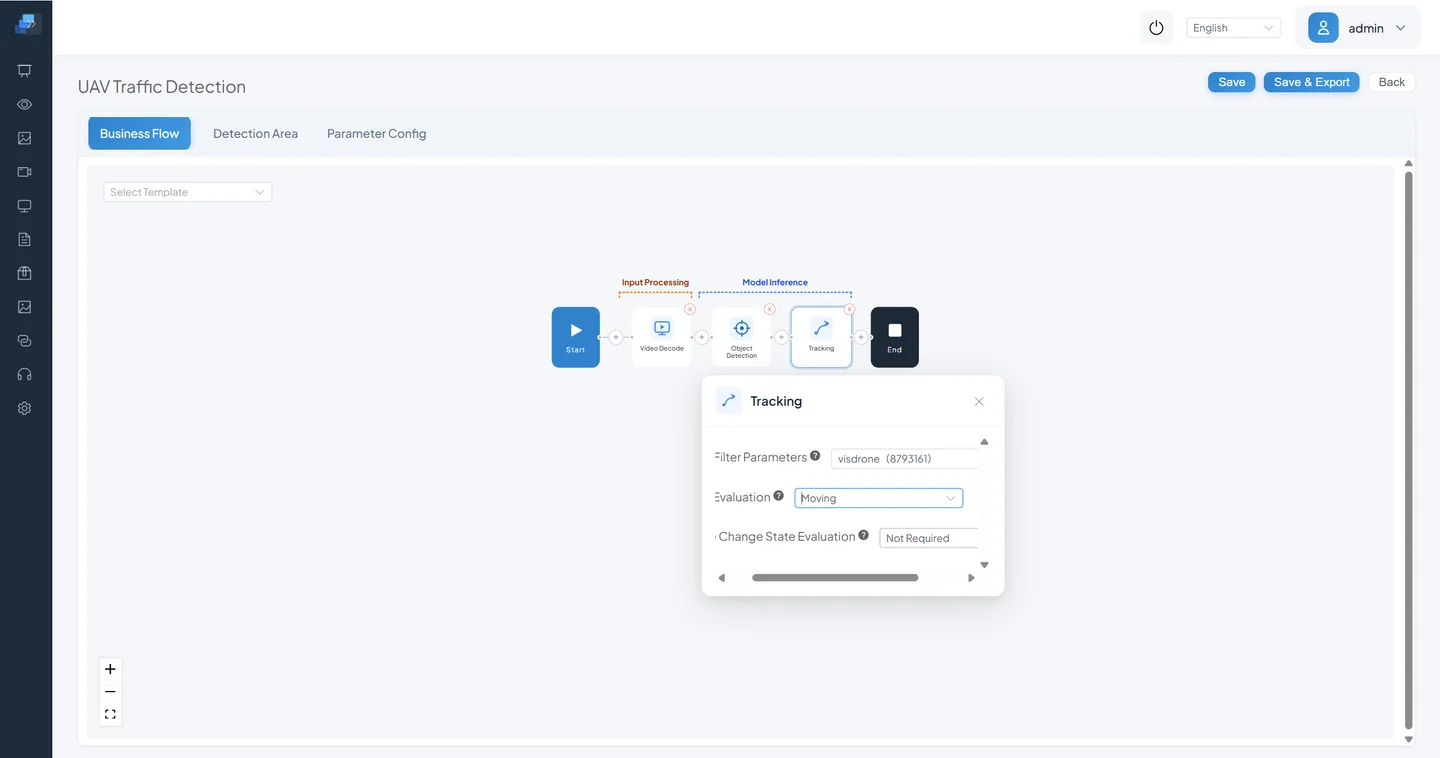
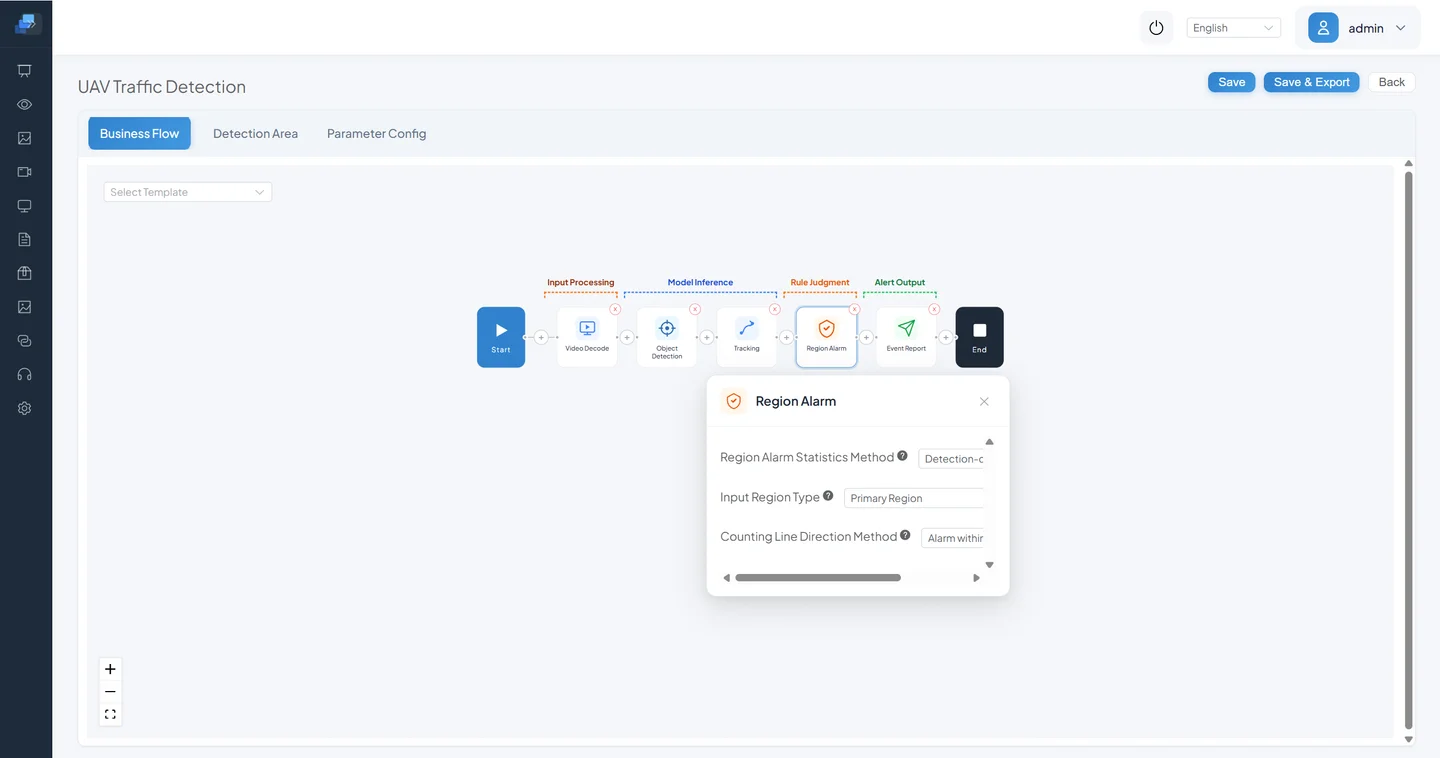
Current Rule vs Earlier Screenshot
The screenshot shows a quantity-limit rule suited to off-post or gathering use cases. This person-entry validation should use the current Region Alarm semantics for the main area and detection time. Do not copy the old quantity threshold into an intrusion chain mechanically.
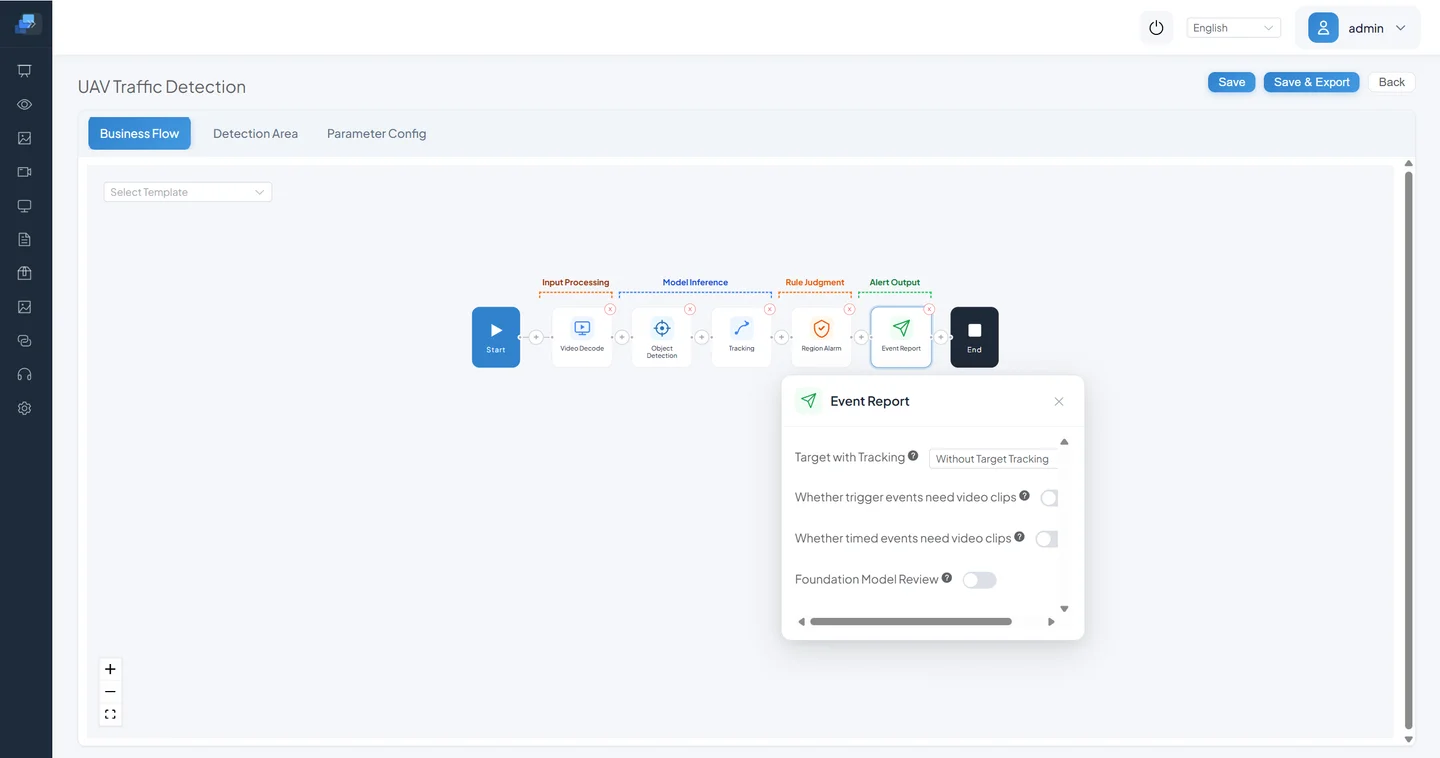
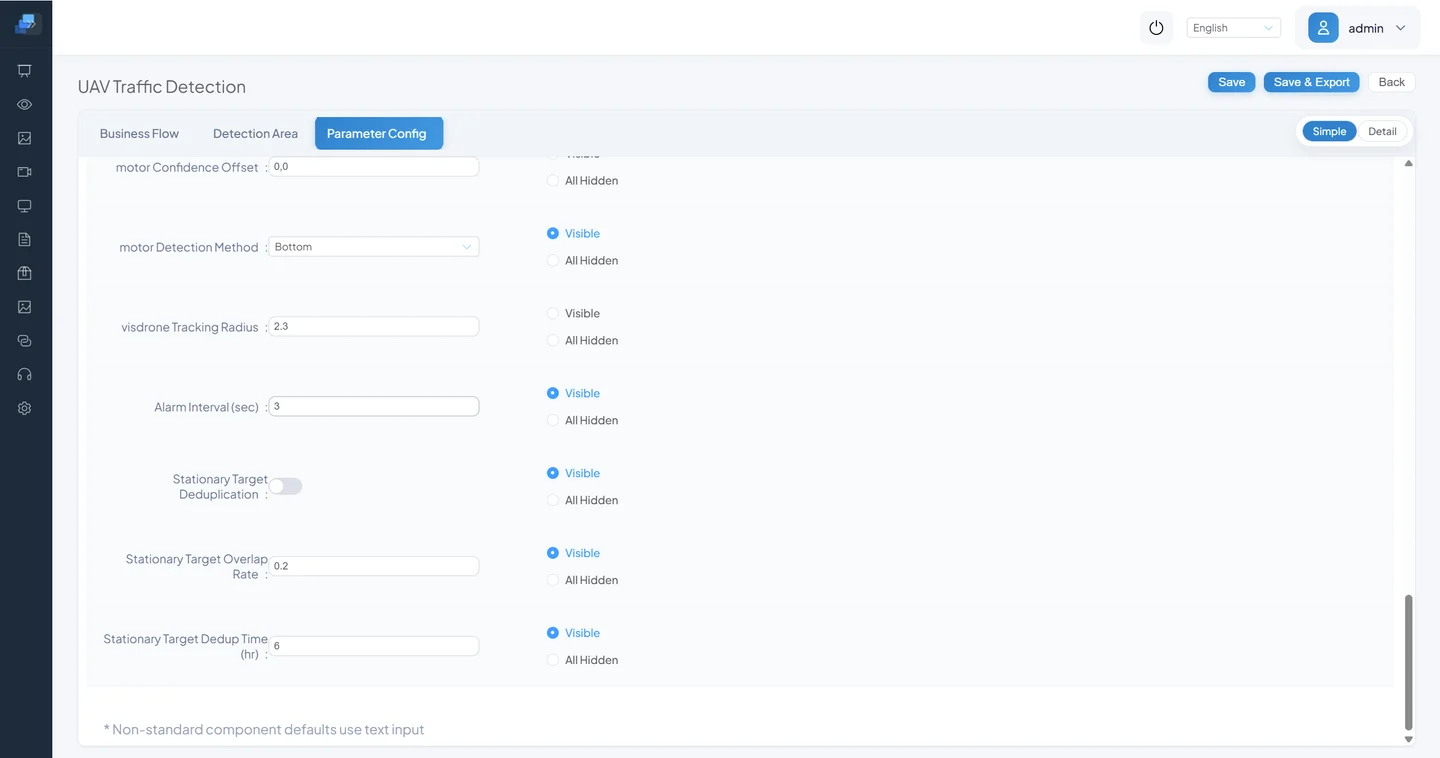
Review model, tracking, region-rule, and event fields under Parameter Configuration, then save.
The current action catalog has no standalone OSD component that must be inserted manually. Live boxes are rendered from result metadata. First prove that Video Decode → Object Detection produces stable boxes, then restore tracking, filtering, region, and report nodes one by one to isolate failures.
7. End-to-End Acceptance
7.1 Add a Test Channel
Prepare a video containing people. You can use data/test-video/Safety Helmet.mp4 from this repository. Open Video Access and add an Offline Video channel.
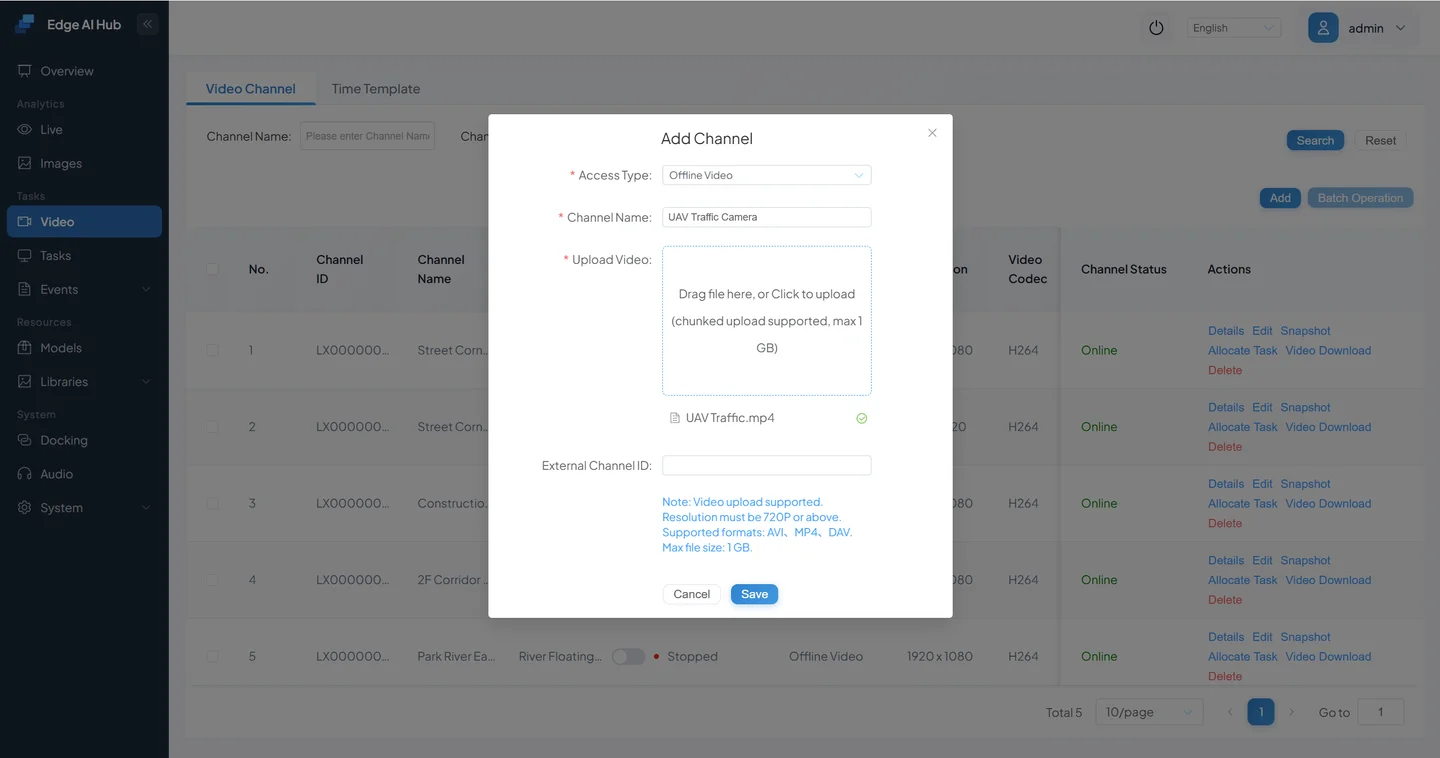
Use the Current Capacity Message
The screenshot is from an earlier version, and its “maximum 1 GB” text is not a current fixed limit. Upload now uses chunks and a safe-space check. Admission depends on the device's safe available space at that moment; if capacity is insufficient, follow the required-space, available-space, and suggested-action message in the UI.
Wait for upload and channel processing to complete, then select Service Assignment.
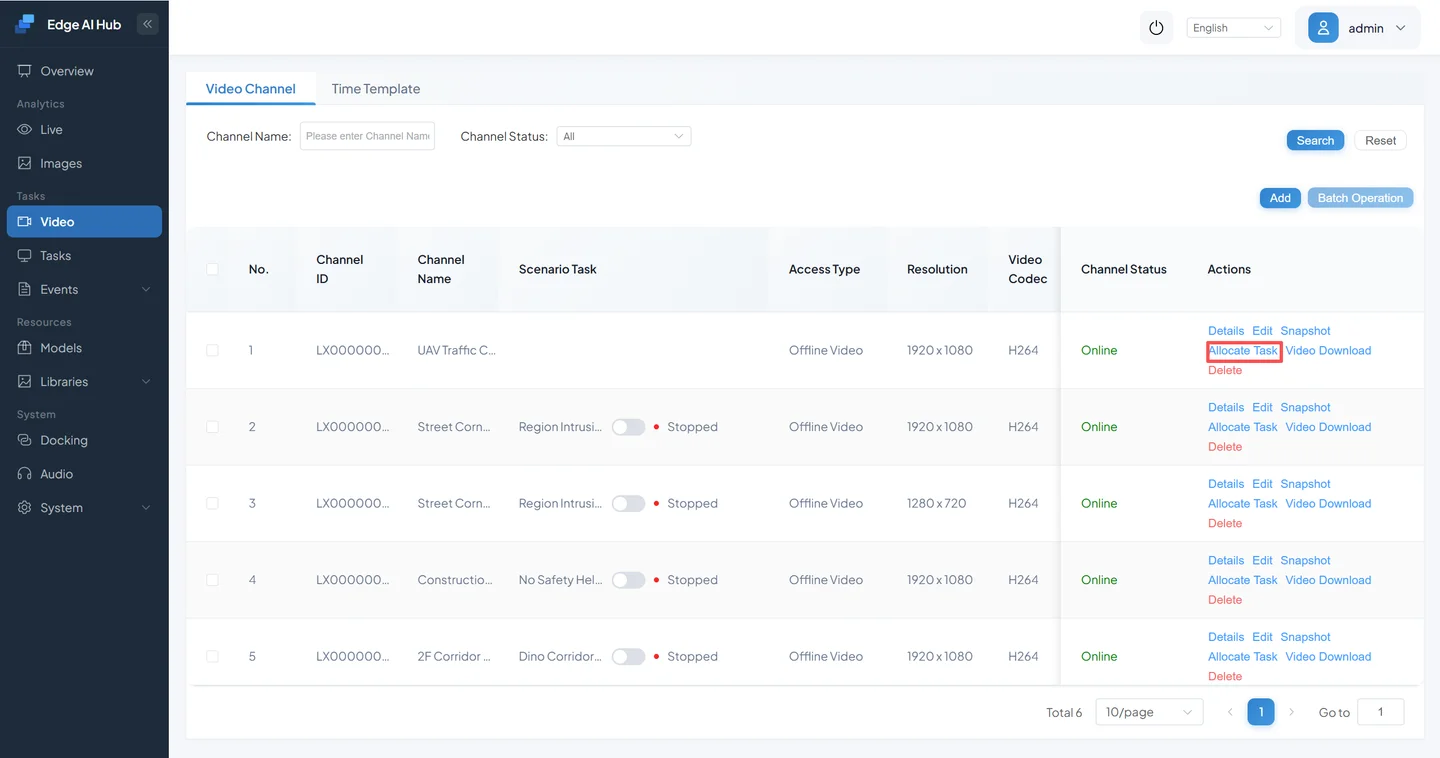
7.2 Assign the Task, Region, and Running Strategy
Choose YOLOv8n Person Detection Validation from the task list.
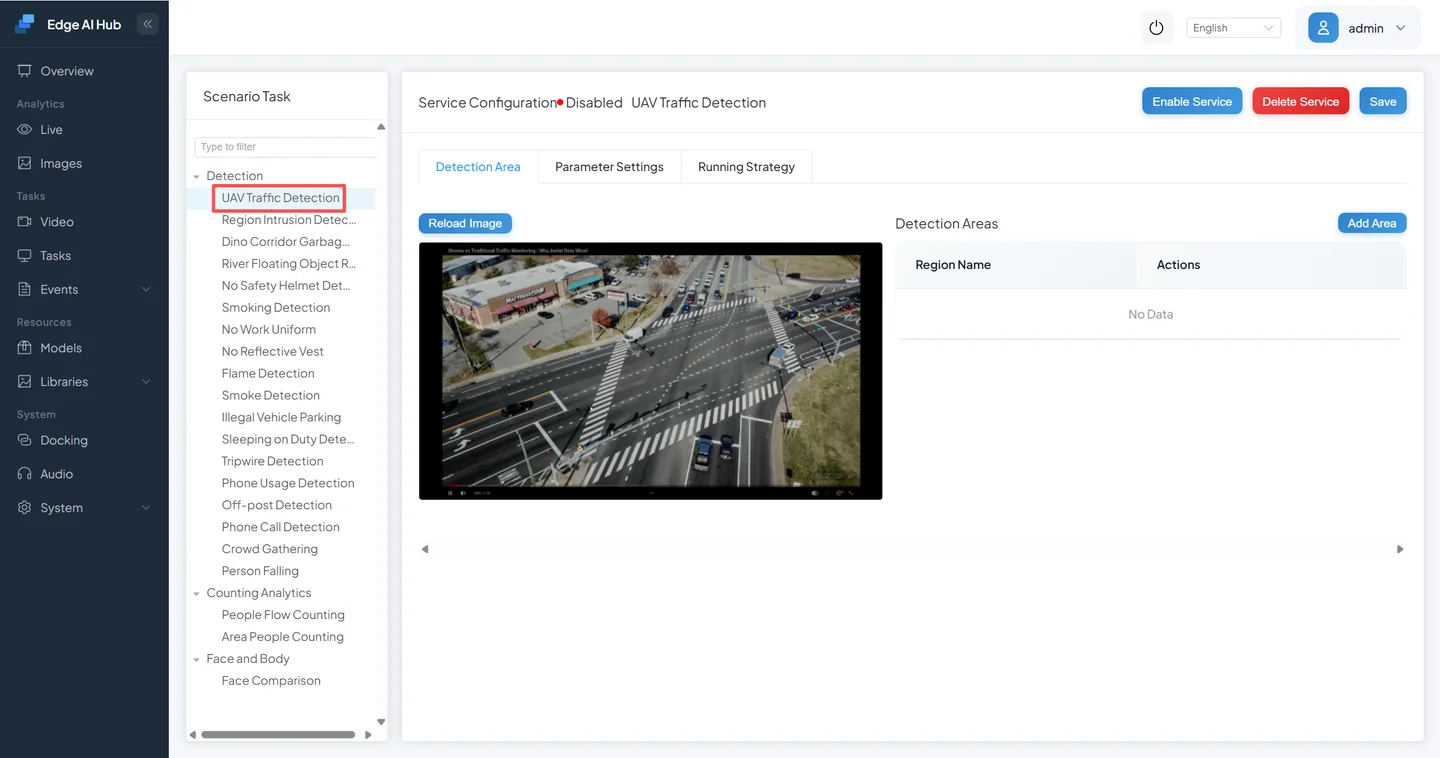
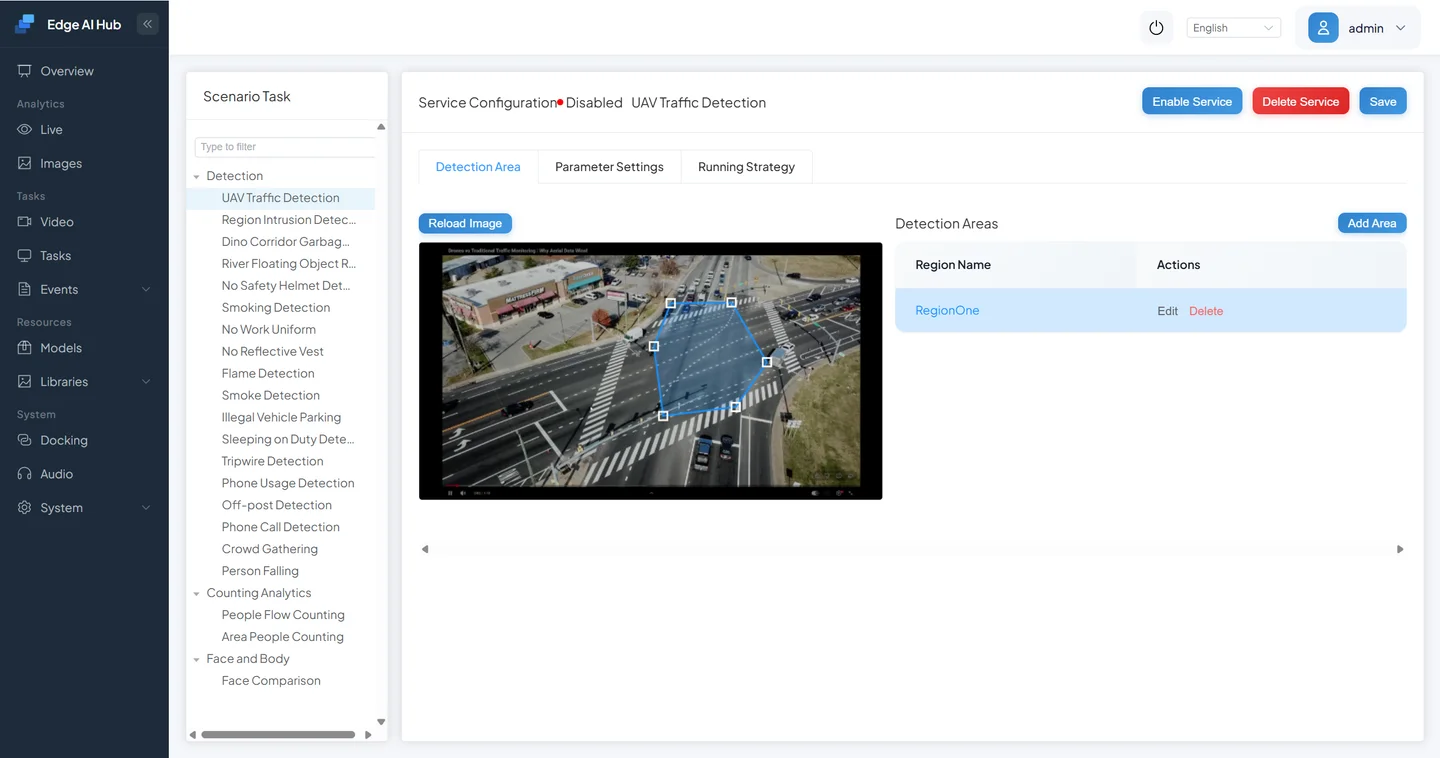
Add a detection region that covers where people move. If the region is too small, the model can draw boxes without producing an event.
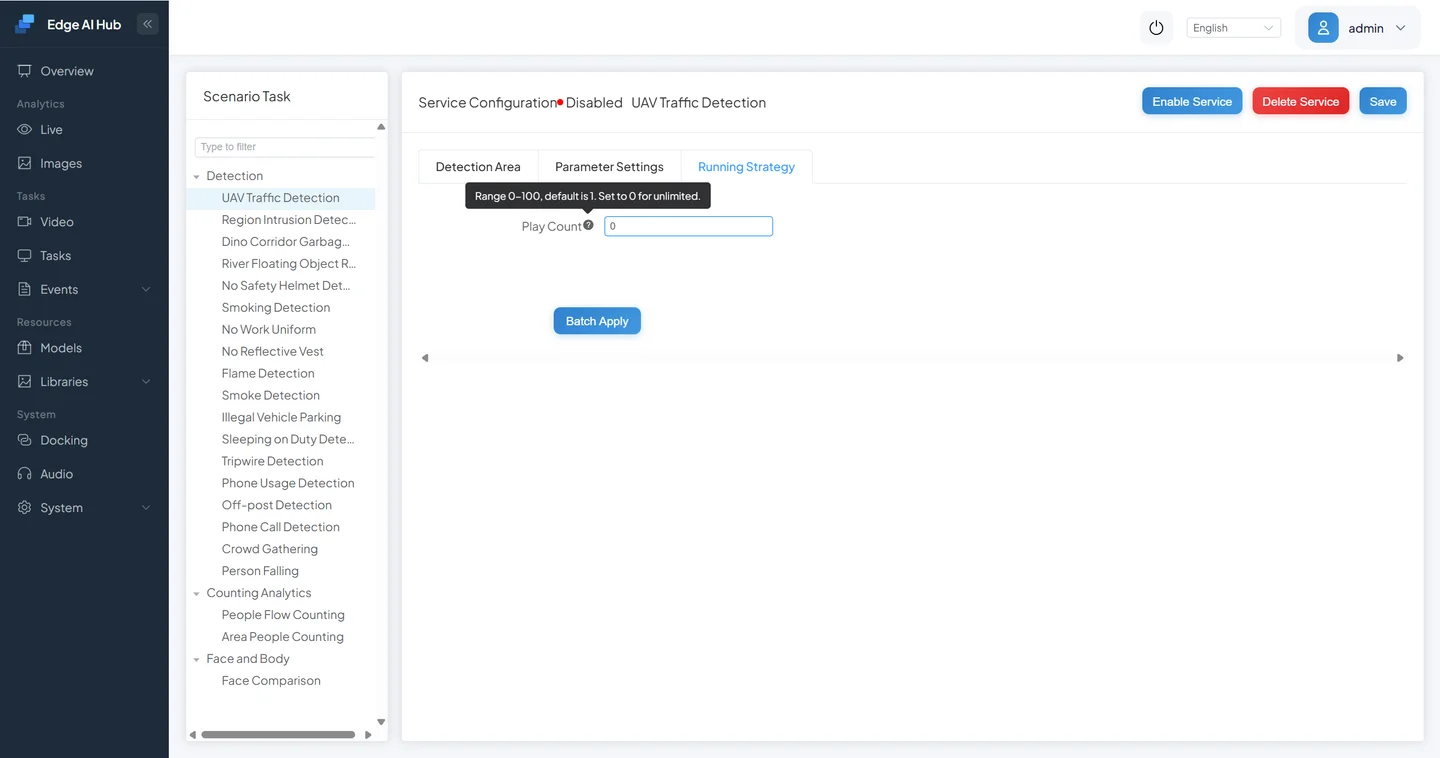
Under Running Strategy, ensure the current time is in an active period. Offline Video Play Count accepts 0–100: 0 loops indefinitely, while 1–100 is the total number of plays.
Save and enable the service.
7.3 Check Live Inference
Open Live Display and choose the test channel.
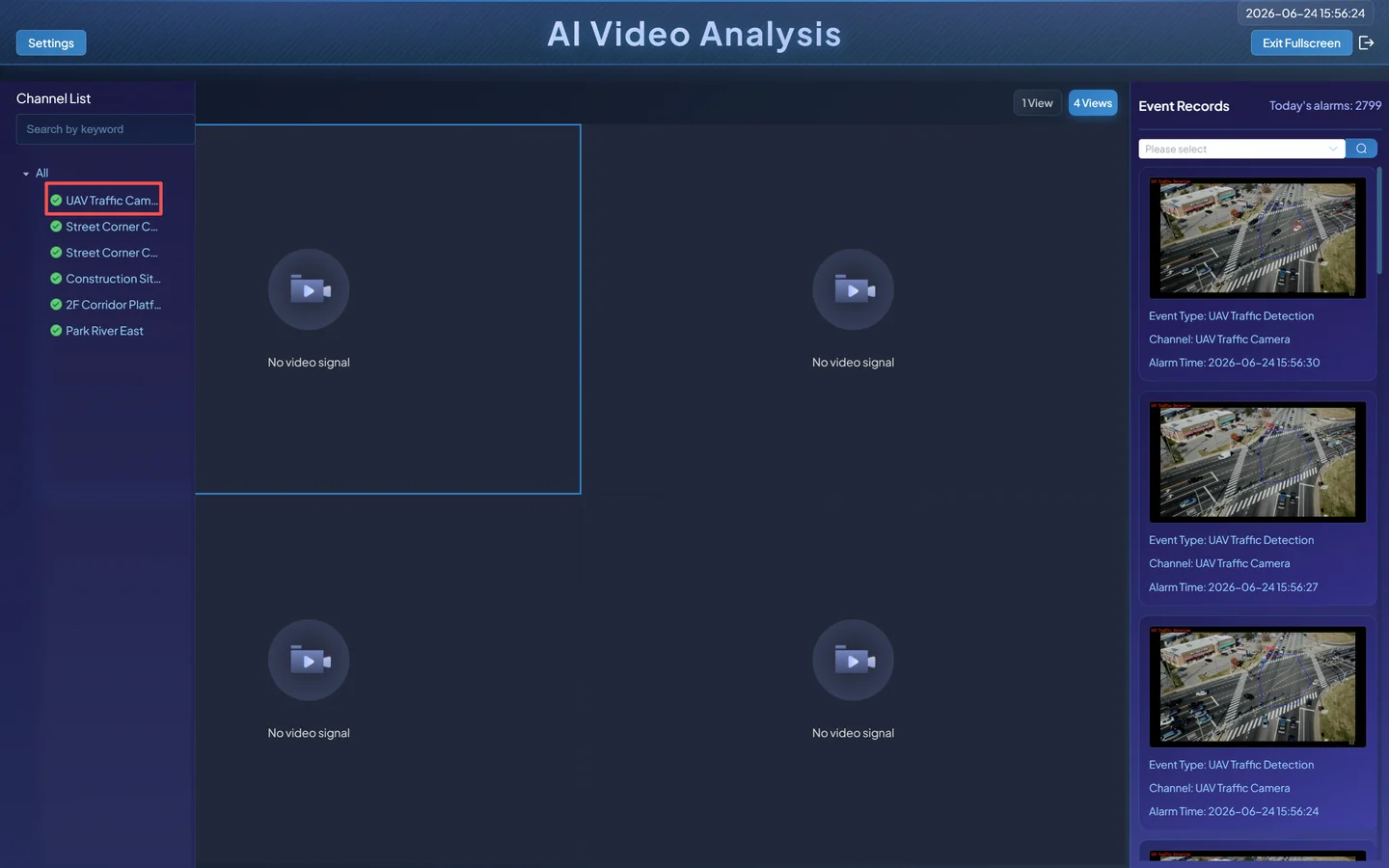
Select the validation task in algorithm-overlay settings.
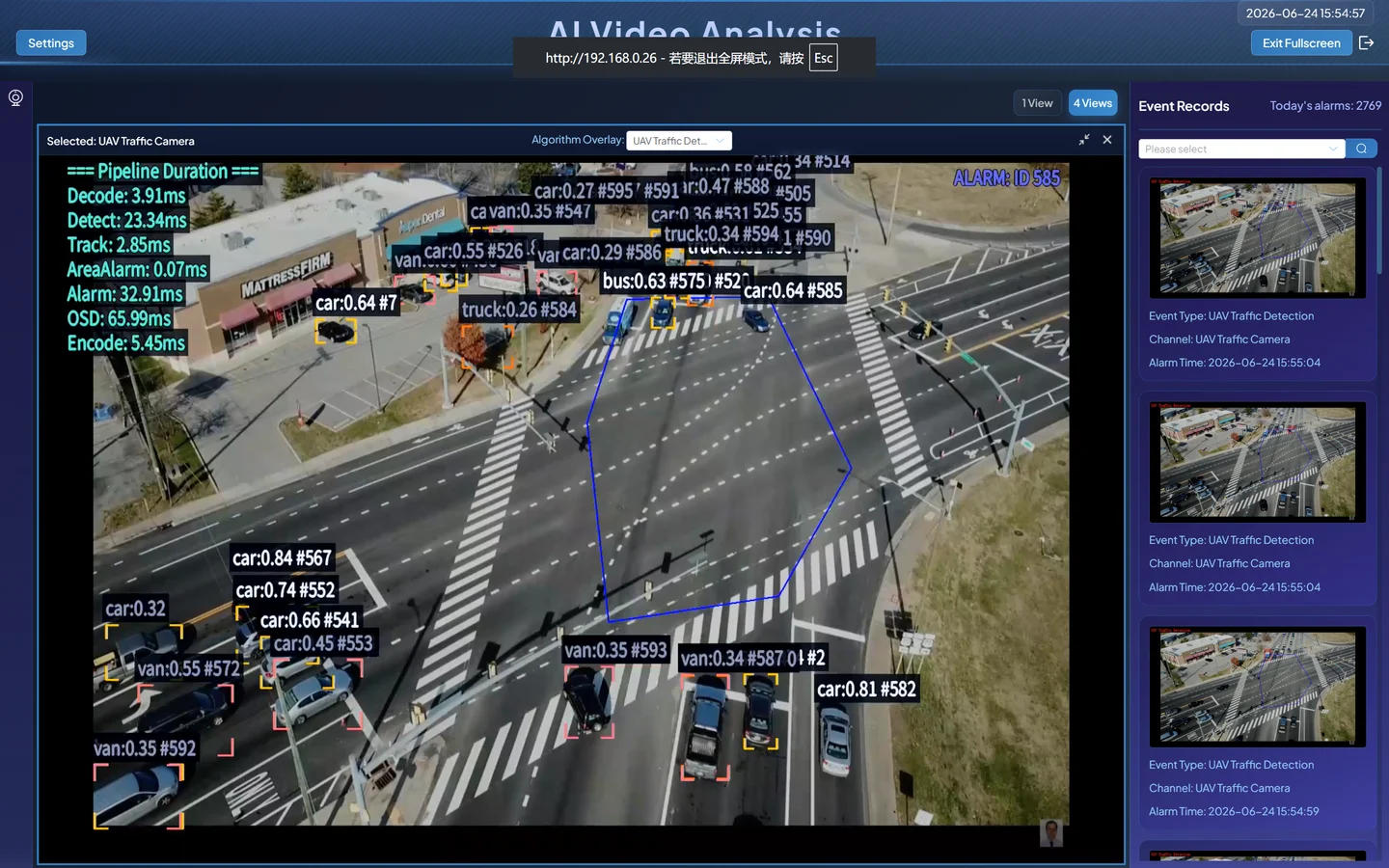
Check that:
- video keeps playing;
- boxes appear at person locations;
- the class is
person, and scores and coordinates vary with the image; - segments without people do not show many fixed boxes;
- when tracking is enabled, one target remains reasonably continuous.
7.4 Check the Alert and Event Center
An alert should appear after a target satisfies the region and detection-time rules.
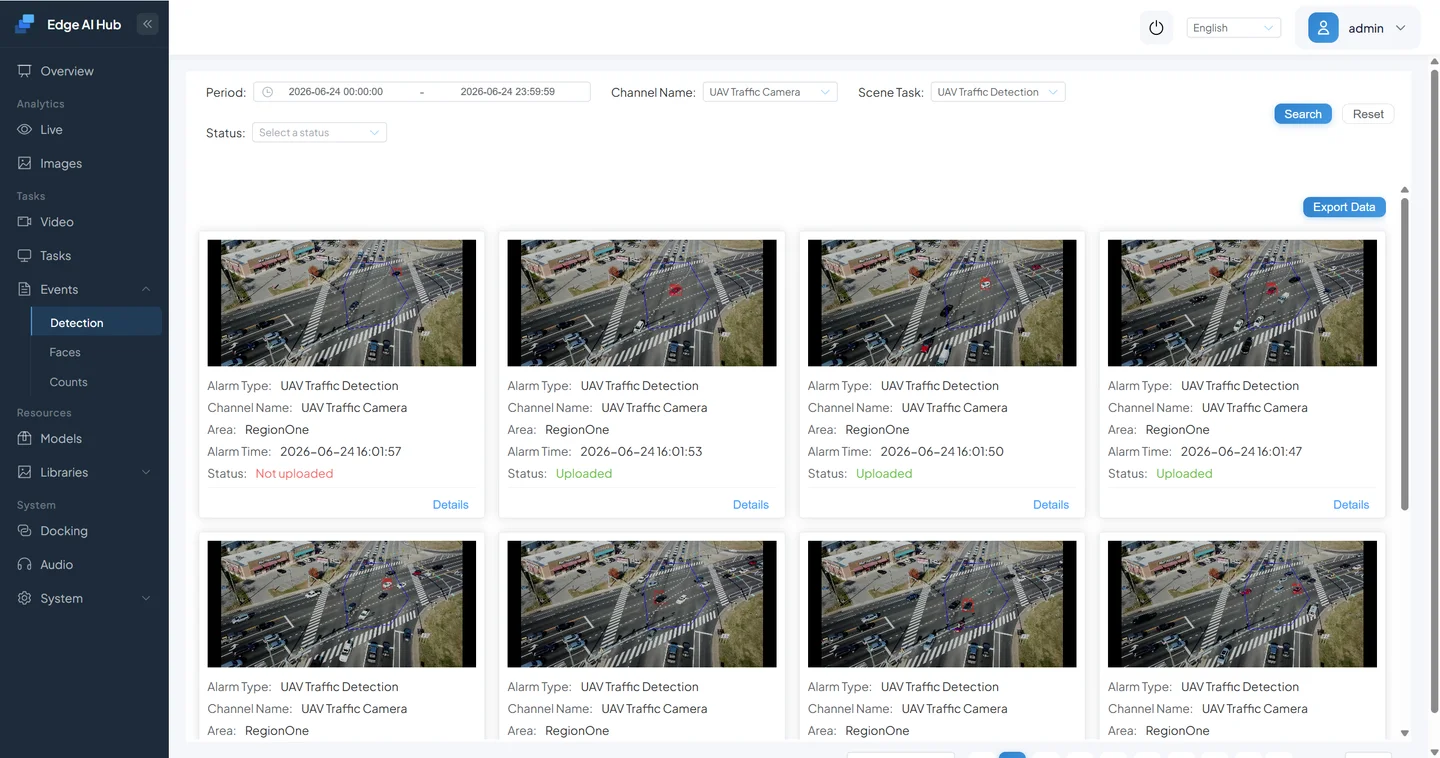
Open Event Center → Detection / Analysis and query by task and channel.
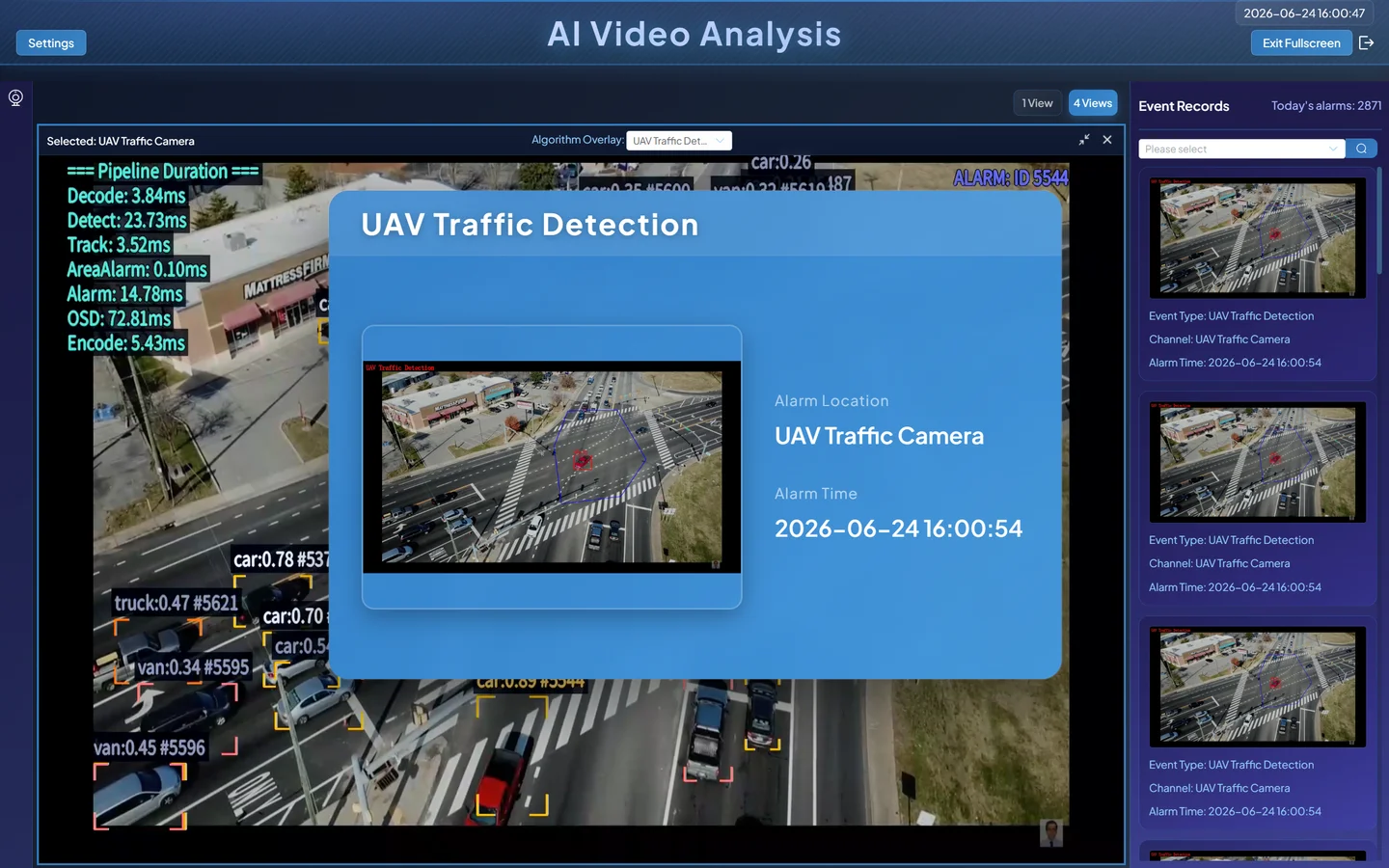
Confirm that the event snapshot has the correct box, class, channel, region, and time. If live boxes appear but no event does, check the region, detection time, running strategy, and Event Report before changing the model.
7.5 Sustained Operation
Run at least one full loop of the offline video and define a longer project-specific soak window. Record:
- process restart or crash;
- stable inference time and effective frame rate;
- host memory, device memory, and disk growth;
- continued parsing beyond the first frame;
- recovery after stopping and starting the task.
Production use must repeat capacity and stability acceptance at the target channel count, resolution, and duration. A single-channel functional pass does not prove production capacity.
8. Failure Paths
Upload Succeeds but the Model Cannot Run
- Compare the uploaded-file hash with the export artifact.
- Confirm ONNX for x86 and a bmodel for the exact Sophon chip.
- Find the first model-initialization error: unsupported operator, shape, corruption, or insufficient memory.
- Repeat ONNX Runtime or target-tool validation on the conversion host.
- Confirm that the Pipeline selects the new model ID.
The Model Runs but Output Parsing Is Wrong
Typical symptoms are no targets, out-of-range coordinates, one class for every target, or abnormal confidence. Check:
- subtype and parser;
- output names, counts, shapes, and dimension order;
- whether export built NMS into the graph;
xywhversusxyxyand normalized versus pixel coordinates;- label count and order;
- RGB/BGR, resize, padding, and normalization.
If the output contract differs from an existing parser, implement or adapt postprocessing instead of hiding the mismatch with arbitrary thresholds.
Resources Are Insufficient
- Stop other model tasks and test the minimum single-model chain.
- Record memory before and after loading.
- Lower frame rate only reduces work; it may not reduce resident model memory. Use a smaller model or suitable precision when the model itself cannot load.
- Recheck accuracy after Sophon F16 or quantization.
- Admit capacity at the target channel count instead of extrapolating linearly from one channel.
Images Work but Video Fails
Check whether video preprocessing matches the image path, whether the ROI covers the target, whether frame sampling is reasonable, and whether tracking, filtering, or event rules remove correct detections. Reduce the Pipeline temporarily to Video Decode + Object Detection, then restore rule nodes one at a time.
Live Boxes Appear but No Alert Is Created
Check in this order: the current time is in the running strategy; the ROI covers the target; the region rule matches; detection time has elapsed; Event Report is connected; and the service is enabled. A successful image analysis does not prove the event rule is active.
Acceptance Checklist
- [ ] The candidate has a source, version, input/output record, and SHA-256.
- [ ] File format, target backend, and device chip match.
- [ ] Pre-conversion and post-conversion checks pass.
- [ ] Model configuration matches preprocessing, postprocessing, and label order.
- [ ] Positive and negative image samples pass.
- [ ] The video Pipeline outputs correct boxes, classes, and events.
- [ ] The soak window has no crash, unbounded resource growth, or parsing interruption.
- [ ] Evidence is bound to the CosmoEdge version, model hash, device, and configuration.
All eight checks are required for a complete third-party integration. A successful upload or one correct image result alone is not final acceptance.