
VLM and DINO: Prompt-Driven Vision Tasks
| Item | Details |
|---|---|
| Who this is for | Solution engineers, algorithm engineers, and advanced users validating long-tail vision requirements |
| What you will accomplish | Create a visual-state task with a VLM, an open-vocabulary detector with DINO, and evaluate both with positive and negative samples |
| Prerequisites | You can configure channels, areas, parameters, and running strategies; the matching model is installed or a compatible remote VLM service is available |
| Estimated time | 45–70 minutes |
| Device required | Local Qwen VLM requires the Sophon backend and matching model; DINO requires a backend-compatible model; remote VLM also requires network access and credentials |
| Final acceptance result | VLM decisions are repeatable on fixed positive and negative samples, DINO boxes are at the expected targets, and video events match the task definition |
This page starts from one task question: How do you define a verifiable visual rule with a prompt?
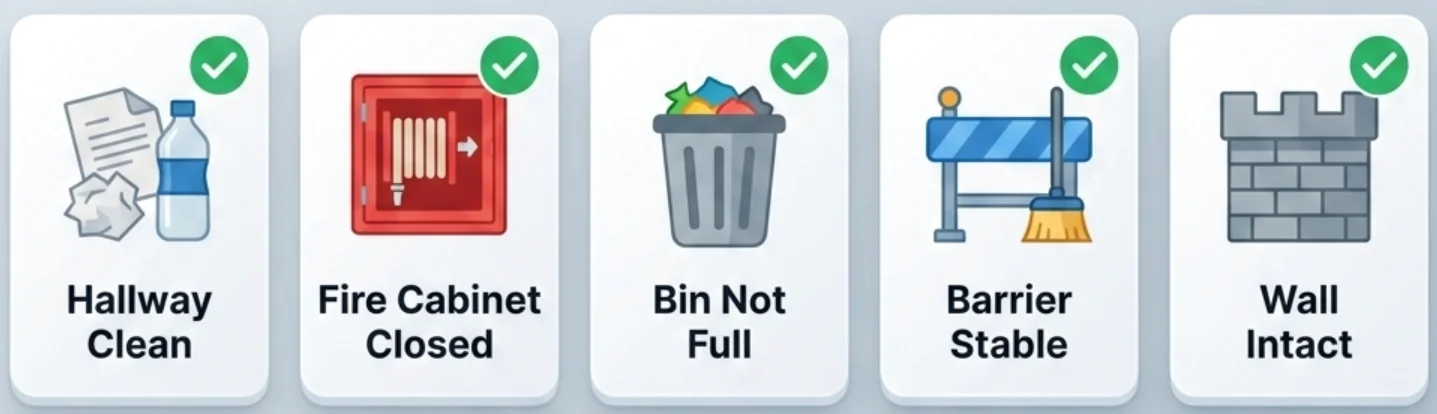
For example:
- Is there garbage in the corridor?
- Is the fire-equipment cabinet closed?
- Is the garbage bin overflowing?
- Has the construction barrier fallen?
- Is there clear human-caused damage on the wall?
These requirements often do not map directly to a fixed-class model. A VLM or DINO can lower the cost of a feasibility test, but “no training required for a trial” does not mean “no samples required for deployment.” You still need business boundaries, positive and negative samples, and records of false positives, misses, latency, and resource use.
1. Choose the Right Capability First
| Capability | Best question | Output | Typical use | Main limitation |
|---|---|---|---|---|
| Conventional detector/classifier | Does a known fixed class appear? | Boxes, classes, and scores | Frequent people, helmet, or vehicle tasks | New classes usually require model and data work |
| VLM | Does the image match a semantic condition? | Yes/no decision and event | Door closed, area clean, possible visible damage | Sensitive to wording, image quality, sampling, and generation variability; local Qwen currently depends on Sophon |
| DINO | Where is an open-vocabulary class? | Boxes, classes, and scores | Fire extinguishers, garbage, packages | The target must be visually discernible; tiny, crowded, or abstract concepts still require testing |
Use this shorthand:
- To decide whether a visible state is true, validate a VLM first.
- To locate a target class, validate DINO first.
- For stable high-frequency detection of a fixed class with a suitable model, prefer the conventional model.
Good candidates for an initial VLM or DINO test include low-frequency inspection, long-tail objects with varied shapes, image-based feasibility checks, and tasks for which stakeholders can agree on positive and negative examples.
Do not deploy from one prompt alone when the requirement involves exact counts, fine-grained identity, continuous actions, extremely small or obscured targets, unmeasured deterministic latency or concurrency, a safety-critical automatic action without a fail-safe, or a business rule that humans cannot label consistently.
A visible task template does not prove that its model file is installed. Check Model Repository, device memory or accelerator memory, and network requirements first. Do not reuse fixed latency or channel-count claims from an earlier guide: those results depend on model, resolution, frame sampling, backend, and device and must be measured on the target environment.
2. VLM: Create a Visual-State Task
A VLM receives an image or ROI with a prompt and passes a yes/no result to Event Report. It normally does not produce object boxes, so acceptance focuses on the decision, capture, and event rather than an OSD box.
2.1 Understand the Node Flow
Using River Floating Debris as the example, open Task Configuration → Scenario Task → River Floating Debris → Pipeline Orchestration.
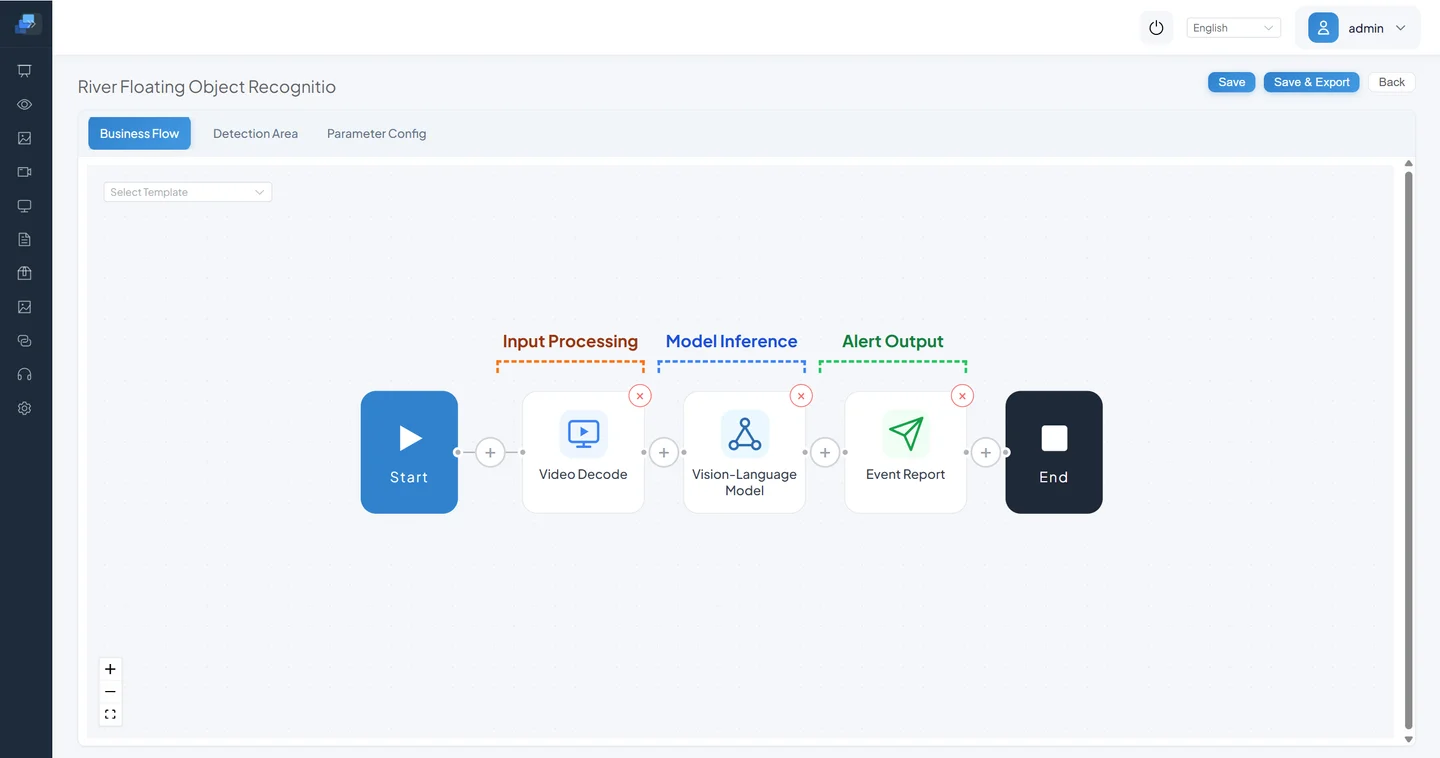
A video VLM task normally contains:
- Video Decode obtains frames; the business target must be visually discernible.
- Preprocessing samples frames and crops the configured ROI.
- Vision-Language Model submits the image and prompt to a local or remote model.
- Event Report persists a matching result with capture and time.
Select the Vision-Language Model node to open its settings.
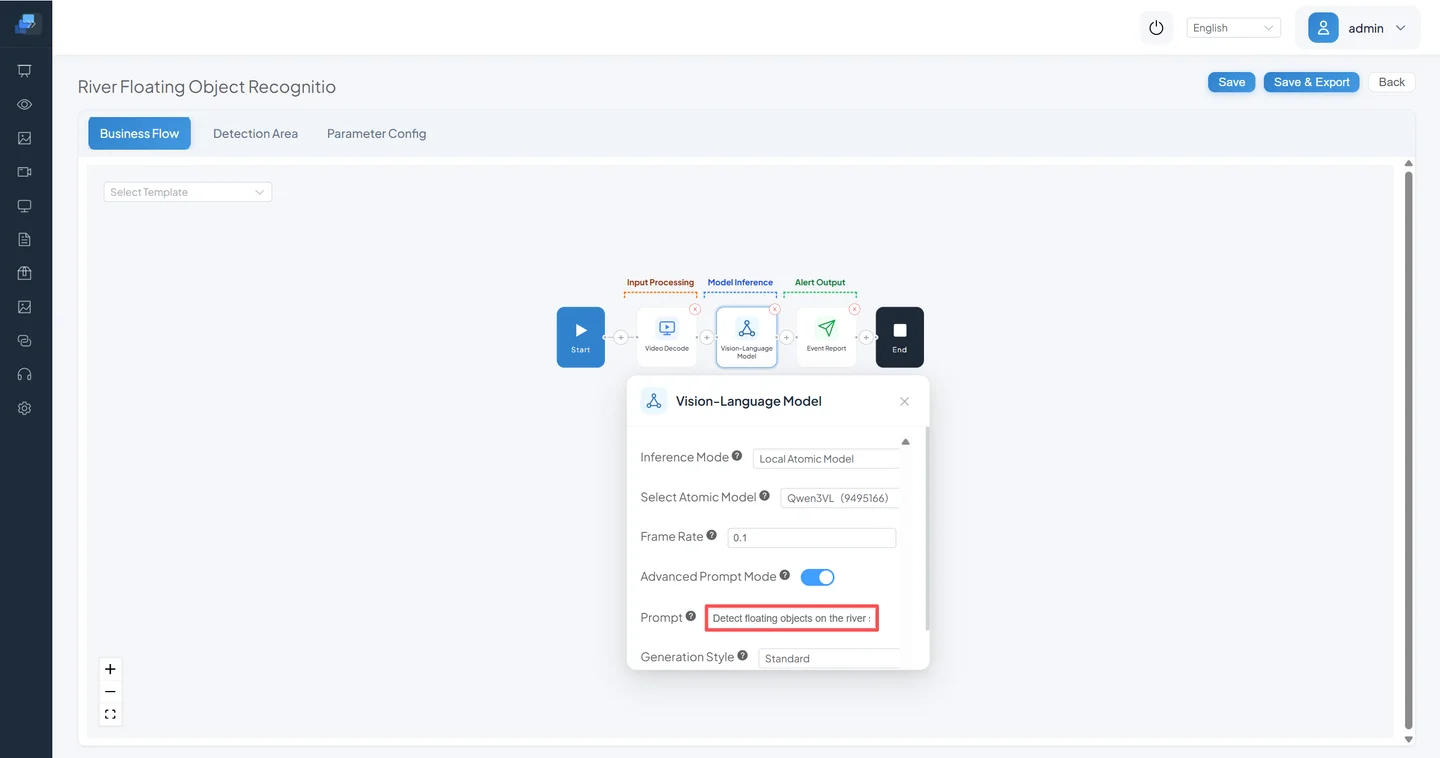
2.2 Use Normal and Advanced Prompt Modes Correctly
A complete sentence requires Advanced Prompt Mode
Advanced Prompt Mode is off by default. When it is off, CosmoEdge wraps the input as “Determine whether the image contains [input] and answer yes or no.” Enter only a target phrase, such as floating garbage on the river.
To use a complete condition with exclusions, turn Advanced Prompt Mode on. CosmoEdge preserves the custom first part and appends the yes/no output constraint. A complete sentence entered while the mode is off becomes a duplicated and semantically incorrect prompt.
Two correct forms are:
| Mode | Prompt input | Intended behavior |
|---|---|---|
| Normal mode | floating garbage on the river | Quickly asks whether that target exists |
| Advanced mode | Determine whether the river area contains plastic bags, bottles, clusters of leaves, or other clearly visible floating debris; ignore reflections and small ripples | Uses the complete business condition and exclusions |
An actionable advanced prompt contains:
- the observation object, such as river, cabinet, or work area;
- visible matching conditions;
- explicit exclusions such as reflection, shadow, or normal weathering;
- one conclusion that can be answered yes or no.
Expected river results:
| Input | Expected result |
|---|---|
| A clearly visible bottle, plastic bag, or cluster of debris on the water | Yes, followed by an event when the event rule is met |
| Only ripples, reflections, or unidentifiable tiny spots | No, with no event of this type |
2.3 Select Local or Remote Inference
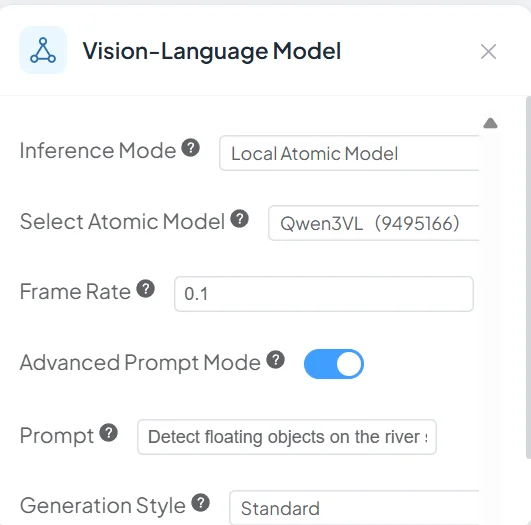
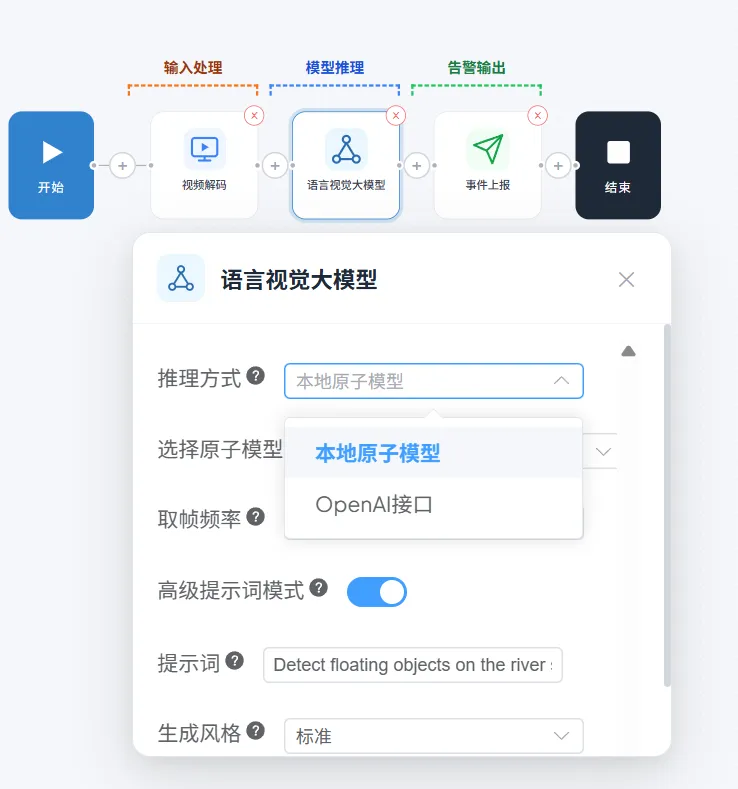
The current node contains inference mode, local-model or OpenAI-compatible settings, frame rate, Advanced Prompt Mode, prompt, and generation style.
Local Atomic Model
Select Local Atomic Model, then choose an imported Qwen3VL atomic model. The current local implementation requires the Sophon backend and matching model and tokenizer resources. Initial loading can be slower than subsequent inference; use target-device logs and measurements for actual timing.
OpenAI-Compatible API
Select OpenAI API to expose compatible-service settings.
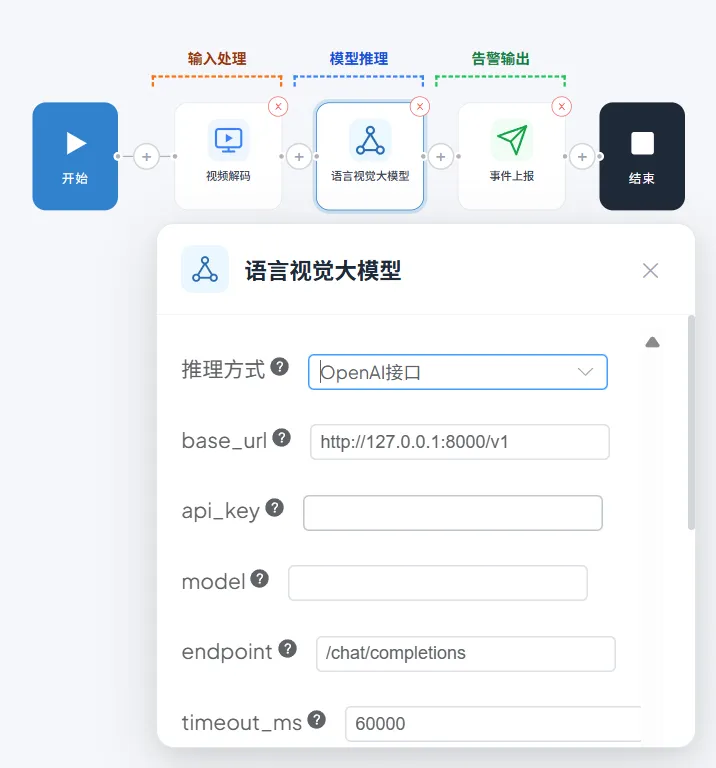
| UI field | Current key | Meaning |
|---|---|---|
base_url | openai.base_url | Service root, for example the /v1 URL of a self-hosted service |
api_key | openai.api_key | Service credential; leave empty only when a local service explicitly disables authentication |
model | openai.model | Model name actually exposed by the service |
endpoint | openai.endpoint | Defaults to /chat/completions |
timeout_ms | openai.timeout_ms | Request timeout; current UI default is 60000 |
max_tokens | openai.max_tokens | Maximum output tokens; current UI default is 256 |
Never put a real key in a guide, screenshot, exported Pipeline, or repository. Remote mode also requires an assessment of network reliability, request cost, image-data compliance, service-side log retention, and failure behavior. One successful API response is not video-task acceptance.
Frame Rate and Generation Style
- Frame Rate is in fps. The current node defaults to
1, accepts the UI range0.01–1000, and must not exceed its upstream rate.0.1means roughly one frame every ten seconds. Start from the lowest rate that meets discovery-time requirements, then measure resources. - Strict / Standard / Creative control generation variability. Compare Strict and Standard first for a stable binary decision.
- Custom exposes
do_sample,top_k,top_p, andtemperature. Change one field at a time and record it.
2.4 Bind the River Task to Video
Use authorized river media or the project sample under the
v1.0-videostag.Open Video Access → Add, create an offline channel, and enter Scenario Task Assignment.
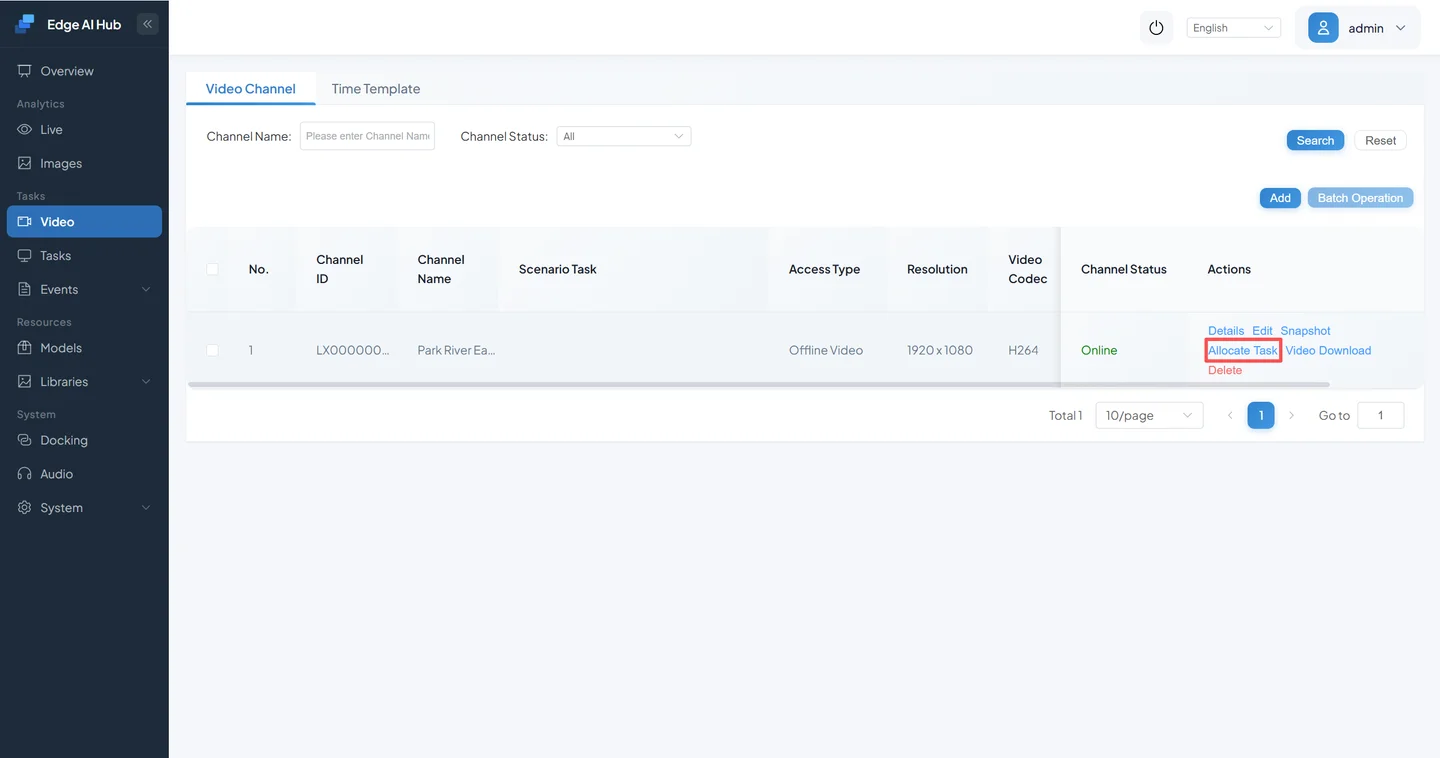
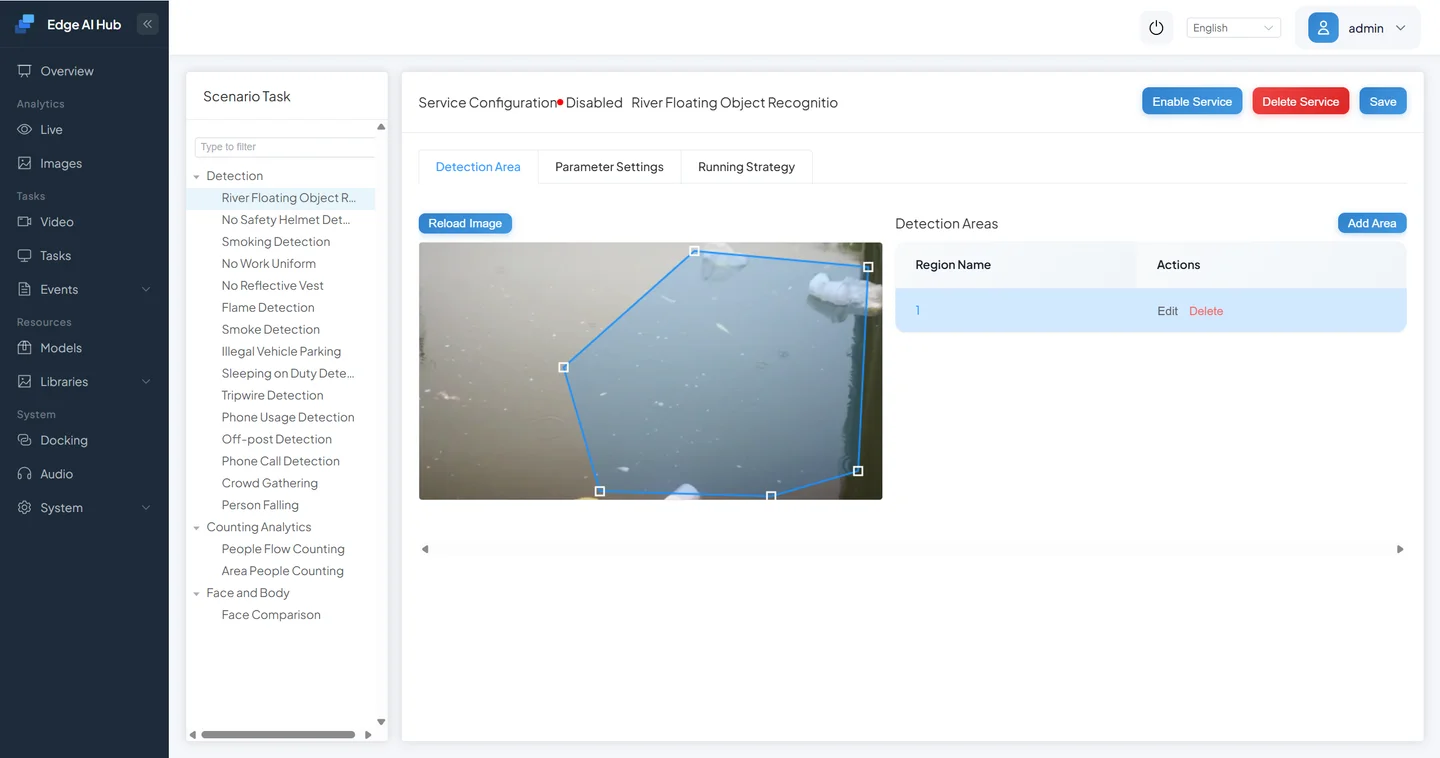
Select River Floating Debris and add an area.
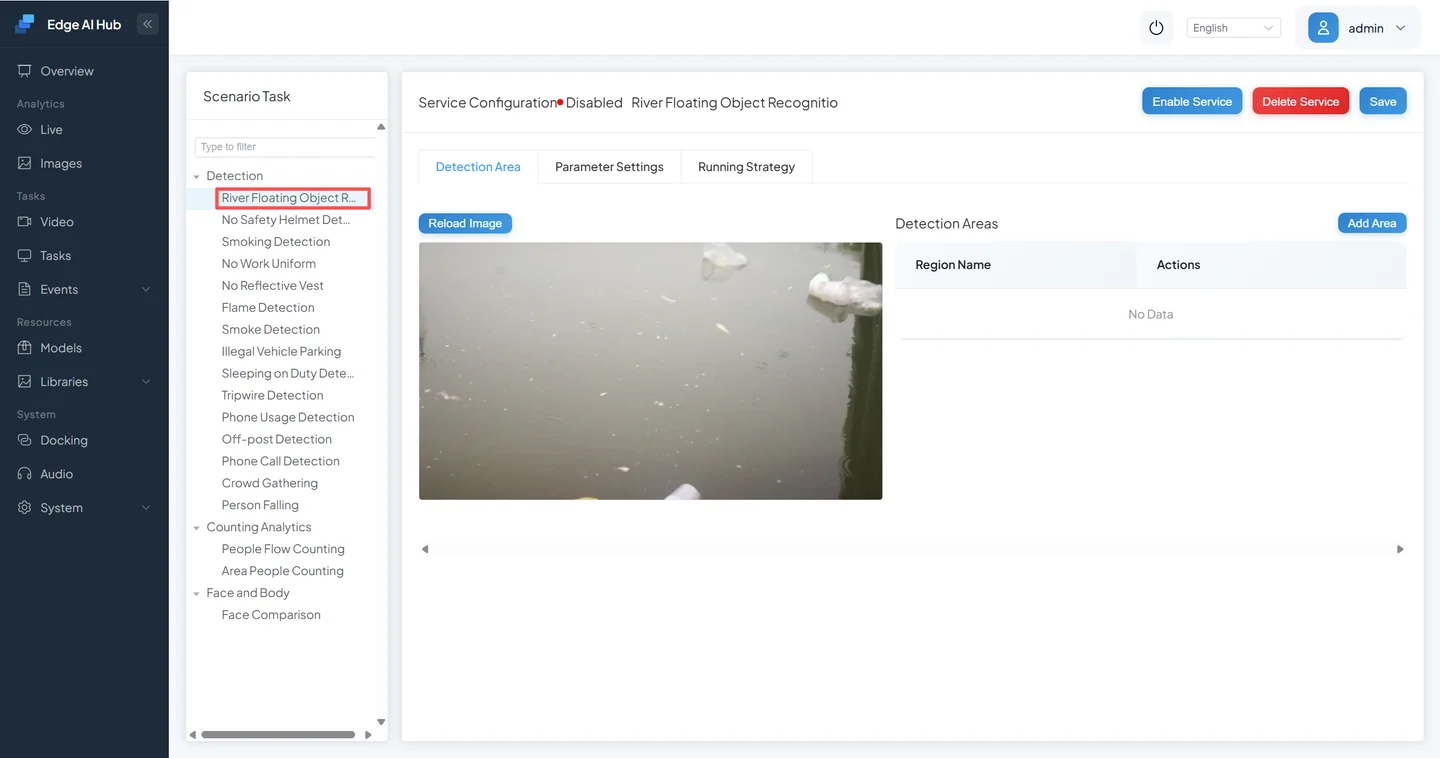
The default area can cover the full image. Tighten the ROI to the water surface to remove bank, sky, and text-overlay interference.
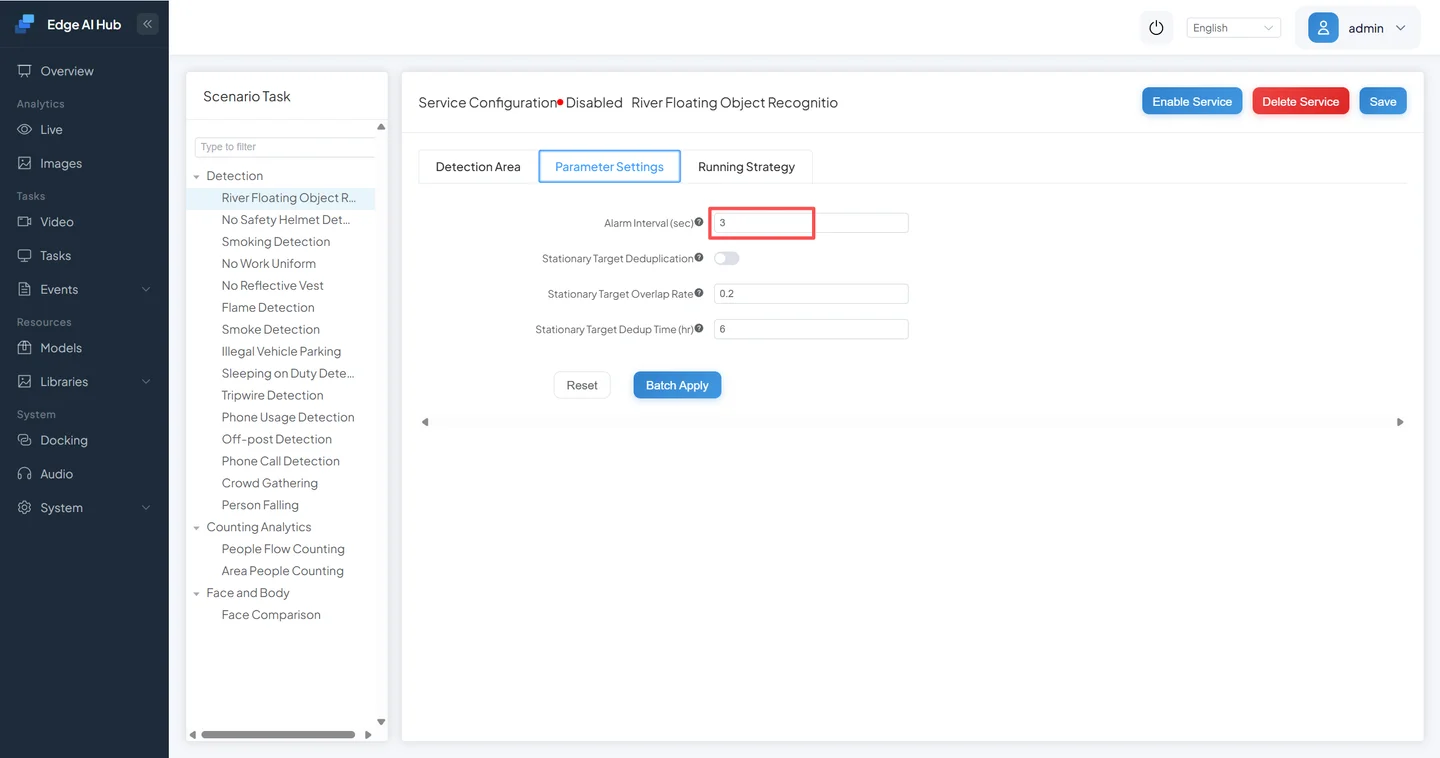
Configure the event interval under Parameter Settings, make the current time active under Running Strategy, save, and start.
2.5 Inspect Live Results and Events
Open Live Display and select the channel and River Floating Debris overlay.
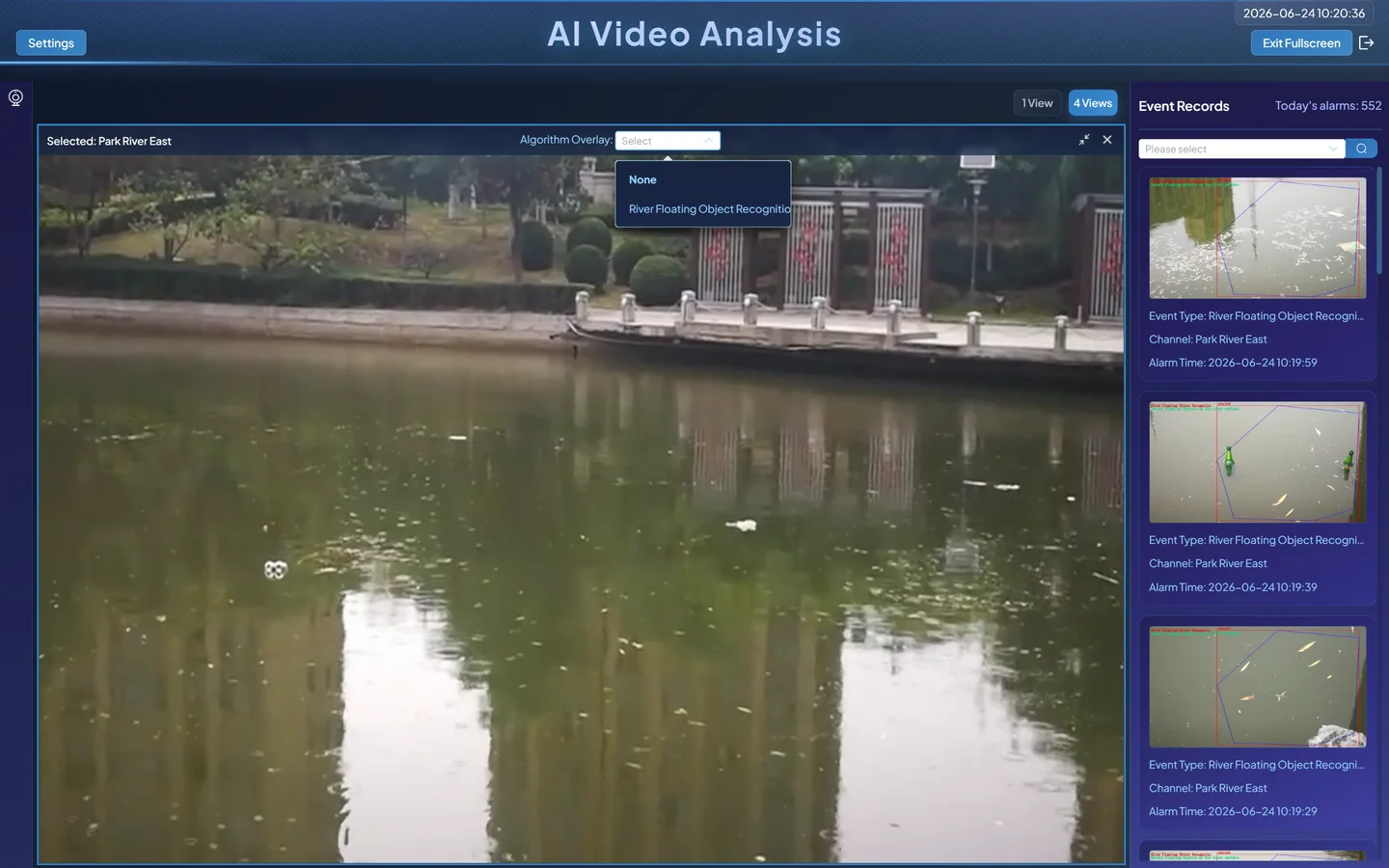
It is normal for the VLM to show no box. Video should continue playing; when the model answers yes and event rules are met, the event panel shows the capture and result.
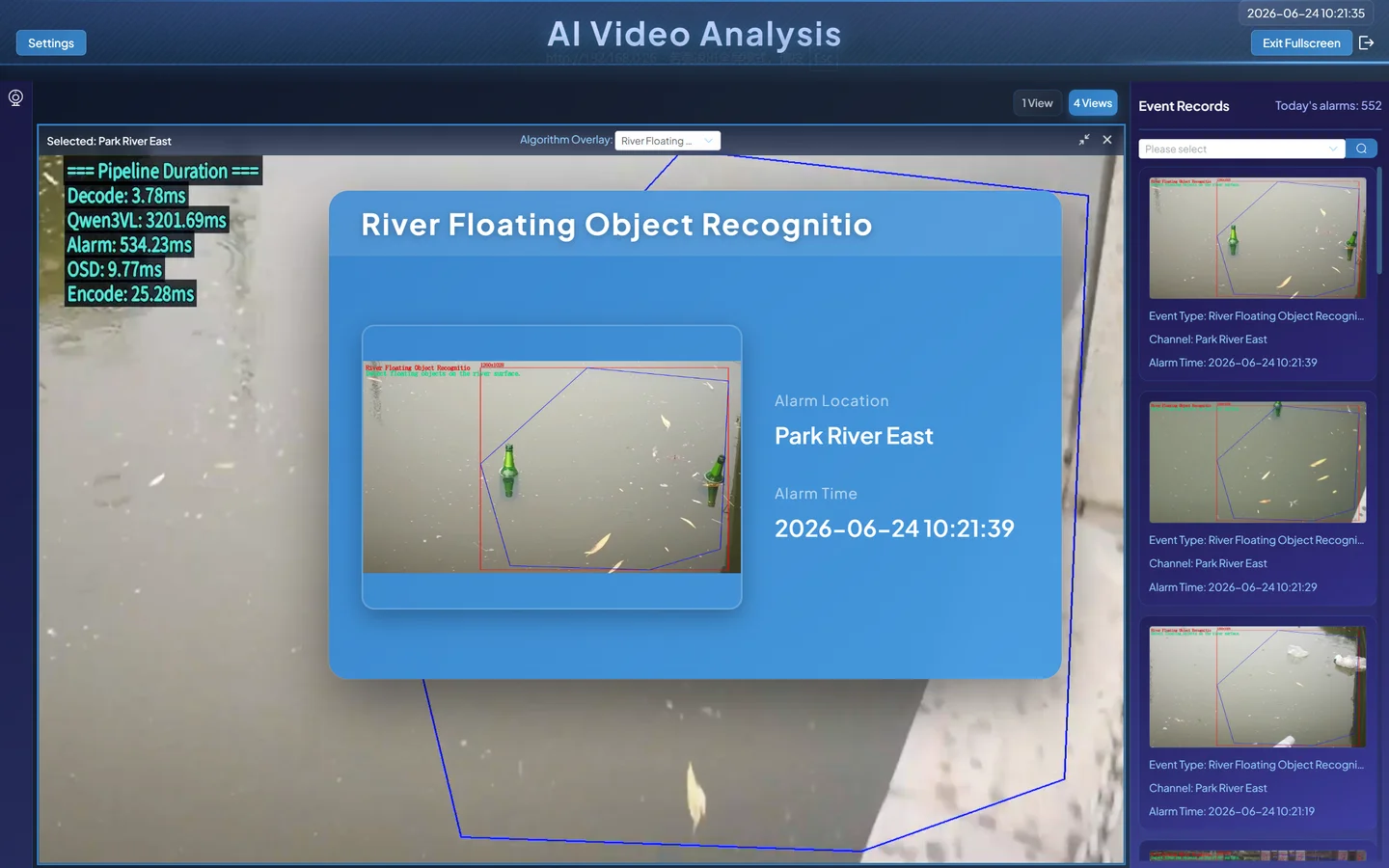
Open Event Center → Detection/Analysis and query by channel, task, and time.
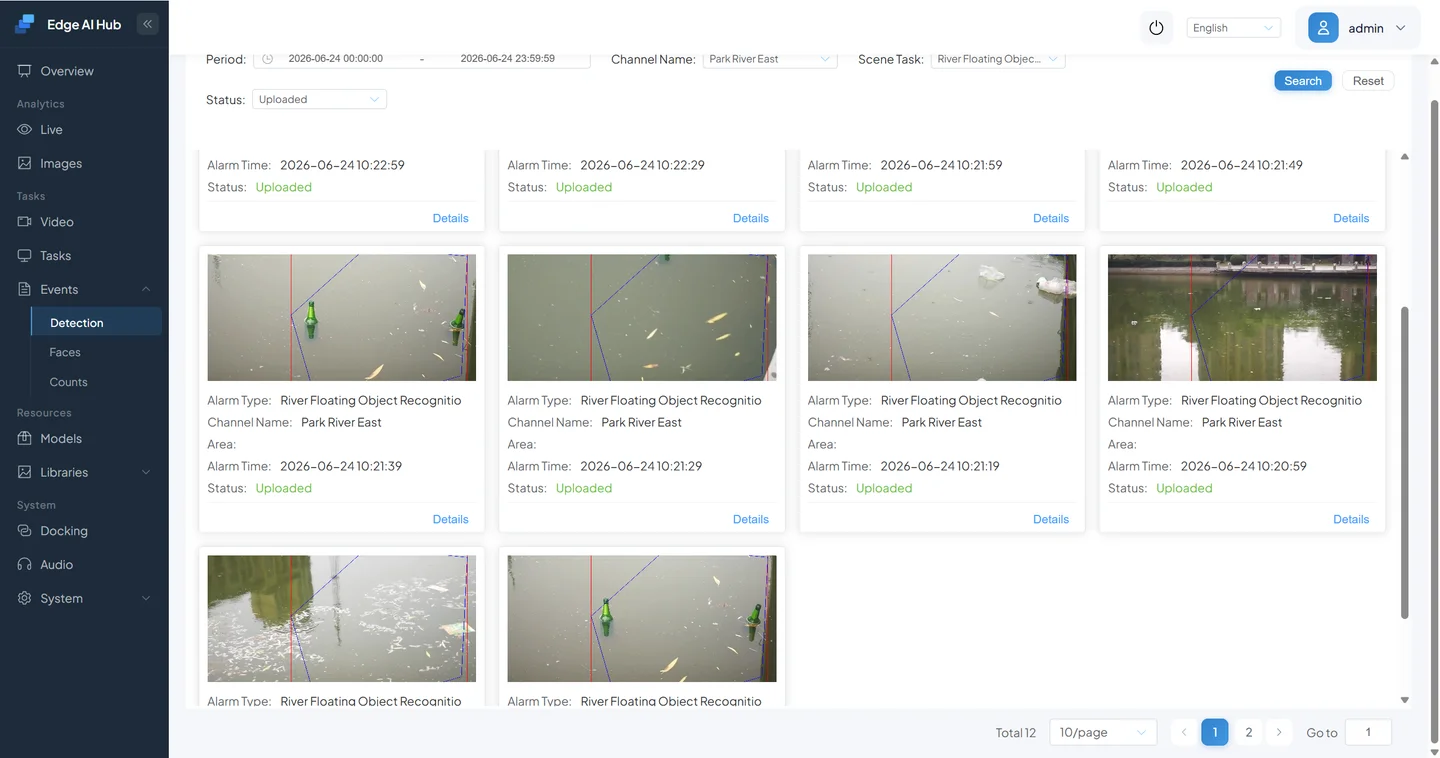
Open the event detail and verify the capture, decision, and timestamp.
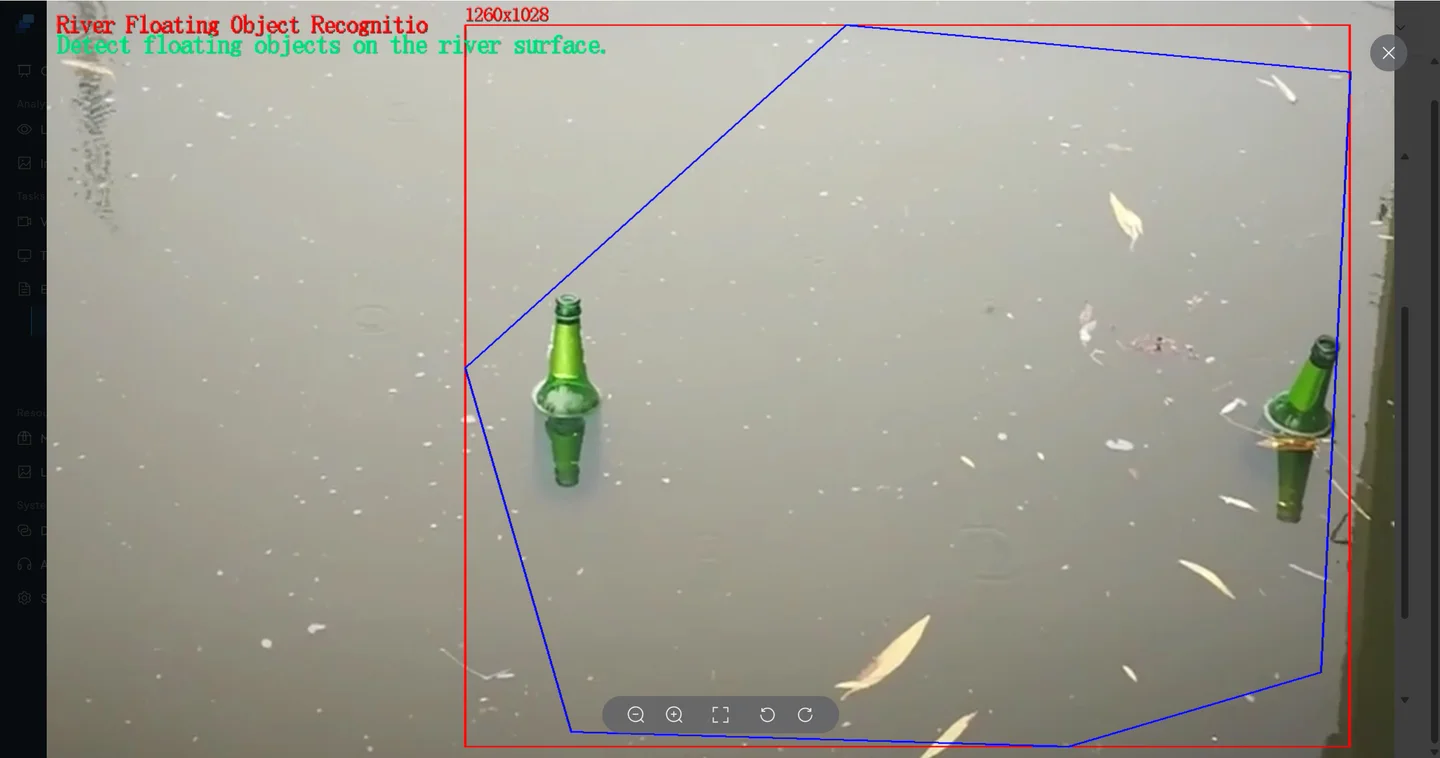
Acceptance requires the expected decision on positive clips, no matching event on negative clips, a capture from the correct ROI and time, and sustained operation without repeated initialization, remote timeout, or resource failures.
3. Validate a New VLM Requirement with Image Analysis
The City Wall Damage example shows how to validate the task definition before connecting video. A low-frequency event is inefficient to wait for; Image Analysis fixes the input and makes prompt versions comparable.
3.1 Create an Image-Analysis Task
Open Scenario Task and click New Task.
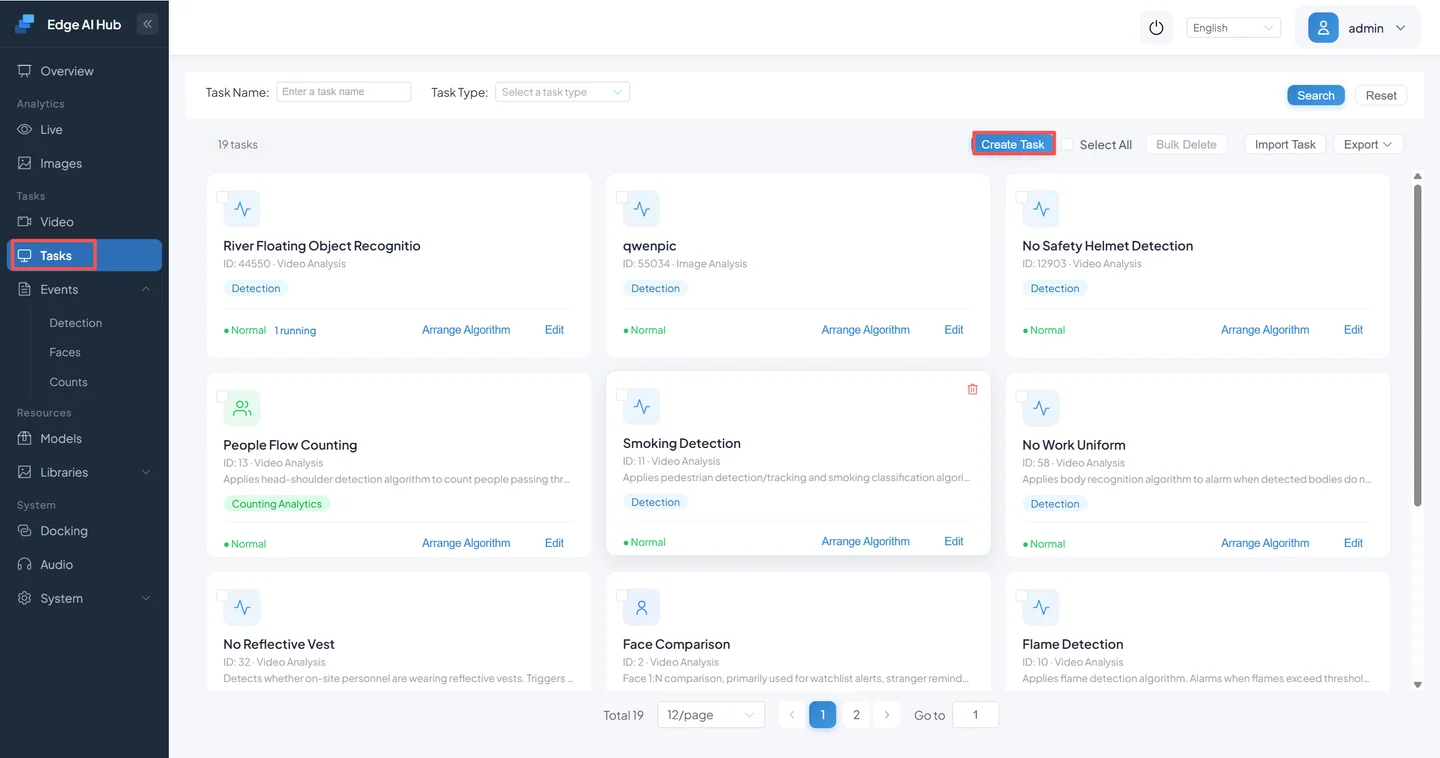
Select Image Analysis as the data source.
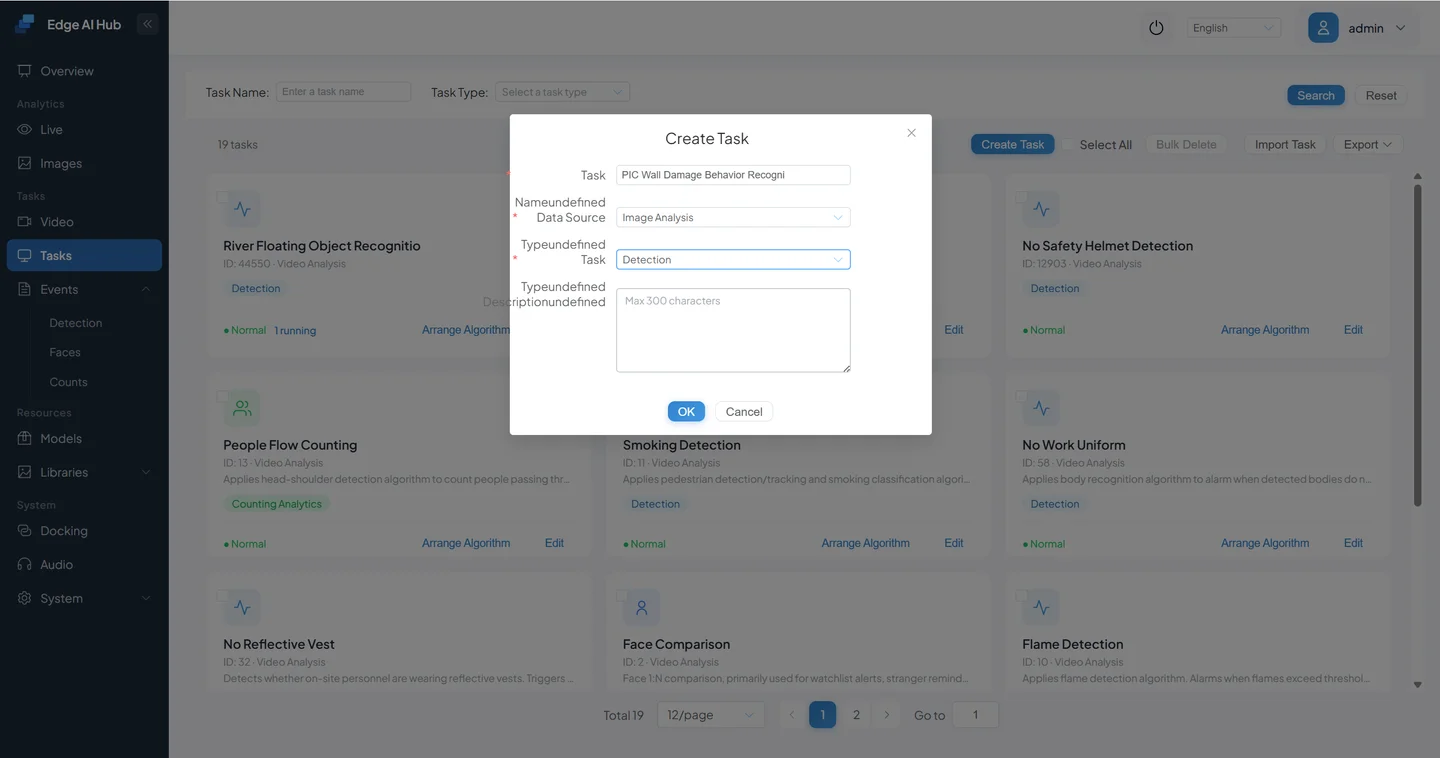
Enter the task name and confirm.
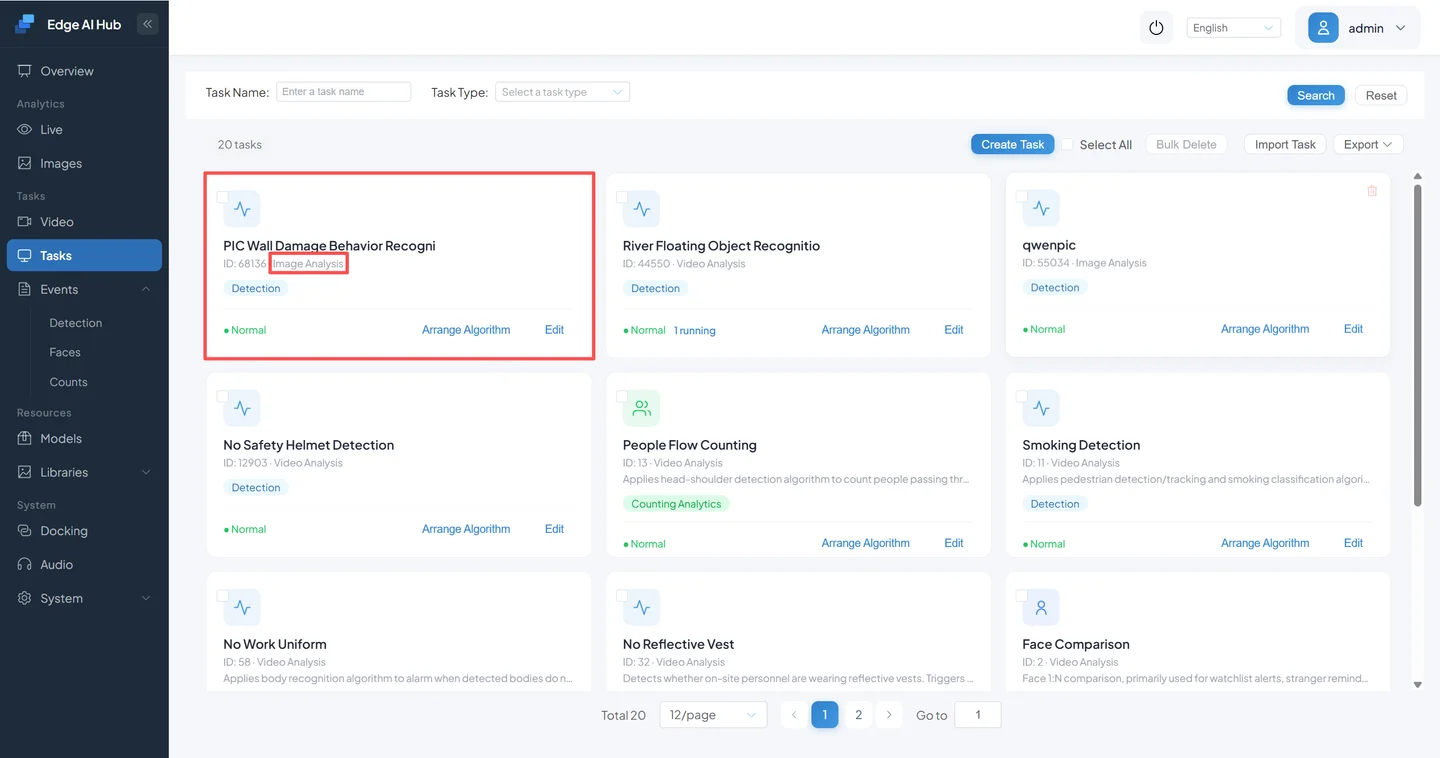
Open Pipeline Orchestration → Action → Add Component → Vision-Language Model.
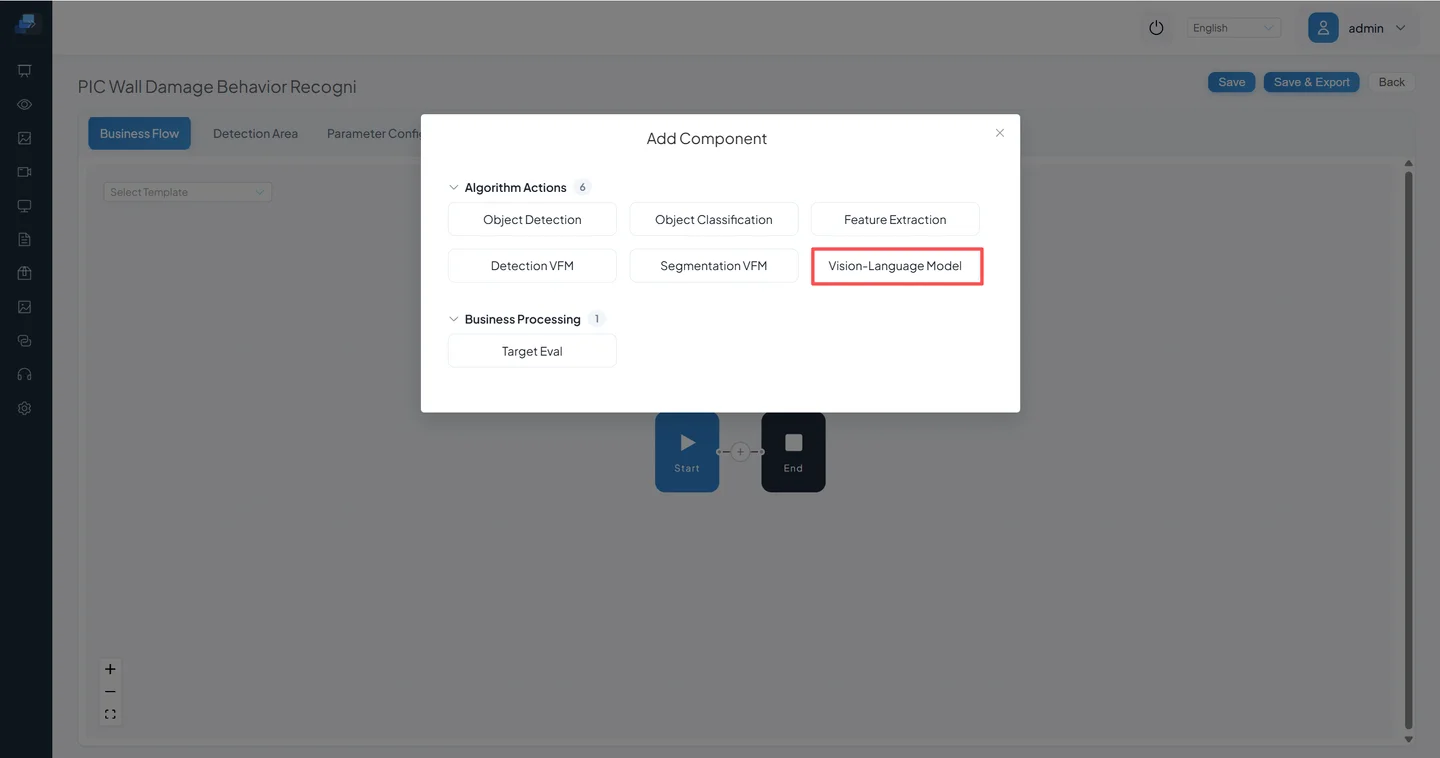
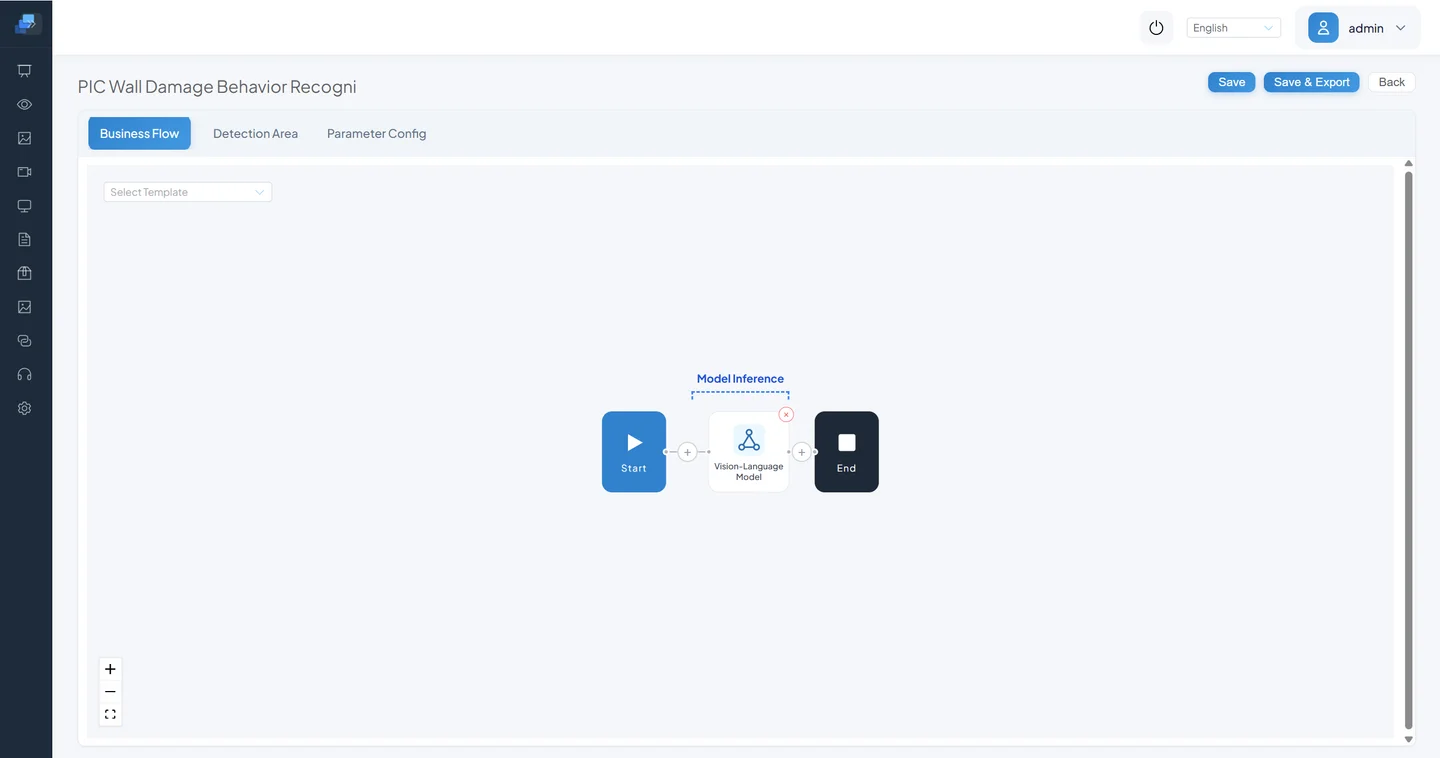
A minimal image-analysis Pipeline needs one VLM node between input and output.
Configure the model, turn on Advanced Prompt Mode, enter the complete question, and save.
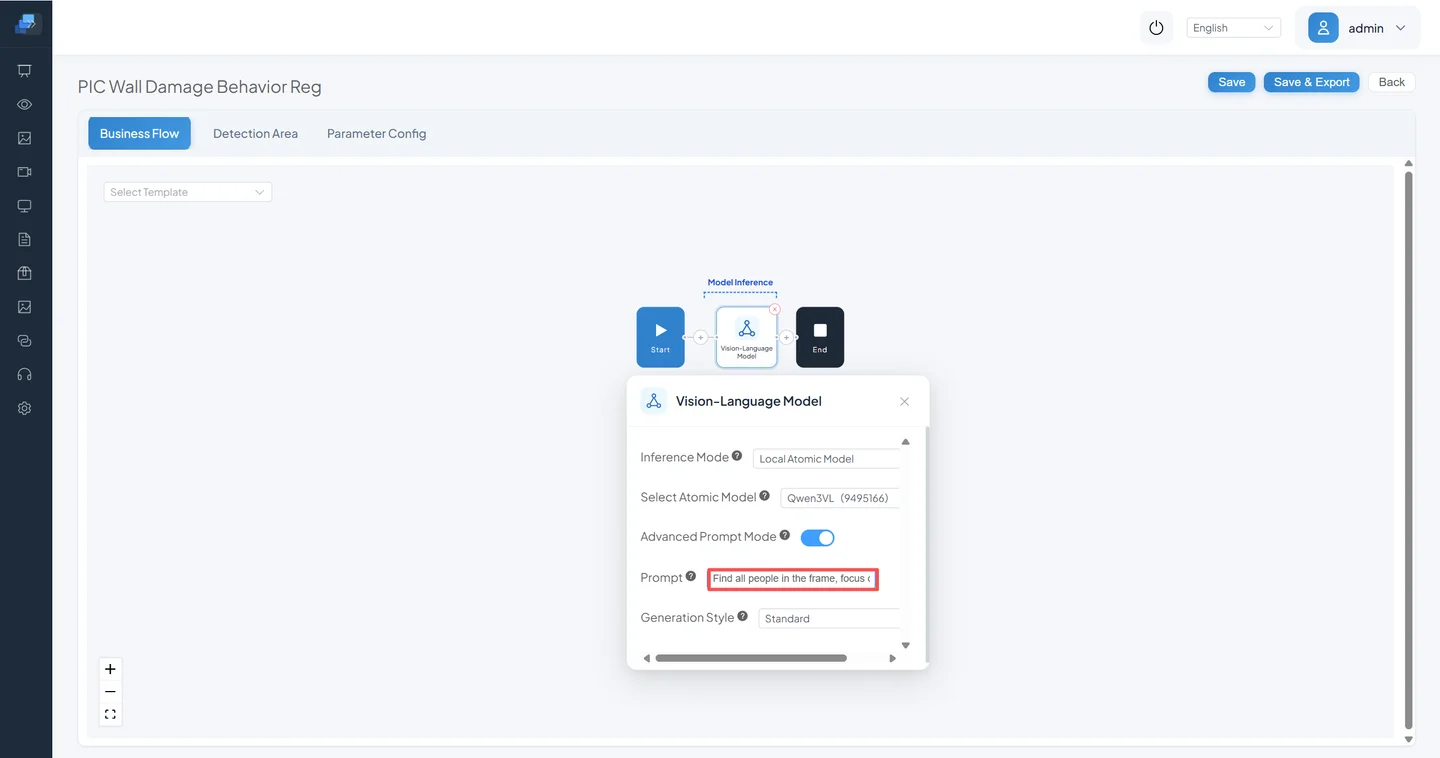
Suggested first prompt:
Determine whether a person in the image is clearly carving, chiseling, spraying, or otherwise damaging the wall; ignore ordinary visiting, touching, natural weathering, shadows, and existing old damageIf the task is to detect damage marks without requiring a visible person, ask instead whether the wall has fresh, clear human-made carving, chiseling, or paint. These are different task definitions and must not share one acceptance label set.
3.2 Upload Fixed Samples and Record Results
Open Image Analysis and select the new task.
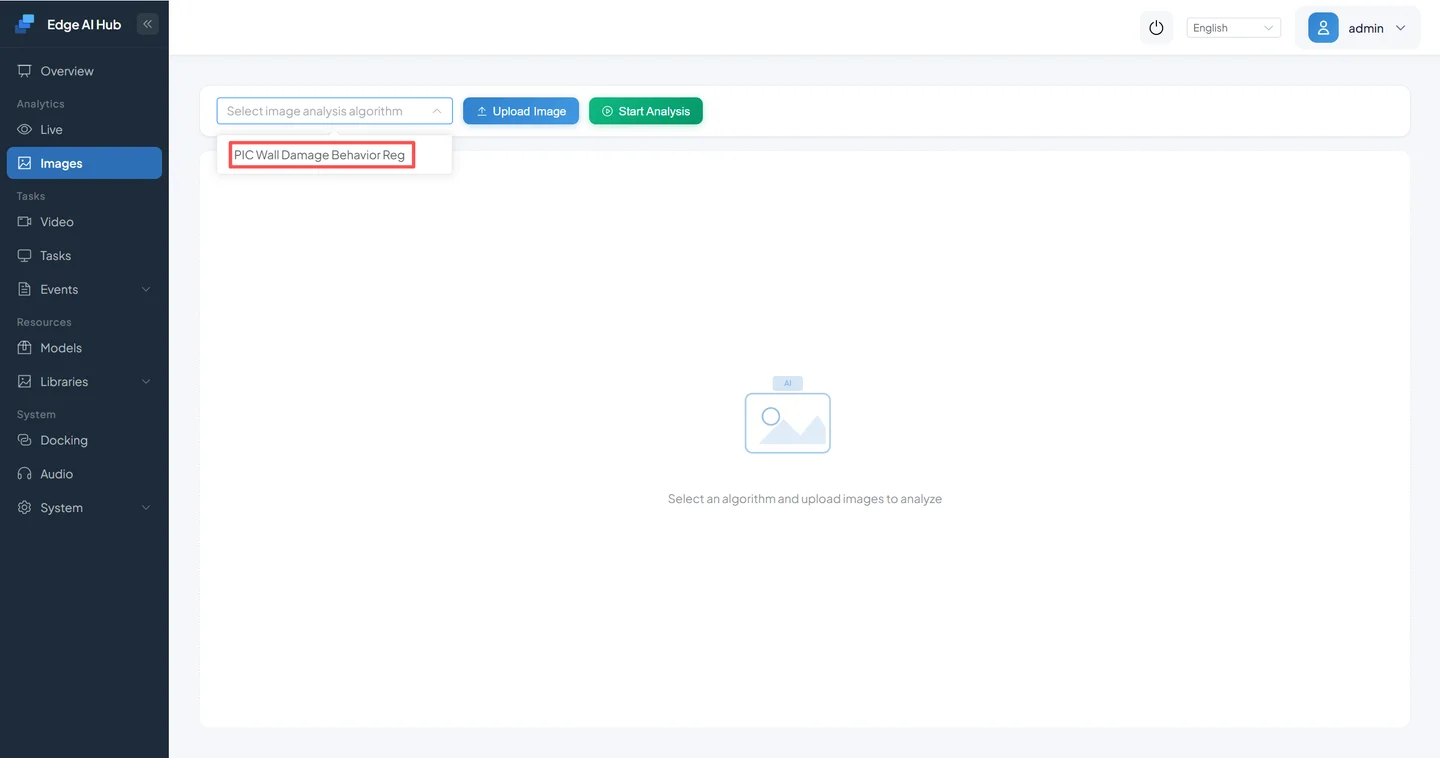
Upload an image whose expected result is already labeled.
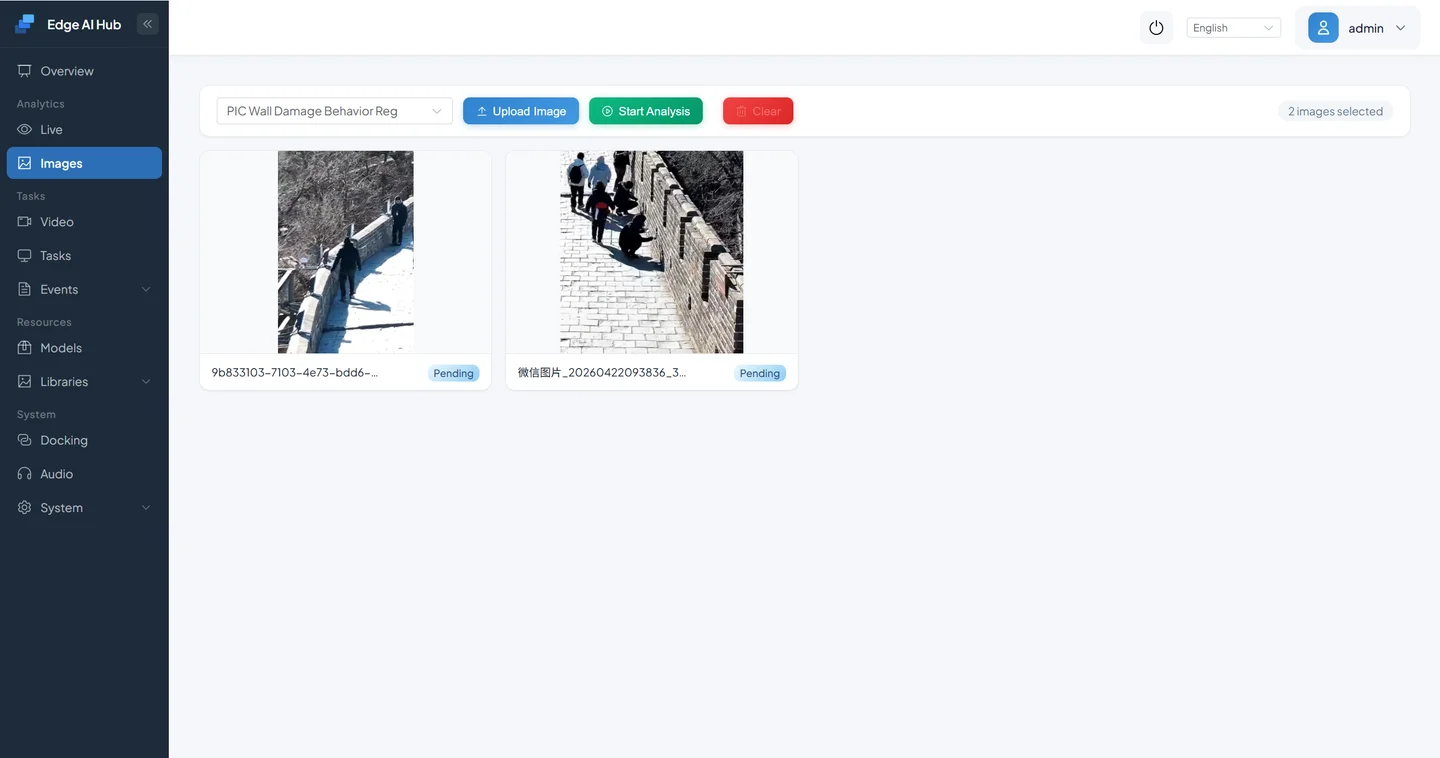
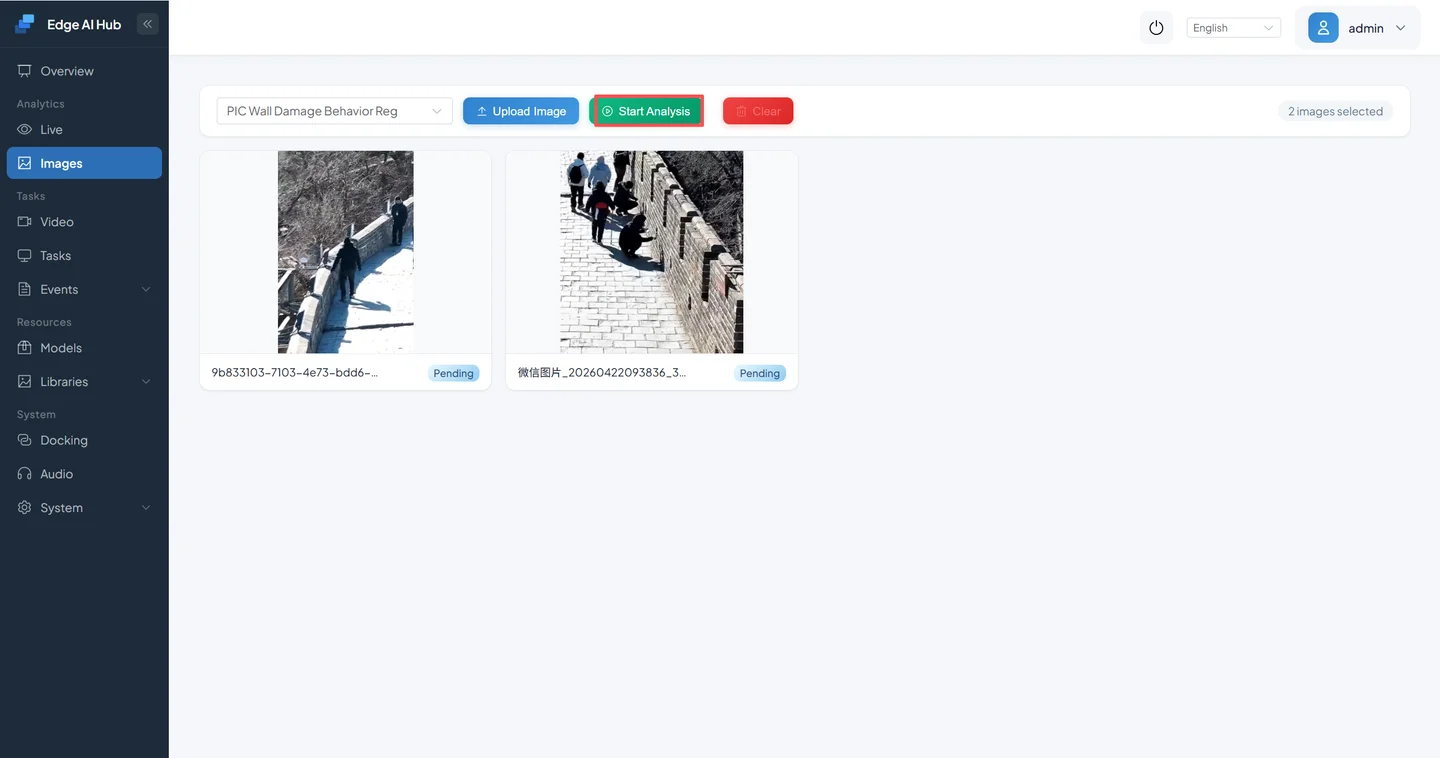
Click Start Analysis. The first request may initialize the model; wait for an explicit result or error.
After completion, inspect the initial present/absent result.
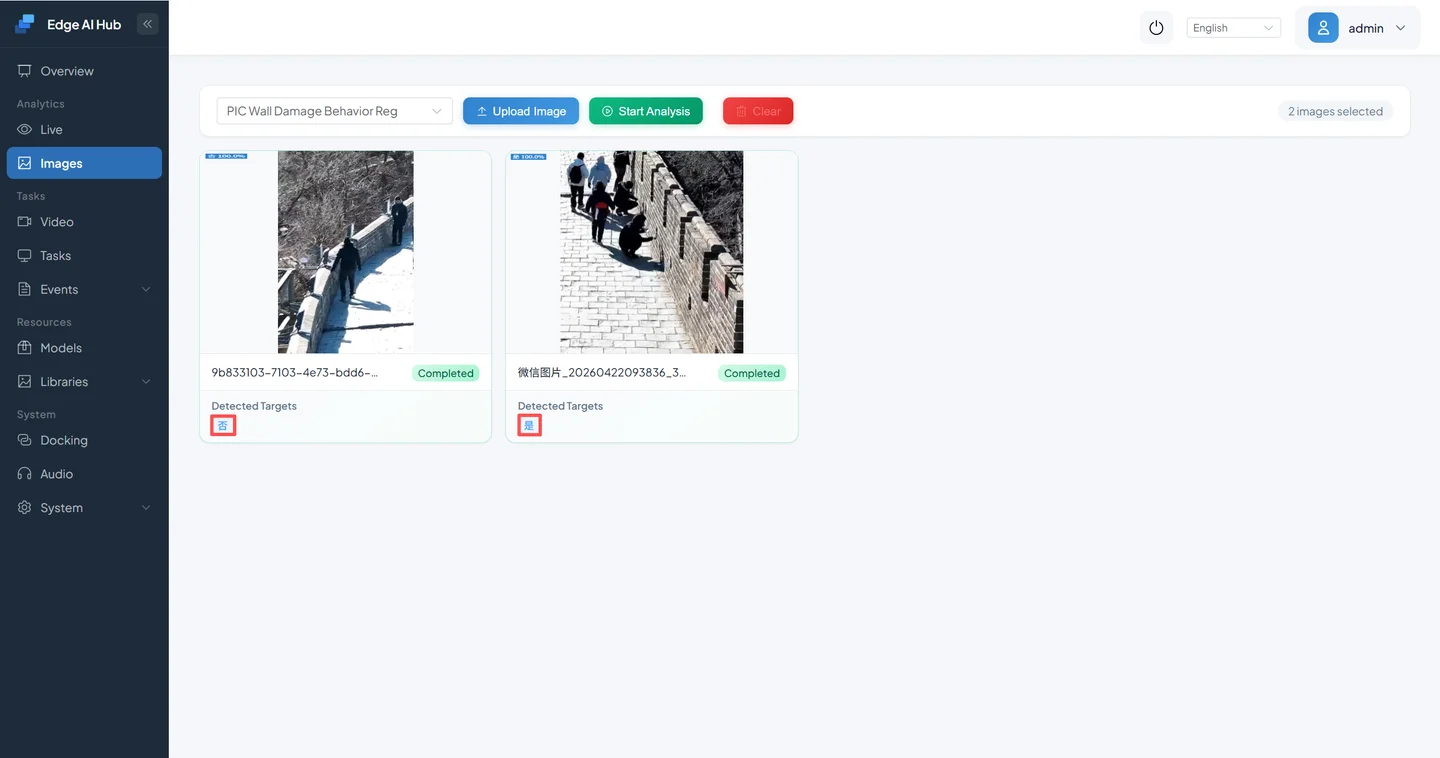
Open a matching image detail to inspect the logical result and any confidence or metadata the page provides.
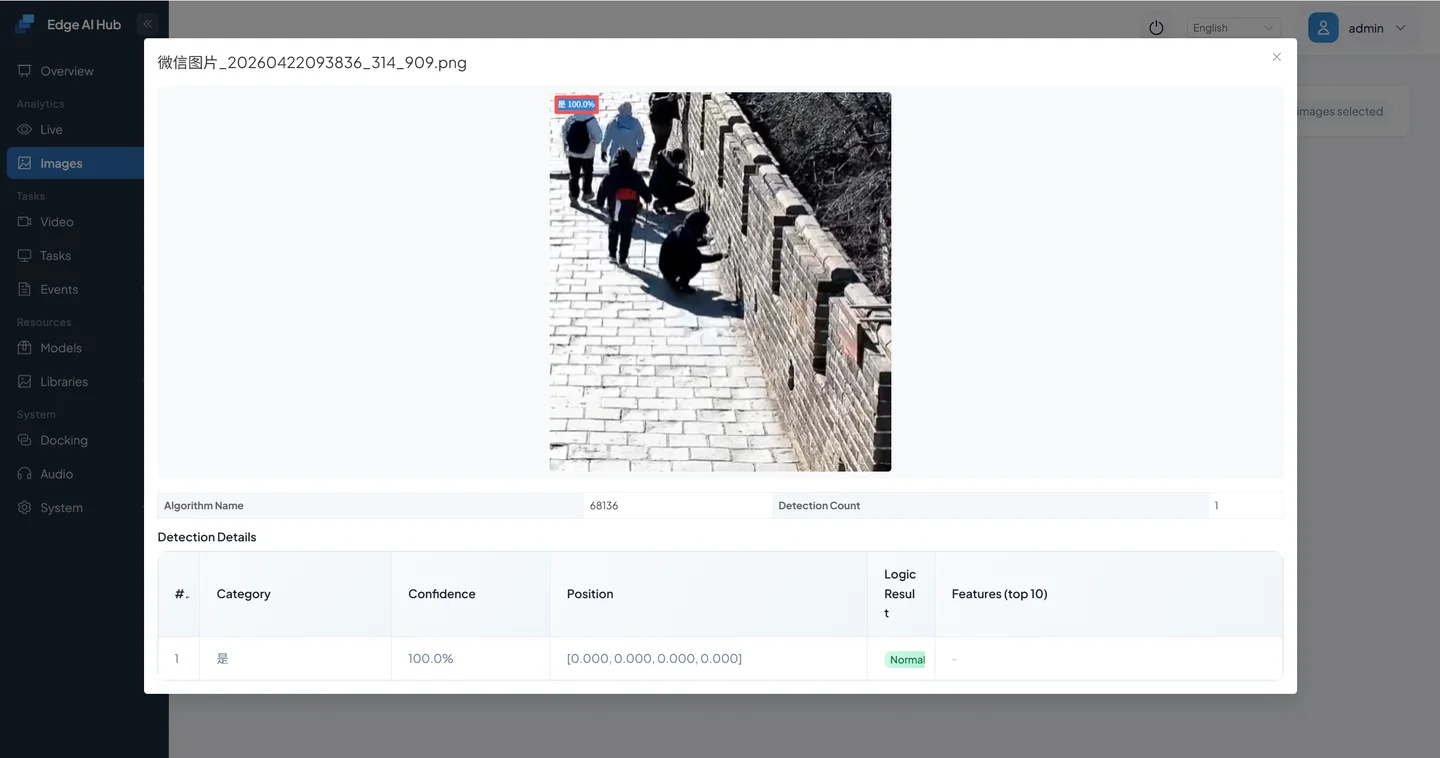
For an initial baseline, prepare at least five clear positive samples, five clear negative samples, and difficult site cases such as reflection, obstruction, night images, visitor touch, natural weathering, and similar textures.
This is not enough for a production accuracy claim, but it exposes an unavailable model, a wrong task definition, or obvious failure. Record expected label, actual result, model, mode, prompt version, and generation parameters for every image, then rerun the same set after a change.
3.3 Iterate the Prompt
For misses, replace a vague issue with visible features:
Vague: Is there a problem with the wall?
Better: Determine whether the wall surface has a clear crack, missing material, graffiti, carving, or chisel mark; ignore lighting
For false positives, narrow the scope and add exclusions:
Too broad: Has the wall been damaged?
Better: Determine whether the wall has clear human carving, chiseling, or fresh paint; ignore natural weathering, old repairs, and shadows
For unstable output:
- Fix the model, mode, generation style, and sample set.
- Ask one visible binary question.
- Tighten the ROI to remove sky, visitors, and unrelated background.
- Repeat the same image and record disagreement instead of selecting one correct run.
- Compare Strict with Standard before adjusting custom sampling fields.
Examples:
| Acceptable question | Not directly acceptable | Why |
|---|---|---|
| Is there clearly visible garbage on the corridor floor? | Describe the corridor | Open output cannot directly drive an event rule |
| Is there visible standing water or a puddle reflection? | Is the floor wet? | Wetness may not be visible and can be confused with material |
| Is the fire-equipment cabinet door fully closed? | Is anything wrong with the cabinet? | “Wrong” has no visual boundary |
| Is the indicator red? | How many indicators are there? | Exact counting is not the strength of this binary VLM chain |
| Is there a human-made carving on the wall? | Is the wall broken? | “Broken” includes natural weathering and other meanings |
3.4 Connect Video After the Image Baseline Passes
- Create or open a video-analysis task with the same model, mode, and accepted prompt.
- Set the frame rate;
0.1is about one frame every ten seconds, but acceptance must decide whether that discovery delay is sufficient. - Assign the task to the wall-monitoring channel.
- Restrict the ROI to the wall.
- Configure event parameters and running strategy, then save and start.
- Rerun positive and negative video clips and observe sustained resource and error behavior.
4. DINO: Create an Open-Vocabulary Detection Task
DINO prompts name targets and produce boxes. It can locate people and garbage; it does not by itself decide that a corridor is clean or that a vehicle is illegally parked.
4.1 Define Targets and Parameters
The current DINO node separates multiple targets with an English period:
person.garbage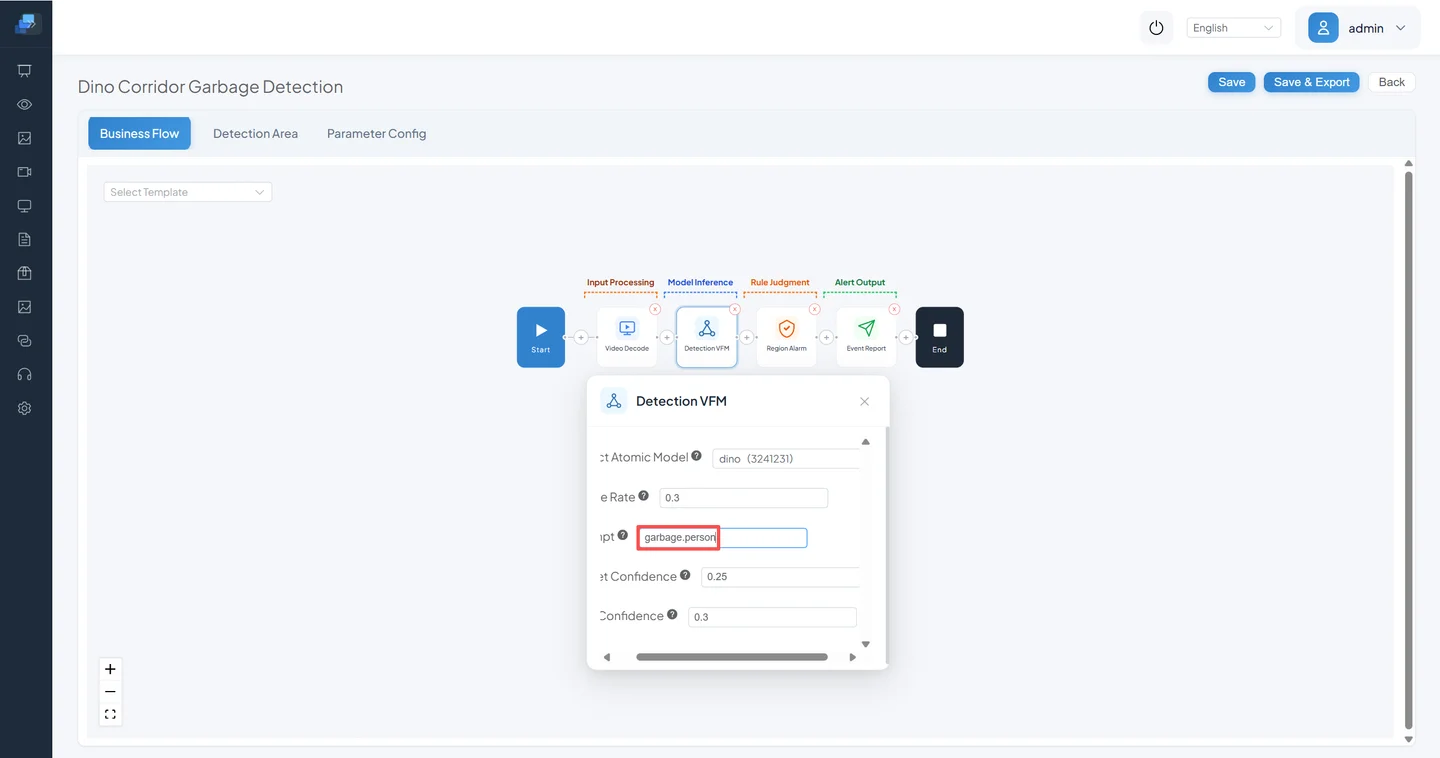
Current base fields are:
| Parameter | Current default | Meaning |
|---|---|---|
| Atomic Model | None | Select an installed DINO model compatible with the backend |
| Frame Rate | 1 fps | Must not exceed upstream rate; tune from required discovery delay and resource measurements |
| Prompt | Empty | Use concrete English nouns; separate multiple names with an English period |
| Box Confidence | 0.25 | Confidence criterion for box candidates |
| Text Confidence | 0.3 | Criterion for matching the visual candidate with the text class |
Do not lower both thresholds at once. Start with one target and a fixed image to establish text matching, then change one field and observe box count and position.
4.2 Bind the Channel, Area, and Event
Open Video Access and the channel's Scenario Task Assignment.
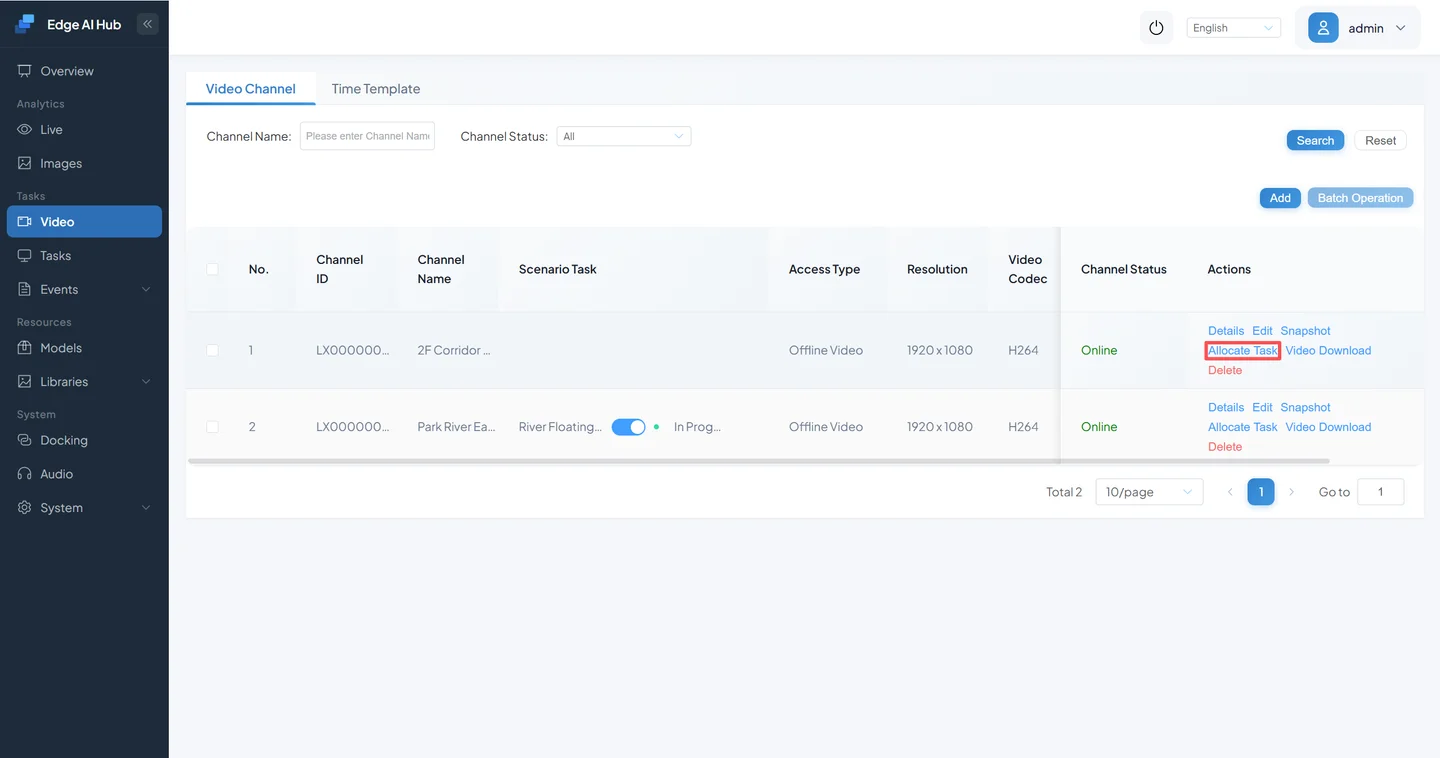
Select the DINO task that uses Detection Vision Foundation Model and add an area.
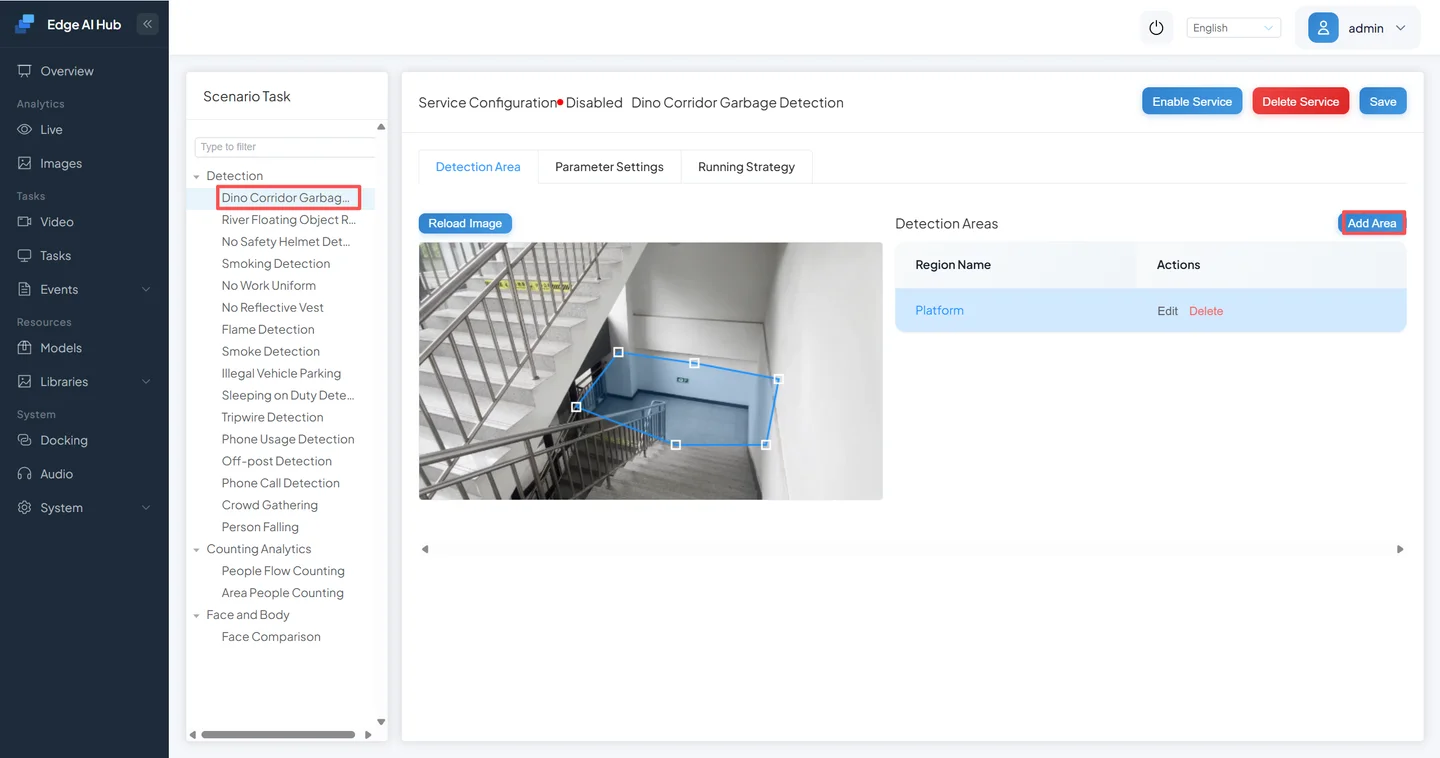
Adjust the area to the platform or corridor where targets should be located.
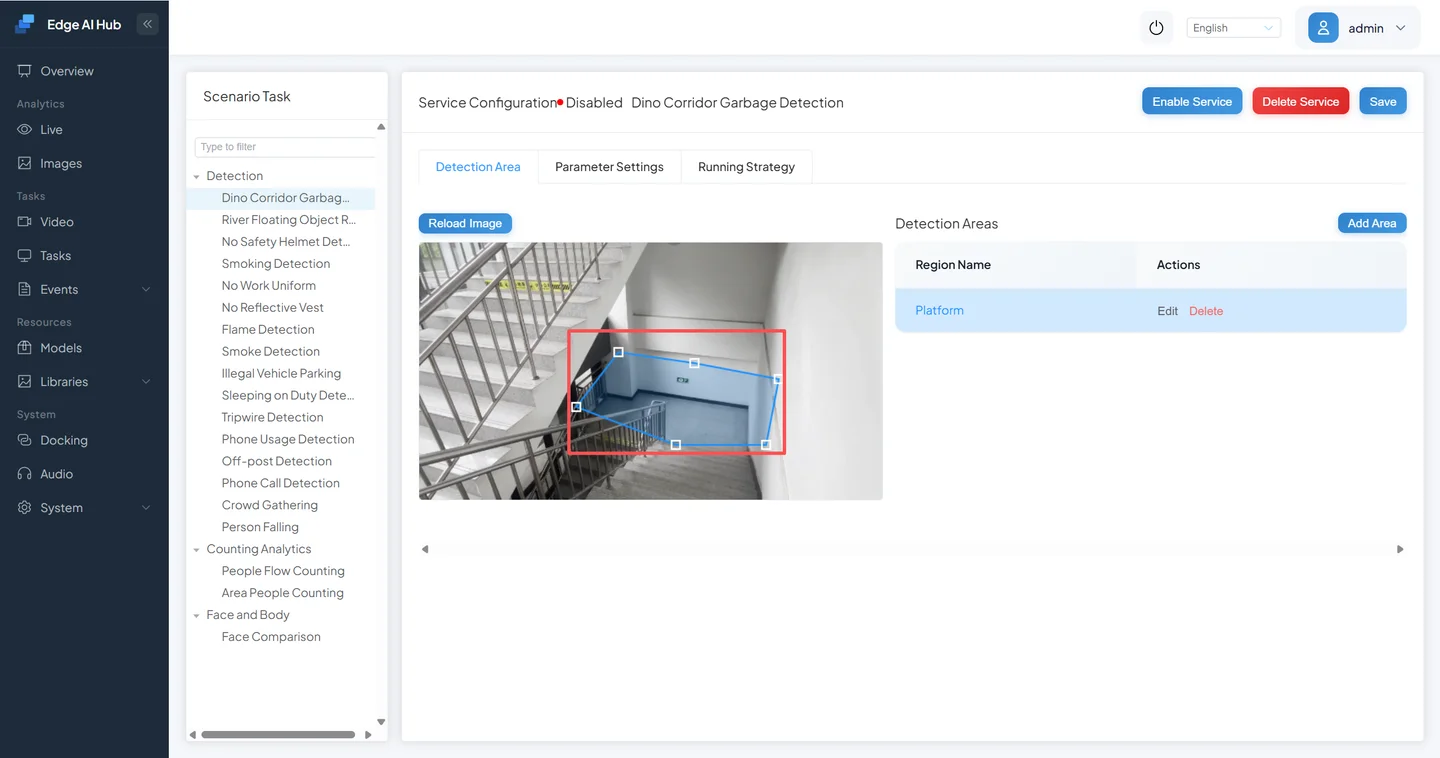
Set event parameters and running strategy, save, and start.
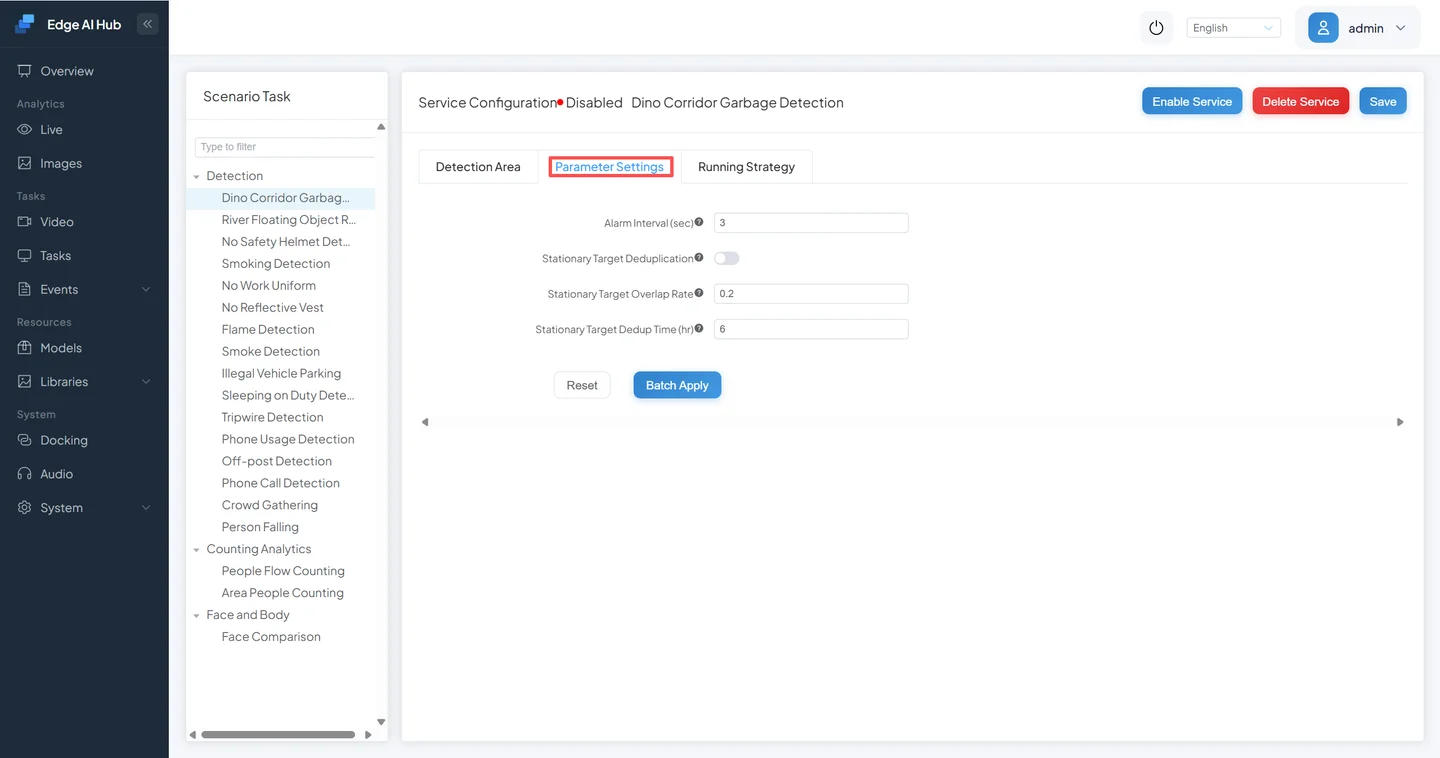
4.3 Inspect Boxes and Events
Open Live Display and select the channel and DINO overlay.
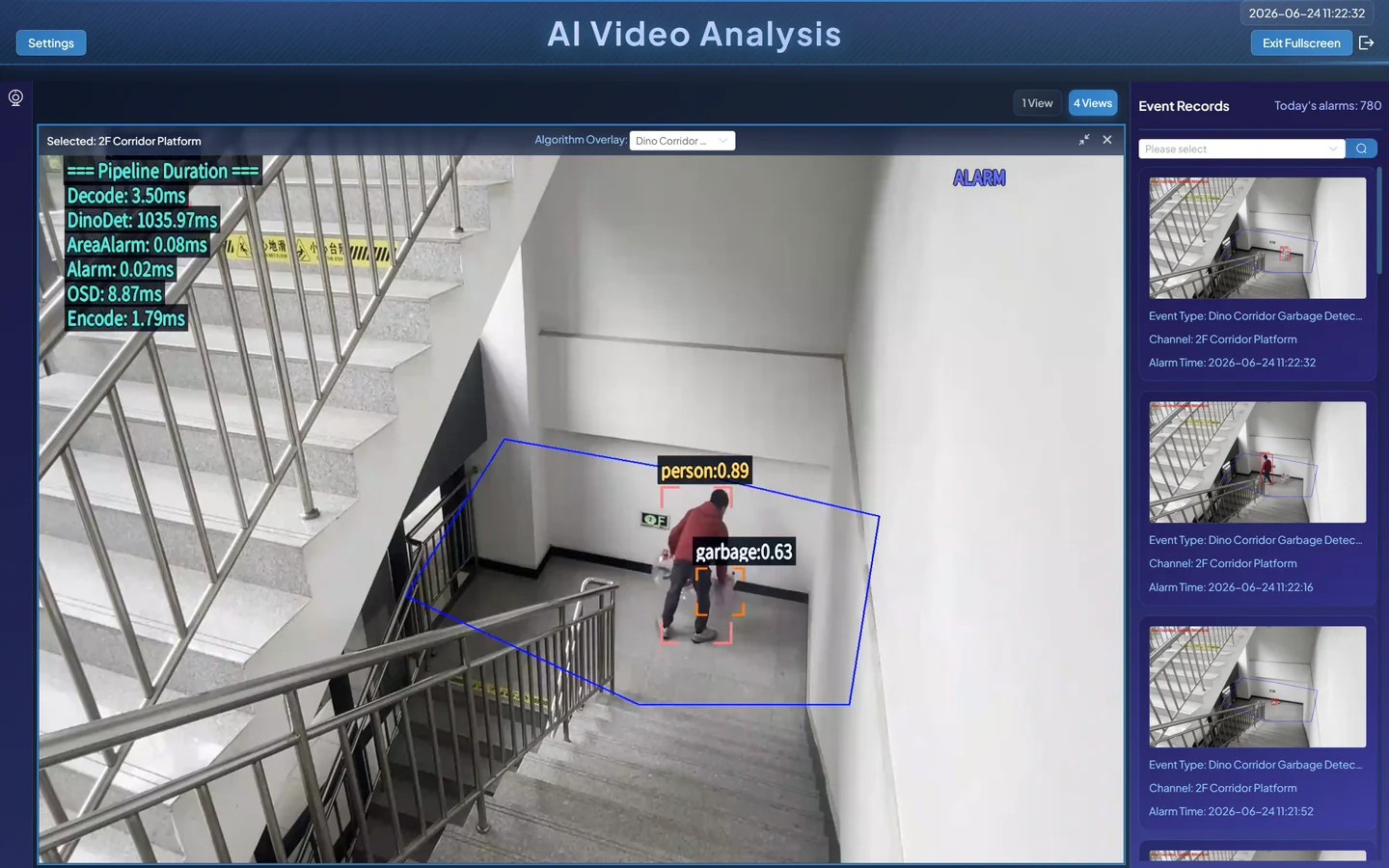
Boxes can update later than the raw video, especially with low sampling or high inference load. Use timestamped captures and events instead of one visual impression of synchronization.
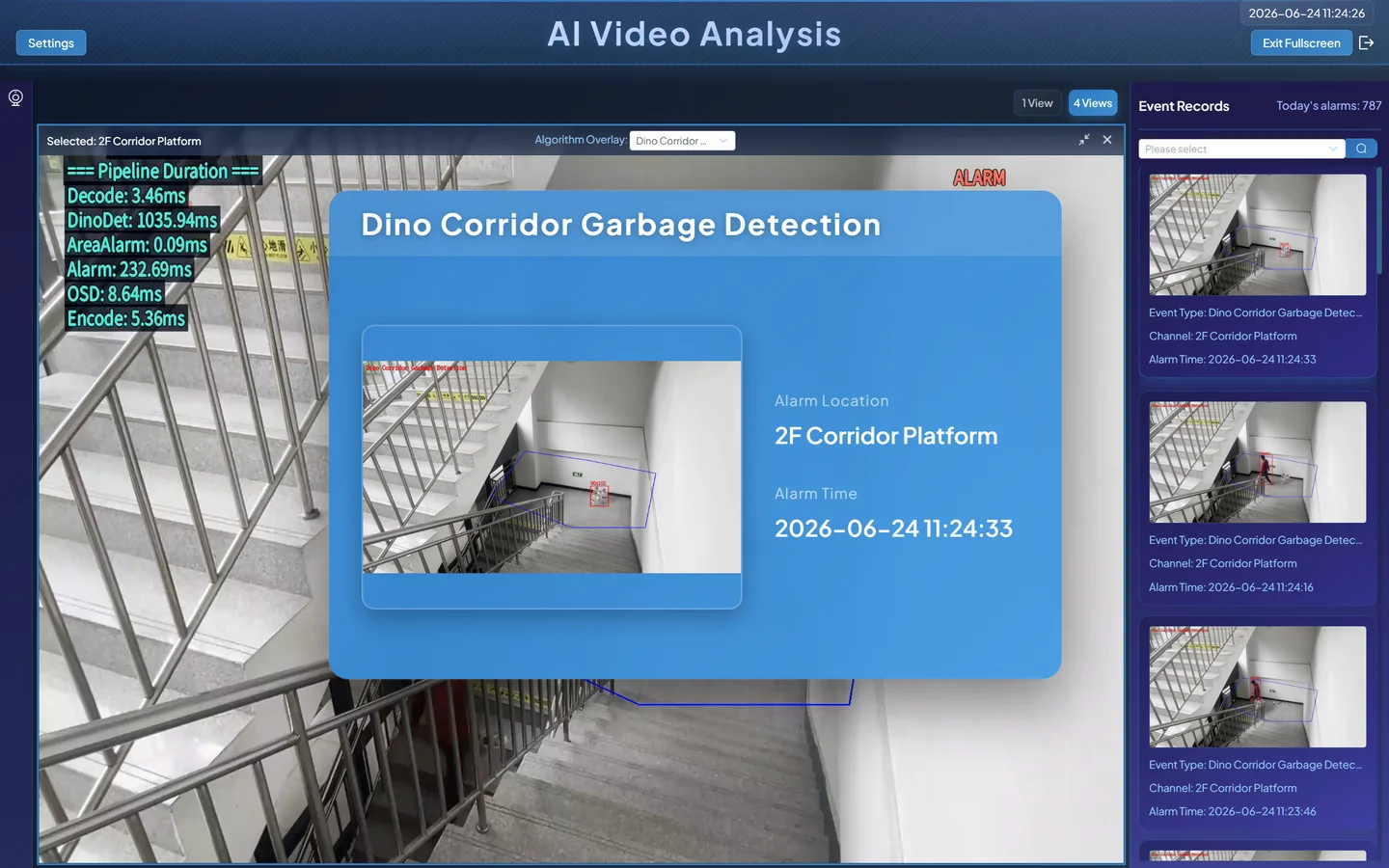
Open Event Center and query the channel and task.
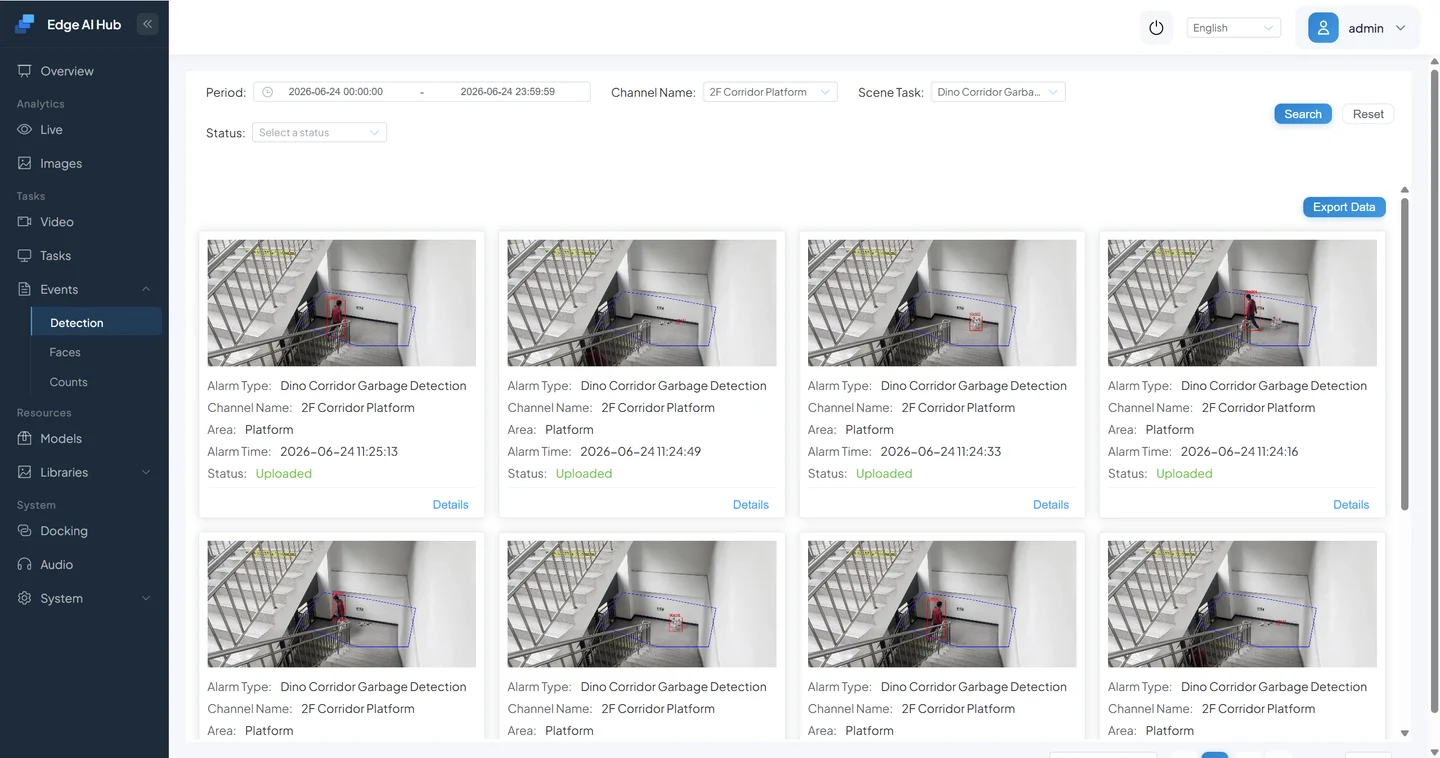
Expected result: people are labeled person, visually discernible garbage is labeled garbage, the background does not produce many matching boxes, and an in-area target creates an event when its rules are met. If two classes are unstable, test person and garbage separately.
4.4 DINO Target-Word Reference
| Target | Preferred English word | Validation reminder |
|---|---|---|
| Person | person | Include human posters and screen images as negatives |
| Vehicle | car or vehicle | vehicle is broader; test separately |
| Garbage | garbage or trash | Do not use “the area is dirty” as an object name |
| Fire extinguisher | fire extinguisher | Test distant small targets separately |
| Cat / dog | cat / dog | Include obstruction, night, and small-target cases |
| Box / package | box / package | Test synonyms separately instead of stacking them |
| Chair | chair | Check duplicate boxes in dense arrangements |
| Smoke | smoke | Use cloud, steam, and exposure issues as negatives |
| Flame | fire or flame | Use lights, reflections, and displays as negatives |
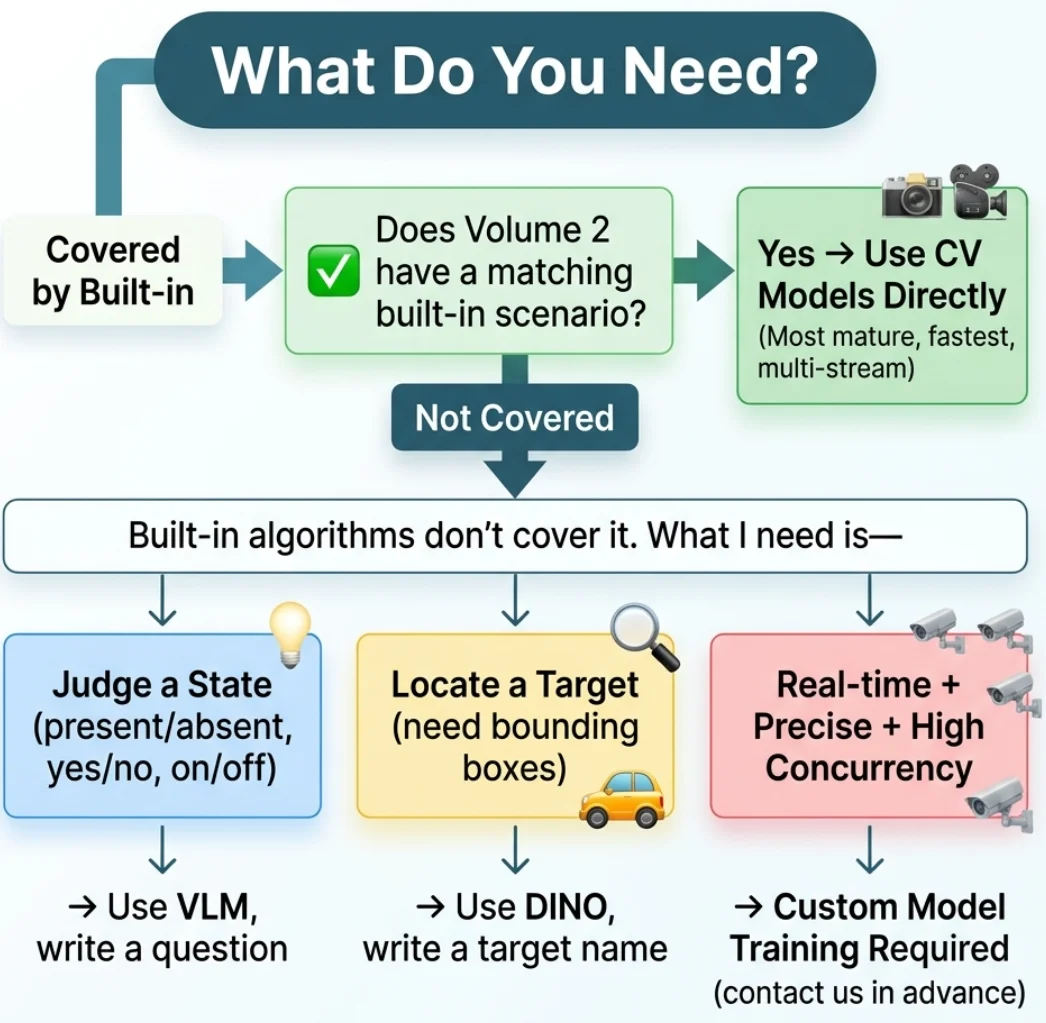
5. Choose Between Conventional CV, VLM, and DINO
- If a current built-in task meets the requirement, use its conventional model.
- If no task matches and the requirement is a visible single-frame state, validate a VLM with images.
- If open-vocabulary boxes are required, validate DINO with images or one video channel.
- For high-frequency deterministic output, exact counts, high concurrency, or a safety-critical loop, compare quantitatively on target hardware and use a dedicated model and rule Pipeline when needed.
| Comparison | Conventional detection/classification | VLM | DINO |
|---|---|---|---|
| Rule source | Fixed model classes and Pipeline | A target phrase or complete question | One or more target nouns |
| Main output | Boxes, classes, scores, and rule output | Yes/no decision and event | Boxes, classes, and scores |
| Scenario change | Change model, labels, or rules | Change prompt and revalidate | Change target word and revalidate |
| Best fit | Frequent fixed classes and mature tasks | Long-tail visual-state judgment | Long-tail object localization |
| On-screen form | Usually boxes or a business overlay | Usually no box | Boxes whose update rate depends on sampling and inference |
| Deployment evidence | Labeled-set metrics, performance, and business-rule acceptance | Fixed positive, negative, and difficult samples, stability, events, and resources | Box position and class, false positives and misses, events, and resources |
The three are complementary; the newest technique is not automatically the best replacement.
6. Prompt Templates and Validation Records
6.1 VLM Reference Templates
Every complete question below requires Advanced Prompt Mode:
| Scenario | Reference prompt | Output | ROI guidance |
|---|---|---|---|
| Overflowing bin | Determine whether garbage has reached the bin rim or clearly overflowed; ignore normally placed objects outside the bin | Yes / No | Cover the bin and rim |
| Fire cabinet | Determine whether the fire-equipment cabinet door is fully closed; ignore glass reflections | Yes / No | Cover door edges and latch |
| Door state | Determine whether the door leaf is clearly open | Yes / No | Cover door and frame |
| Indicator | Determine whether the device indicator is red | Yes / No | Crop tightly to the indicator |
| Blocked passage | Determine whether boxes, vehicles, or piled objects clearly block the fire passage; ignore a person passing briefly | Yes / No | Cover the passage floor |
| Workstation | Determine whether someone is staffing the seat or operating position | Yes / No | Cover seat and work area |
For automatic wrapping in normal mode, enter only a target phrase such as open fire cabinet door; do not enter a full sentence from this table.
6.2 Validation Record for Every Task
| Item | Record |
|---|---|
| Task definition | One sentence stating what should trigger |
| Prompt version | Mode, complete text, and change time |
| Input set | Fixed positive, negative, and difficult samples |
| Runtime conditions | Model, device backend or remote service, ROI, frame rate, generation style, and thresholds |
| Actual output | Decision, boxes, and events for every image or clip |
| Acceptance criteria | Allowed misses, false positives, latency, cost, and resource use |
Before accepting a new task:
- [ ] Image Analysis covers at least five clear positives and five clear negatives.
- [ ] Site-specific difficult samples are included, not only ideal images.
- [ ] The same fixed set has been rerun with identical settings and disagreement is recorded.
- [ ] The ROI excludes irrelevant background.
- [ ] Frame rate matches allowed discovery delay and measured resources.
- [ ] Positive and negative video clips, event captures, and sustained operation pass.
7. Troubleshooting
The VLM Produces No Result
- Confirm that the atomic model and tokenizer are installed, not only the task template.
- For local inference, confirm a supported Sophon backend; for remote inference, check network, URL, model name, endpoint, and credentials.
- Test one clear image before introducing video sampling and ROI.
- Inspect initialization, out-of-memory, request-timeout, and response-parsing logs.
- Restore video only after image mode passes.
A Complete VLM Prompt Behaves Incorrectly
Check Advanced Prompt Mode. When it is off, CosmoEdge wraps the complete sentence again as an object-existence query. Turn it on for a complete question, then rerun the entire fixed sample set.
VLM Results Are Unstable
- Fix the model, mode, generation style, and sample set.
- Split a vague requirement into one visible binary decision.
- Add visible features and explicit exclusions.
- Tighten the ROI.
- Use Strict or reduce sampling variability under a controlled record.
- If identical input still misses acceptance, use a dedicated model or human review.
Remote VLM Times Out or Fails Intermittently
Check DNS, routing, TLS, and proxy from CosmoEdge to the remote URL. Compare service logs with timeout_ms, and verify model-name and /chat/completions compatibility. Lower the frame rate to prevent request buildup. Do not hide an unavailable service by increasing timeout without limit.
DINO Produces No Boxes or Too Many Boxes
- Confirm that the target is large enough and visually discernible.
- Test one concrete English noun at a time.
- Record synonyms separately instead of stacking them.
- Check ROI, box confidence, text confidence, and model resources.
- Compare a conventional detector for fixed high-frequency classes.
The Target Definition Is Ambiguous
Ask stakeholders to label a set of images independently as should-trigger and should-not-trigger. If people cannot agree, neither a prompt nor a model has a stable acceptance criterion. Define the business boundary first.
Acceptance Checklist
- [ ] The reason for choosing VLM, DINO, or a conventional model is recorded.
- [ ] Normal VLM mode uses only a target phrase; complete questions use Advanced Prompt Mode.
- [ ] Local or remote inference configuration is recorded without committing credentials.
- [ ] The VLM passed fixed positive, negative, and difficult image samples.
- [ ] DINO produces the expected class and box position.
- [ ] Video area, frame rate, parameters, and running strategy are recorded.
- [ ] Event Center output matches the task definition.
- [ ] Sustained operation has no unexplained model, network, or resource failure.
Next Step
Read Pipeline Orchestration to organize inputs, models, rules, and outputs into a maintainable Pipeline.